
Reading plans in detail
If you need to follow small labels and colour differences on a plan while leaving room for notes, compare larger colour screens. Check readability using your own file.


First, choose a tablet that lets you open, annotate and export your own harbour plan as a PDF. Test it with the file and pen you actually intend to use. A larger colour screen gives you more room to view a plan and your notes side by side, while a more compact model is easier to carry around. A paper-like tablet may suit you if reading and marking up PDFs are your main priorities, but check its file-handling features and any subscription requirements too.
If you need to follow small labels and colour differences on a plan while leaving room for notes, compare larger colour screens. Check readability using your own file.
If you regularly write on drawings and take your tablet with you, weigh up screen size against portability and check which pen is compatible with the model you choose.
If you mainly want to read, mark up and find plans again, check whether a paper-like workflow suits your files and how you want to transfer them.
Best for: viewing coloured plan layers, small labels and handwritten notes at the same time. Test your own plan on the screen.
The trade-off: more screen space means less portability. Also check whether the pen you want is included with your chosen model.
Best for: working on the go and usually writing on zoomed-in sections of a plan.
The trade-off: check that labels and the writing space you need are still easy to use on a page from one of your own plans.
Best for: mainly reading PDF plans, marking them up and adding handwritten notes.
The trade-off: check that colour display, zoom and file transfer meet your needs. Some editable imports may require a subscription.
| What to consider | What should you check? | Who is this important for? |
|---|---|---|
| Plan display and detail | Open one of your own plans and check the labels, legend and colour distinctions, both at full-page size and zoomed in. | If you need to follow small labels and plan layers clearly, detail is your top priority. Around 36% of consumers prioritise plan details. |
| Handwritten PDF notes | Test a PDF: write next to a detail, save the file, export it and open it again. Also check pen compatibility and what’s included in the bundle. | If you want to keep references on the right page and find them again, focus on the whole annotation workflow. Around 29% of consumers prioritise handwritten PDF notes. |
| Taking it with you while studying | Compare the size and weight of the exact model, including the case and any other accessories you plan to carry. | If you often move between study locations, ease of handling may matter more than a large workspace. Around 21% of consumers make portability their top priority. |
| Bundle and file workflow | Check which pen and charger are included, whether any features require a subscription and which file formats your course uses. | If you need a complete set-up and a suitable way to exchange files, check the entire workflow. Around 14% of consumers prioritise the purchase and file compatibility. |
Support for marking up documents or PDFs doesn’t prove that specific design software or original project files will work.
Ask which file formats and apps your course uses, then test one of your own files with the required software before choosing.
If your course requires project files, you may need a different app, computer or workflow.
Apple lists Apple Pencil support for the 13-inch iPad Air, but doesn’t include the Pencil in the stated box contents. For the Lenovo Idea Tab Pro ZAE40020SE, also check which pen is actually included with the bundle you choose.
Before buying, check the full contents of the exact model and make sure the pen model is compatible.
Depending on the model, you may need to buy a suitable pen or charger separately, so check what’s included in the bundle.
Screen specifications won’t show you how your plan, legend and writing space will fit together on screen.
Test the same representative plan page on the screen sizes you’re considering, both at full-page size and zoomed in.
The 11- and 13-inch iPad Air models are an option if you want to annotate plan PDFs on a versatile colour tablet.
According to Samsung, the Galaxy Tab S10 FE series offers a smaller and a larger option for writing with the S Pen and working in Samsung Notes.
The Idea Tab Pro is an Android option with a 12.7-inch screen; the ZAE40020SE model reviewed is described as ‘+ Pen’.
Paper Pro is a paper-like option for anyone who mainly wants to read and annotate documents and PDF plans.
This selection includes tablets with screen sizes and pen or note-taking features that may suit viewing plans and making handwritten notes. Check file compatibility and bundle contents for each model.
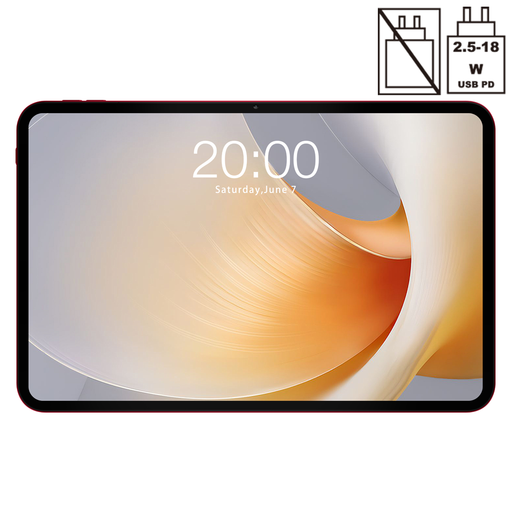 No image available
The stated screen size may be useful if you want more room to view a plan. Test readability with your own PDF.
13.4-inch screen, 120 Hz, Android 15.
 No image available
The stated compatibility with T Pen may suit handwritten note-taking. Check the exact pen and PDF workflow you need.
Helio G99, 256 GB storage, Android 15, 4G LTE. Compatible with T Pen.
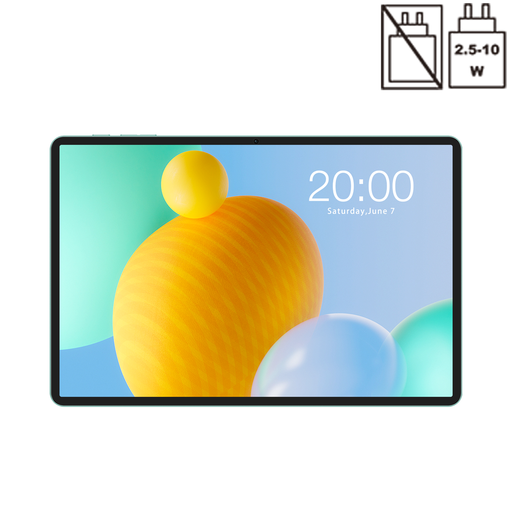 No image available
The stated, more compact screen size may suit you if you often take your tablet with you. Check whether details are clear enough on screen using one of your own plans.
11-inch IPS screen, 90 Hz, Android 16, 4G LTE.
 No image available
The product title states that a stylus is included, which may be useful if you want to add handwritten notes. Test writing on one of your own PDFs.
12.7-inch 2K screen, 256 GB storage, stylus included.
 No image available
The note-focused E-Ink screen may suit reading and writing. Check that its display and file transfer work for your plan PDFs.
10.65-inch E-Ink screen, speech-to-text in 16 languages and handwriting-to-text, according to the product title.
If your course provides plans as PDFs, test a real example file for zooming, writing, saving and reopening. Apple describes PDF mark-up on the iPad, Samsung mentions PDF mark-up in Samsung Notes, and reMarkable documents PDF import. This doesn’t automatically confirm that separate CAD or GIS project files will work.
First, save a copy of the original file, mark up one test page and export it. Check on a second device that the notes are in the right place. For PDFs, reMarkable describes a customised view that creates extra writing space; the steps may vary between apps.
Check what’s included with the exact model, especially the pen and charger, and whether any import feature you want requires a subscription. According to the Dutch government, consumers buying online from a business are often entitled to a 14-day cooling-off period. In the Netherlands, there is no fixed statutory two-year guarantee period; if a product is faulty, contact the seller to resolve the issue.