
Looking at map scans together
You place the tablet on a shared table and want to point out the overall layout and details of historical maps with others. Screen space and how easy your chosen viewer is to use are important considerations.


Choose a larger screen if several people want to look at map sections around the table together; a more compact model is handier if you often take your tablet with you. Test a representative scan in the viewer you use: a larger screen diagonal doesn’t guarantee that small details will be easy to read. Also check whether scans can be downloaded and whether a pen is included with the model you’re considering.
You place the tablet on a shared table and want to point out the overall layout and details of historical maps with others. Screen space and how easy your chosen viewer is to use are important considerations.
You compare handwritten passages or map details and want to record your findings. Check that the scan, tablet, viewer and a suitable pen all work together for the way you plan to use them.
You move between workspaces or want to keep files locally when you’re allowed to. Portability and storage capacity will therefore influence your choice.
First decide whether the tablet will mainly stay on a shared table or whether you’ll often take it with you. Then try the scan viewer, zoom and any annotation app with material similar to what you actually want to view.
| What to consider | What to look for | Who is this important for? |
|---|---|---|
| Viewing maps around the table | Compare the stated screen diagonals: for example, 13,1 inch for the Galaxy Tab S10 FE+ according to Samsung Netherlands and 12,7 inch for the Idea Tab Pro ZAE40020SE according to Lenovo Netherlands. Also test zooming and panning in the viewer. | If I want to look at a map with others, I need to be able to see both the overall layout and the details from where we’re sitting. Around 36% of consumers therefore prioritise viewing maps together. |
| Reading details and adding annotations | Open the same scan on the tablets you’re considering and check how easy it is to read, whether a pen is compatible and whether the annotation app can save notes. Samsung says an S Pen is included with the S10 FE series; Apple lists the Pencil models supported by the iPad (A16). | If you want to examine handwriting or map symbols and make notes, try out the combination of scan and app. Around 29% of consumers prioritise examining details and adding annotations. |
| Saving scans for offline use | Check the download option and rights marking for each scan, then compare the storage you’ll need with the model’s capacity. Apple specifies 128, 256 and 512 GB versions of the iPad (A16); Samsung lists microSD support for the Galaxy Tab S10 FE and FE+. | If I want to use permitted scans later without an internet connection, I need to check both the rights and the available storage. Around 21% of consumers prioritise having files available locally. |
| Portability and accessories | Balance screen space against size and weight. Apple specifies 477 grams for the Wi-Fi iPad (A16), while Samsung lists 664 grams for the Wi-Fi Galaxy Tab S10 FE+. Also check whether a pen, case and charger are included with each offer. | If you often move between workspaces, you’ll want a tablet that’s comfortable to carry and doesn’t require lots of extra accessories. Around 14% of consumers prioritise portability and the additional purchases they’ll need to make. |
Whether details are visible also depends on the scan, the zoom level and how the viewer works. The Consumers’ Association notes that extra-large tablets are less easy to carry around.
Before buying, open a representative scan from the distance you expect to view it and try zooming and navigating from the seats around the table.
Pen support doesn’t automatically mean that a pen comes with the tablet. Samsung says an S Pen is included in the box with the S10 FE series; Apple lists support for certain Pencil models for the iPad (A16).
Check the full product code, what’s in the box and whether the pen works with the app you want to use.
Any pen or case you need may have to be bought separately, so check for each version.
The National Archives describes a free reuse option for images with a download button and the ‘Public domain’ or ‘CC0’ marking. Not every scan you can view meets these conditions.
Check the download option and rights marking for each scan. For material from other providers, check their terms as well.
The Galaxy Tab S10 FE+ is a larger Android model to consider alongside more compact options.
The Idea Tab Pro ZAE40020SE is worth comparing if you’re looking for a 12,7-inch screen and 256 GB of storage.
The 11-inch iPad (A16) is a more compact iPadOS model to consider if you also want to take your tablet with you.
The Pad 7 Pro is an 11,2-inch Android model to compare if you’re weighing up screen resolution and a more compact size.
These product picks focus on larger screens for looking at archive scans together around the table. Try the scan in your own viewer; screen size alone won’t determine whether small details are easy to read.
 No image available
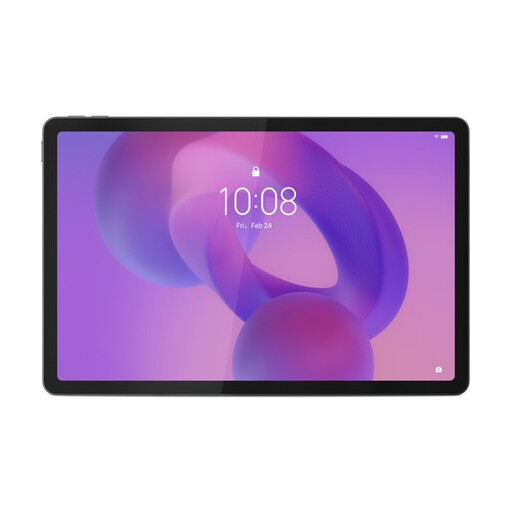
The 12,7-inch screen is a good size for looking at scans together, but check for yourself whether the details you need are visible and whether the pen works with your annotation app. The product name lists a 3K screen with 144 Hz, 8 GB RAM, 256 GB of storage, Wi-Fi 6E and Luna Grey. The product description says a Tab Pen Plus is included.
 No image available
The 12,1-inch screen is worth considering for viewing scans around the table; try a sample scan to see whether it’s large enough for your group. The product name lists a 2.5K screen, 8 GB RAM, 256 GB of storage and an included pen; this version is Rose.
 No image available
The 13,4-inch screen could be a good option when several people want to look at a scan together; check how the details appear in the viewer you use. The product name lists 120 Hz, Android 16, 128 GB of storage, 6 GB RAM plus 14 GB virtual RAM, and a folio case.
 No image available
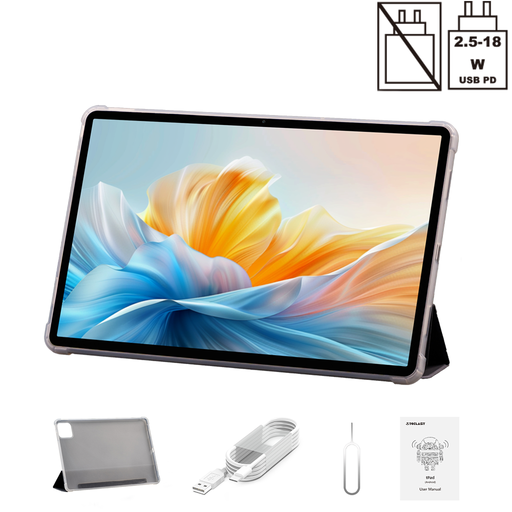
The 14-inch screen is designed for situations where plenty of space around the table matters; check readability with your own scan and bear the larger size in mind if you’ll be carrying it around. The product name lists a 2.2K screen, 8 GB RAM plus 40 GB virtual RAM, 128 GB of storage and an included folio case.
 No image available
The 12,7-inch screen could work well for looking at scans together and making notes, but check that the pen and app suit the way you plan to use them. The product name lists a 2K screen, 8 GB RAM plus 12 GB virtual RAM, 256 GB of storage and an included stylus.
If possible, open a representative scan in the viewer you actually use before you buy. Try navigating, full-screen viewing and zooming; ask the people who’ll be looking with you to check whether the details are visible from where they’ll be sitting. The National Archives describes these viewer features, but not how they work on every tablet model.
No, you can view available scans from the National Archives in a viewing window. If you want to save a scan locally or use it elsewhere, check the download option and rights marking for each image. Being able to view a scan online doesn’t automatically mean it’s free to download.
Not just because they’re historical images. For material from the National Archives, the stated free reuse option applies to images with a download button and the ‘Public domain’ or ‘CC0’ marking. Check the terms for the specific scan and for other collections separately.
The Dutch government states that consumers have a 14-day cooling-off period for many distance purchases, with some exceptions. Check the terms of the specific purchase; this doesn’t necessarily apply to business purchases or purchases from a private seller.