If you want to annotate PDFs and use regular tablet apps too, compare an iPad or Android tablet. If reading and writing are your priorities, an e-ink device is also worth considering. Before buying, check that your own files work on the device, that the screen size is comfortable at a café table and that the right pen is included with the model you choose.
Who is this for?
PDF annotator
You want to mark up PDFs with a pen and find your notes again later. Apple Support describes the built-in Markup tools on iPad, while Samsung explains how to annotate PDFs in Samsung Notes. When choosing, check both the app and which pen is compatible.
Reader at a small table
You take your device to a café and want a screen that makes your reading list comfortable to browse, without making the device awkward to carry. The Consumers' Association notes that tablets with screens measuring 12 to 14 inches are less convenient to carry around.
E-book reader who takes notes
You mainly read e-books and want to make notes in them. Kobo describes stylus support on models including the Elipsa 2E; reMarkable supports PDF and EPUB, but not e-books with DRM. So check that you can access your own library too.
What should you look for when choosing?
iPad with a compatible Apple Pencil
Choose this if: you want to mark up PDFs and use regular iPad apps too. Apple Support describes the built-in Markup tools.
The trade-off: check which Apple Pencil works with the specific model. Apple does not list a Pencil among the items included with the iPad (A16).
Android tablet with a suitable pen
Choose this if: you want to annotate PDFs with a pen and use Android tablet features too. Samsung explains how to import, annotate, save and share PDFs using Samsung Notes.
The trade-off: check which pen is included and whether the Samsung Notes features you want work with your chosen model and software version.
E-ink device for reading and annotating
Choose this if: reading and making notes in e-books or PDFs matter more to you than general tablet apps.
The trade-off: check that your files are supported. According to the manufacturer, reMarkable does not support e-books with DRM.
When choosing a device for your café reading list, the main things to consider are annotation, a manageable size, access to your e-books and the complete tablet-and-pen combination.
| What to consider |
What to look for |
Who is this important to? |
| Annotating PDFs |
Try one of your own PDFs and check whether you can save or share the edited version. |
If I want to mark up PDFs by hand and find them again later, the app and pen need to work well together. Around 33% of consumers say PDF annotation is their main need. |
| Size for the café |
Compare the dimensions and weight of the model with the space on your table and how you plan to carry it. |
If I read and write at a small table, I want enough room to view the document without having to carry an awkwardly large device. Portability is the main priority for around 27% of consumers. |
| E-books and file support |
Check the format and any DRM protection on your own e-books, and try a representative PDF too. |
If I mainly want to read e-books and make notes, I need to be able to access my existing library. This is the top priority for around 20% of consumers. |
| Tablet and pen together |
Check the exact model or bundle code and what is included with that version. |
If I want to get started straight away with a working pen and tablet, I need to know whether the pen is included in the box. For around 20% of consumers, having the complete tablet-and-pen combination is the top priority. |
Common buying mistakes
-
Assuming a compatible pen is included
Pen support and what comes in the box are not the same thing. Apple lists Pencil support for the iPad (A16), but does not include a Pencil among the items in the box.
Check the contents of the exact model you are buying and compare the tablet with the compatible pen you want to use.
If the pen is not included with the model you choose, you may need to buy a compatible one separately.
-
Choosing an e-ink device without checking your own e-books
reMarkable supports PDF and EPUB, but not e-books with DRM. This means a protected book from your existing library may not be supported.
Check the format and DRM protection of a few representative books and PDFs from your reading list.
-
Assuming the biggest screen is always the most convenient
A larger screen gives you more room for documents, but the Consumers' Association notes that tablets measuring 12 to 14 inches are less convenient to carry around.
Compare the screen size and dimensions with the space where you read and write, as well as how you plan to carry the device.
Brands worth comparing
Apple
Compare iPad models if you want to combine PDF annotation with general tablet apps.
- Apple Support describes built-in Markup tools for PDFs and other files. For the iPad (A16), Apple lists support for Apple Pencil (USB‑C) and Apple Pencil (1st generation).
- Check the exact Pencil compatibility for each iPad. No Pencil is listed among the items included with the iPad (A16).
Samsung
Galaxy Tab models are worth considering if you want to annotate documents as part of an Android tablet workflow.
- Samsung explains how to import PDFs, annotate them with the S Pen, and save and share the result using Samsung Notes.
- Samsung notes that service availability can vary by model and software version. Check that the combination works for the version you choose.
Lenovo
Compare Idea Tab versions if you are looking for an Android tablet that comes bundled with a pen.
- For the Idea Tab Plus ZAG70187SE, Lenovo lists a 12.1-inch screen, 8 GB of memory, 256 GB of storage and a pen.
- A larger screen means weighing up the space you have at the table and how easy the device is to carry. Lenovo notes that accessories and colours may vary by bundle and region.
Kobo
Compare stylus-compatible e-readers if you want to write directly in supported e-books and PDFs.
- For the Elipsa 2E, Rakuten Kobo lists a 10.3-inch E Ink screen and an included Stylus 2 for making notes in e-books and PDFs.
- Stylus compatibility does not in itself confirm that a stylus comes with every Kobo model. Check the bundle details.
reMarkable
Paper Pro is an alternative to a regular tablet, designed for reading and writing.
- According to reMarkable, Paper Pro has an 11.8-inch colour screen and a reading light.
- According to reMarkable, PDF and EPUB are supported, but e-books with DRM are not. Check that you can access the titles on your reading list.
Products for reading and annotating
This selection of Joybuy products focuses on Android tablets with a pen or stylus for handwritten notes and document annotation.
 No image available
Lenovo Yoga Tab ZAG60028PL, 11.1 inch, 12 GB/256 GB, with Tab Pen Pro
An option if you want to make handwritten notes on the go and are looking for a bundle that includes a pen.
The product title lists an 11.1-inch 3.2K touchscreen with 144 Hz, Snapdragon 8 Gen 3, 12 GB LPDDR5X memory, 256 GB UFS 4.0 storage, Wi-Fi 7 and Android 15.
Joybuy
 No image available
Lenovo Idea Tab, 11 inch, 256 GB, Wi-Fi, Android 15, grey, with stylus
A good fit if you are looking for an 11-inch tablet with a stylus for taking notes. Check that the pen you choose is suitable for the annotation you want to do.
The product title lists 256 GB of storage, Wi-Fi and Android 15.
Joybuy
 No image available
TECLAST ArtPad Pro, 12.7 inch 2K, 20 GB/256 GB, with stylus
A larger-screen option to compare if you want more room for documents. The Consumers' Association notes that tablets measuring 12 to 14 inches are less convenient to carry around.
The product title lists 20 GB of memory, specified as 8 GB + 12 GB virtual expansion, and 256 GB of storage.
Joybuy
 No image available
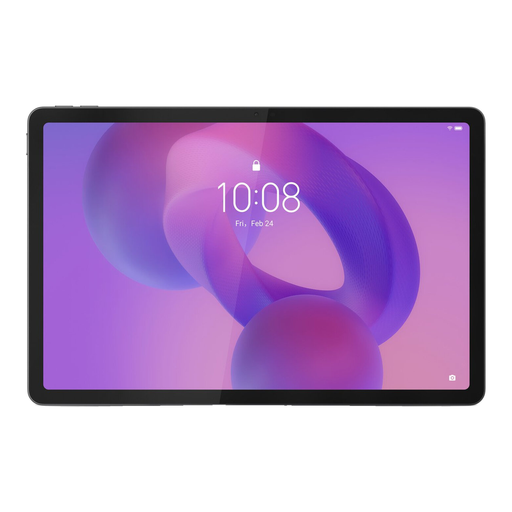
Lenovo Idea Tab Plus Wi-Fi, 12.1 inch 2.5K, 8 GB/256 GB, with pen, Rose
An option if you want to make handwritten notes on a larger screen. Also consider the space at your café table and how you will carry it.
The product title lists a 12.1-inch 2.5K screen, 8 GB of memory and 256 GB of storage.
Joybuy
 No image available
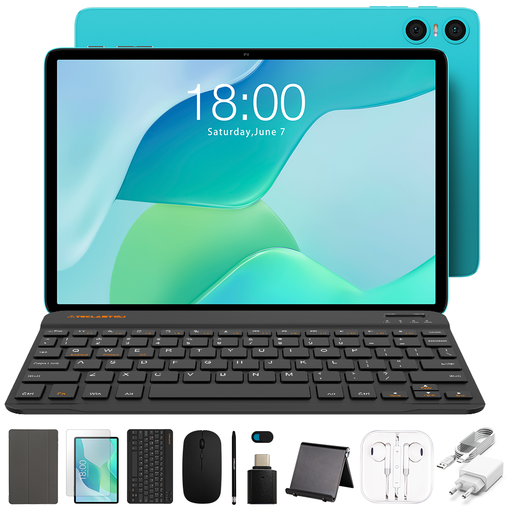
TECLAST P33, 10.1 inch, 9 GB/64 GB, with stylus
An option if you want to use a 10.1-inch tablet with accessories at the table. Check that the included stylus is suitable for the annotations you want to make.
The product title lists 9 GB of memory, comprising 3 GB + 6 GB virtual expansion, 64 GB of storage and a bundle that includes a case, English-language Bluetooth keyboard, Bluetooth mouse, stand and stylus pen.
Joybuy
Frequently asked questions
Can I annotate a PDF on an iPad without a separate paid app?
Yes. Apple describes built-in Markup tools that let you annotate PDFs and other files. Try one of your own files to check that you can save the edited PDF and find it again later.
How do I get started with annotating in Samsung Notes?
According to Samsung, you can import a PDF into Samsung Notes, write or mark it up with the S Pen, then save and share the result. Check that the feature is available on your chosen model and with its software version.
Can I open my existing e-books on reMarkable?
reMarkable supports PDF and EPUB, but not e-books with DRM. So check the file format and protection on your own books before choosing.
What can I do if my tablet breaks too soon?
In the Netherlands, the seller must offer an appropriate solution under ACM ConsuWijzer guidelines if the product does not perform as you could reasonably expect when used normally. The right solution depends on the circumstances; the same fixed warranty period does not simply apply to every product.
Is there a cooling-off period for a tablet bought online?
According to ACM ConsuWijzer, you generally have 14 days from delivery to change your mind about a tablet bought online. Check the applicable exceptions and returns policy if you want to send your purchase back.


