If you already have a suitable computer, a compact graphics tablet can save space, but you’ll look at your computer screen while you draw. If you want to work directly on a screen as you create your collage, compare standalone tablets by size, stylus compatibility and the collage apps available. Also check that the stylus works with the exact device and what’s included in the box.
Which setup is right for you?
Collage maker with a small desk
You want to work directly on a compact screen or place a drawing surface next to an existing computer. Compare the overall dimensions of the device. If you’re considering a graphics tablet without a screen, remember to allow space for your computer screen too.
Creator with an existing computer
You already have a screen and collage software, and want to use a pen without adding a second standalone device. Before you buy, check the connection and operating system support for your computer.
Photo collage maker using an iPad
You want to place photos on a canvas and move elements between layers or canvases. Check that your chosen app works on the iPad and that your Apple Pencil is compatible with your exact model.
What should you look for?
Standalone iPad with Apple Pencil
Choose this if: you want to import, select and arrange photos directly on the screen. Procreate documents these collage-making actions for iPad.
Bear in mind: the available screen space and whether the Pencil is compatible with your exact iPad model.
Standalone Samsung Galaxy Tab
Choose this if: you want to work directly on an Android screen and the collage app you need is available for your tablet.
Bear in mind: according to Samsung, the S Pen for the Galaxy Tab S10 FE doesn’t support BLE, so don’t expect Bluetooth pen actions.
Graphics tablet without a screen
Choose this if: you already have a compatible computer and screen, and want to use pen input with them.
Bear in mind: you draw on the tablet while looking at a different screen. Also check the connection, software and box contents.
| What to consider |
What should you check? |
Who is this most important for? |
| Space and drawing setup |
Compare the overall dimensions and active drawing area. Also check whether you’ll need space for a separate computer screen. |
If my desk is already full, I want to know how much workspace the whole device takes up and whether I draw on the screen itself. Around 33% of consumers prioritise space and drawing setup. |
| Compatibility |
Check the full device model, Apple Support Netherlands’ Pencil compatibility list and, for a graphics tablet, the connection and operating system support. |
If I want to keep using my existing iPad or computer, I want to make sure the pen and device work together before I buy. Around 27% of consumers make compatibility their top priority. |
| Selecting photos and building collages |
Check that your chosen app can import photos and move the selections or layers you need. Procreate documents these features for iPad. |
If I want to cut elements out of photos and place them on a collage canvas, I want to be able to do this in the app I plan to use. Around 20% of consumers start with this workflow. |
| Complete setup |
Check what’s in the box and whether you’ll also need a pen, cable or computer. Apple offers the Pencil as a separate configuration option; Wacom describes a configurable One S version that includes the tablet only. |
If I want a clear overview of everything I need for a working setup, I’ll check what I already have and what else I need. Around 20% of consumers prioritise a complete setup. |
Avoid common buying mistakes
-
Choosing a pen based only on your tablet’s brand
Apple lists the iPad models and software versions supported by each Pencil version. The brand name alone doesn’t confirm compatibility.
Make a note of your full iPad model and check it against the official compatibility list before choosing a pen.
-
Mistaking a graphics tablet without a screen for a standalone tablet
A graphics tablet without a screen registers pen input, but it isn’t the same as a tablet where you can see the image directly. You’ll also need a suitable device with a screen.
First decide whether you want to draw directly on a screen or use pen input with your existing computer.
-
Assuming a pen and cable are always included
What’s included can vary between versions. Apple offers the Pencil as a separate option, while the configurable One S version described by Wacom includes the tablet only.
Check the packaging for the exact version and make a note of which items you already have.
Brands to compare
Apple
For anyone who wants to edit photos and collages directly on an iPad.
- Apple specifies the 11-inch iPad Air (M4), while Procreate documents photo importing and cutting and pasting for iPad.
- Apple Pencil Pro and Apple Pencil (USB-C) have model-specific compatibility. Check which Pencil works with your exact iPad model; the pen is a separate option.
Samsung
The Galaxy Tab S10 FE is a standalone Android tablet that comes with an S Pen.
- Samsung lists a 10.9-inch screen and an S Pen in the box for the Galaxy Tab S10 FE.
- Samsung states that the S Pen for the S10 FE doesn’t support BLE. Separately, check whether your collage app is available for the device.
Wacom
Graphics tablets for pen input with an existing compatible device.
- Wacom describes the One S as a compact tablet with USB-C and Bluetooth options.
- The configurable version CTC4110WLW3B described by Wacom includes the tablet only. Check whether a pen and cable are included with the version you choose.
Huion
A graphics tablet without a screen for pen input with a compatible computer.
- Huion lists the Inspiroy H640P as measuring 260 × 147,7 × 8 mm, with an active drawing area of 160 × 100 mm.
- This model doesn’t have a standalone screen and uses Micro-USB. Check that this connection works with your device.
XPPen
Compact graphics tablets for use with an existing device.
- XPPen lists the Deco mini7 as measuring 260,2 × 162,2 × 9,3 mm, with an active drawing area of 177,8 × 111,1 mm.
- The listed dimensions and USB-C connection are for the Deco mini7. For this model, also check that your device is supported.
Joybuy products for collage making
This selection includes graphics tablets for an existing Windows or macOS computer, standalone tablets with a pen, and a separate Apple Pencil. For each model, check the apps available, connection, pen compatibility and what’s included in the box.
 Image unavailable
Wacom Intuos Pro Pen Tablet Small
An option for pen input if you already use a suitable Windows or macOS computer.
The product description lists an active area of 187 × 105 mm, dimensions of 215 × 163 × 7 mm, 8,192 pressure levels, Bluetooth and USB-C. Check which software and connection your computer needs.
View at Joybuy
 Image unavailable
Wacom One pen tablet small - S
A compact graphics tablet for pen input with a suitable Windows or macOS computer. You’ll look at the computer screen while you draw.
The product description lists an active area of approximately 148 × 105 mm, a pressure-sensitive pen, USB-C and Bluetooth 5.1. Check what’s included in the box for this version.
View at Joybuy
 Image unavailable
Apple Pencil Pro (2024), for selected iPad Air and iPad Pro models
A separate pen for anyone who already has a compatible iPad and wants to work directly on the screen.
The product description mentions pressure and tilt sensitivity, plus magnetic pairing and charging. Compatibility depends on the model: check your exact iPad model with Apple Support Netherlands.
View at Joybuy
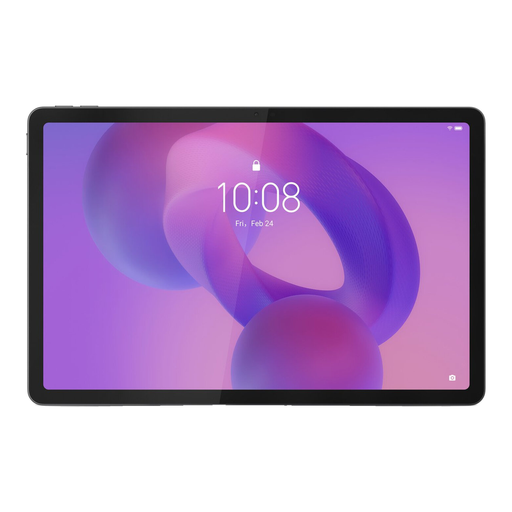 Image unavailable
Lenovo Idea Tab, 11-inch, Wi-Fi, 256 GB, grey, with stylus
A standalone Android tablet with a stylus for anyone who wants to work on the tablet screen without using a separate computer as their drawing device.
The product details list Android 15, 8 GB RAM, 256 GB storage and an included Tab Pen. Check that the collage app you need is available for this tablet.
View at Joybuy
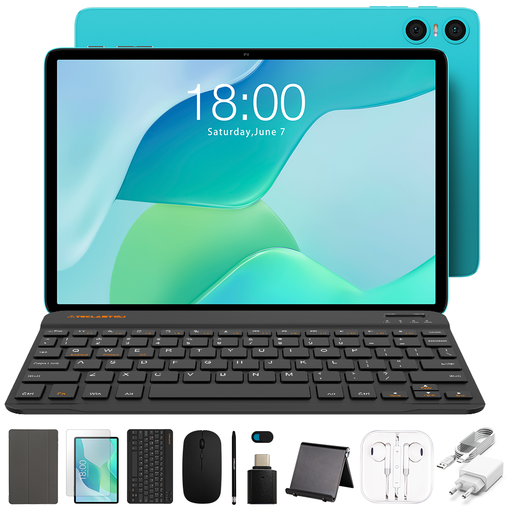 Image unavailable
Teclast P33 tablet, 10.1-inch, 64 GB, with stylus
A standalone tablet with a stylus for anyone who wants to work on the tablet screen. Before you buy, check that your collage app works on the device.
The product title lists 9 GB RAM (3 GB + 6 GB virtual expansion) and a bundle that includes a case, English-language Bluetooth keyboard, Bluetooth mouse, tablet stand and stylus.
View at Joybuy
Frequently asked questions
Can I use any Apple Pencil with my existing iPad?
No. Compatibility depends on the Pencil version and your exact iPad model. Apple publishes separate compatibility lists for Pencil Pro and Pencil (USB-C); check the iPadOS version listed too.
Do I need to look at my computer when using a graphics tablet without a screen?
Yes. You use the drawing surface for pen input and also need a suitable device with a screen. Before you buy, check the connection and operating system support.
How can I keep my collage editable when I move elements?
For iPad, Procreate documents how to import photos and copy and paste selections or layers, including between canvases. Try these steps with your own image in the app you plan to use.
What protection do I have when buying a tablet or stylus online?
According to the Dutch government, you’re entitled to a product that works properly and a statutory guarantee when you buy. For distance sales, you often have a 14-day cooling-off period; check the terms and any exceptions that apply to your purchase.
Can I publish internet photos I’ve found in a collage?
Not without considering the rights to the photos you use. The Dutch government states that a private copy for personal use can’t be distributed or made public. Before publishing, check that you have permission to use the images.


