
Reviewer of large design plans
You want to view drawings, detailed notes and project documents clearly, and weigh up extra screen space against portability.


Choose a tablet to suit your files and workflow. For large drawings, screen space matters; for annotations, the stylus and app need to be compatible with the exact model. A tablet won’t filter out background chatter on its own, so check your calling app’s settings and factor in any separate accessories.
You want to view drawings, detailed notes and project documents clearly, and weigh up extra screen space against portability.
You discuss plans on a calling app while other people are talking, and want to stop background noise disrupting the meeting.
You want to mark up project materials directly, and check in advance that the stylus, tablet and app all work together.
Start with the files and apps you need to use, then compare screen size, stylus input and your calling app’s audio settings.
| What to consider | What should you check? | Who is this important for? |
|---|---|---|
| Viewing design details | Compare the screen size and readability with your own drawings and documents. Weigh up extra workspace against portability. | If I want to view large plans and details side by side, a clear overview is my priority. Around 36% of consumers put screen space first. |
| Meetings with background chatter | Check the noise reduction and any voice isolation features available in the app you use, as well as account and IT settings. | If I’m in a call while other people are talking, I want to know which audio settings I can use. Around 29% of consumers put clear calls first. |
| Annotating and sharing files | Check stylus compatibility for the exact model, and test whether you can open, annotate and send back your own files. | If I want to make corrections directly on project materials, the stylus and file workflow need to work together. Around 21% of consumers put annotation first. |
| Longevity and additional costs | Check whether the stylus or keyboard you need is included. Refer to EU label information only for slate tablets covered by the rules (European Commission). | If I need accessories and care about longevity, I want to be able to assess the full specification. Around 14% of consumers put longevity and additional costs first. |
The app you use and its available settings both affect how background noise is handled during a call. The microphone alone doesn’t tell you what other people on the call will hear.
Check your calling app’s features and try a call in a similar environment.
Stylus support doesn’t automatically mean the stylus is included in the box. Microsoft says the Surface Slim Pen and keyboard are sold separately for the Surface Pro described; Lenovo also lists an Idea Tab Pro configuration that comes with a stylus.
Compare the exact tablet configuration, compatible stylus, box contents and any accessories you may need.
Buying a stylus or keyboard separately can add to the cost. What you need depends on your workflow and the configuration you choose.
The European Commission distinguishes between slate tablets and tablet PCs. The rules for slate tablets don’t automatically apply to every Windows 2-in-1.
Check the product category first, and refer to label information only for models covered by the rules.
The iPad Air range includes 11- and 13-inch models for a familiar iPadOS workflow. Apple lists support for Apple Pencil Pro and Apple Pencil (USB-C).
The Galaxy Tab S11 is a compact Android option for taking project notes with the S Pen.
The Idea Tab Pro is an Android option if you’re looking for a larger screen. Lenovo also lists a 12.7-inch configuration with a Tab Pen.
The Surface Pro is a Windows 2-in-1 option if your project workflow requires a desktop environment.
The Pad 8 series is another Android option to consider if stylus compatibility matters.
These product picks are suited to viewing design documents and, for the models mentioned, exploring stylus input. Check app and file compatibility for your own workflow.
 No image available
The 13-inch screen is well suited to viewing larger plans. Check that your design app and files work with iPadOS.
13 inches; Wi-Fi; 128 GB.
Check which Apple Pencil suits your workflow and whether it’s included with the configuration you choose.
 No image available
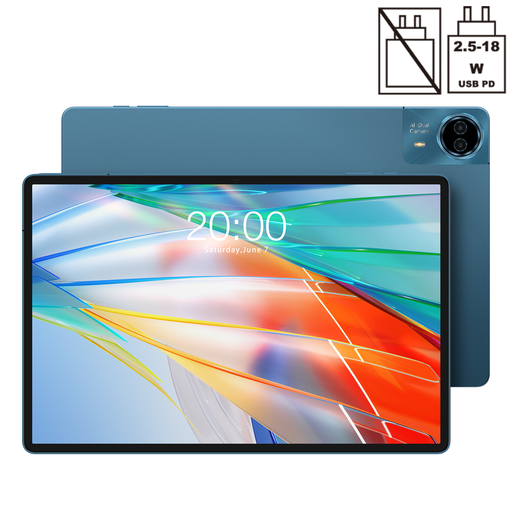
The 14-inch screen could suit anyone who wants plenty of room to view plans. Check that the size feels right for how you’ll use it.
14 inches; 2.2K resolution (2240 × 1400); 128 GB storage; Android 15.
 No image available
Its stated compatibility with the T-pen makes this model worth considering for annotations. Check whether the stylus is included with this configuration.
12.7 inches; 256 GB storage; Android 15; compatible with T-pen.
Also test whether your project app can open files and return them in the required format.
 No image available
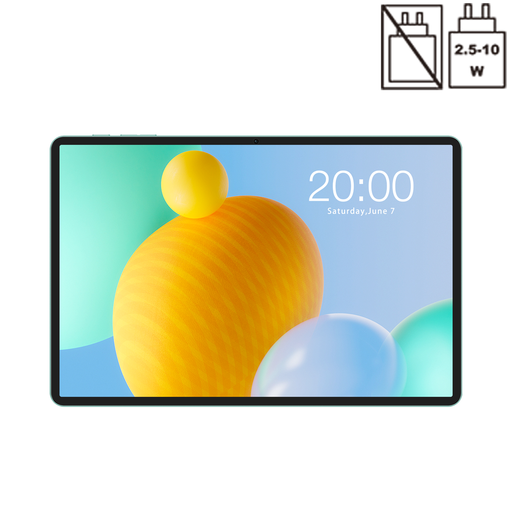
The 11-inch screen is worth comparing if you want to view documents on a tablet and prefer a smaller size.
11-inch IPS screen; 90 Hz; 128 GB storage; Android 16.
 No image available
The 12.7-inch screen and stylus mentioned in the product name make this a good option to consider if you want to view and annotate project materials. Check your app and file workflow.
12.7 inches; 2K screen; 256 GB storage; stylus included.
Noise reduction can reduce background noise in Teams, but it doesn’t guarantee that background chatter will disappear. Teams also describes voice isolation, which requires a voice profile; availability may depend on IT settings.
Test a representative file in the app your team uses. Check stylus support for the exact tablet and make sure you can return your annotations in the required format; stylus input alone doesn’t confirm that the file workflow will work.
It depends on the configuration. Apple doesn’t list a Pencil among the box contents for the iPad Air, while Microsoft sells the Slim Pen and keyboard separately for the Surface Pro described. Lenovo lists an Idea Tab Pro bundle with a stylus; always check the configuration you’re buying.
For a consumer purchase, the seller must provide a product that is fit for purpose and is your point of contact if something goes wrong. How long a tablet should last depends on what you could reasonably expect; there isn’t one fixed warranty period in the Netherlands for all tablets.
No. According to the European Commission, the rules have applied since 20 June 2025 to slate tablets placed on the EU market from that date, but not to tablet PCs, which are defined as a separate category. So don’t automatically apply the rules for slate tablets to a Surface Pro.