What should you look for when choosing?
First, check that your files and essential apps work with the tablet’s operating system. Then compare the screen, pen and portability to suit the way you discuss your proposal.
iPadOS tablet
A good fit if: you can use your design files and essential apps on iPadOS, and want an iPad Air with a smaller or larger screen. Apple lists Apple Pencil support and an anti-reflective coating.
Keep in mind: the Apple Pencil isn’t listed as included in the box, so check which pen and version you need.
Android tablet with pen
A good fit if: your files and apps work on Android and you want to use pen input during meetings. Samsung lists a compatible S Pen for the Galaxy Tab S10+; Lenovo describes a specific Yoga Tab Plus version that comes with a pen.
Keep in mind: check the box contents, pen compatibility and app features for each model and version.
Windows 2-in-1
A good fit if: you need to open or edit your proposal in a specific Windows environment. Microsoft describes the Surface Pro as offering pen input and an optional keyboard.
Keep in mind: the Surface Slim Pen is sold separately, so check the specifications of your chosen configuration.
| What to consider |
What to look for |
Who should pay extra attention? |
| Viewing together |
Compare the screen size and weight of the exact version; if possible, view the screen in similar lighting. |
If you review details on one screen with others, you’ll want enough space without choosing a tablet that’s awkward to carry. Around 33% of consumers put viewing together first. |
| Making notes on feedback |
Check pen compatibility, what’s included and whether the app can save or share notes. |
If you want to point things out or write directly on the proposal during a meeting, the pen and app need to suit your workflow. Around 25% of consumers give recording feedback top priority. |
| File workflow |
Test a representative file in the app you plan to use: open it, show it, annotate it and save it again. |
If your design depends on a specific app or file feature, check that first before deciding based on screen specifications. Around 25% of consumers start with the file workflow they need. |
| Portability and accessories |
Compare the dimensions and weight, and check which essential pen or keyboard comes with that version. |
If you often move between workspaces and don’t want to buy accessories you won’t use, weigh portability against screen space. Around 17% of consumers prioritise portability and the cost of essential accessories. |
Joybuy products for this use
These Joybuy picks are tablets for showing a design proposal. For models listed with a pen, you can also check whether it suits making notes during meetings. Before buying, check that your files and essential apps work with the version you’ve chosen.
 No image available
Lenovo Yoga Tab ZAG60028PL, 11.1 inch, 256 GB, Luna Grey
The product name lists an 11.1-inch screen and a Tab Pen Pro included in the box, for anyone who wants to annotate while presenting.
Specifications as listed in the product name: 3.2K, 144Hz, Snapdragon 8 Gen 3, 12GB LPDDR5X, 256GB UFS 4.0, Wi-Fi 7 and Android 15.
View at Joybuy
 No image available
Lenovo Idea Tab Plus WiFi, 12.1 inch, 256GB, Rose
The product name lists a 12.1-inch screen and a pen; check that the pen and your annotation app suit your workflow.
Specifications as listed in the product name: 2.5K, 8GB RAM and 256GB storage.
View at Joybuy
 No image available
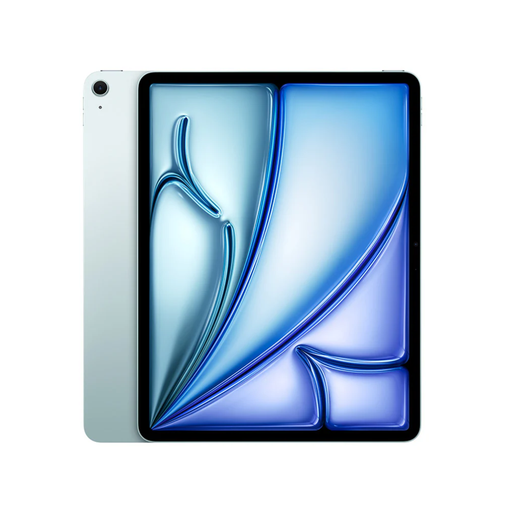
Apple 13-inch iPad Air (M4), Wi-Fi, 128GB, blue (2026)
The 13-inch screen is an option for viewing a design proposal together; check that your design app and files work on iPadOS.
The product name lists M4, Wi-Fi and 128GB. Apple Pencil and other accessories are sold separately.
View at Joybuy
 No image available
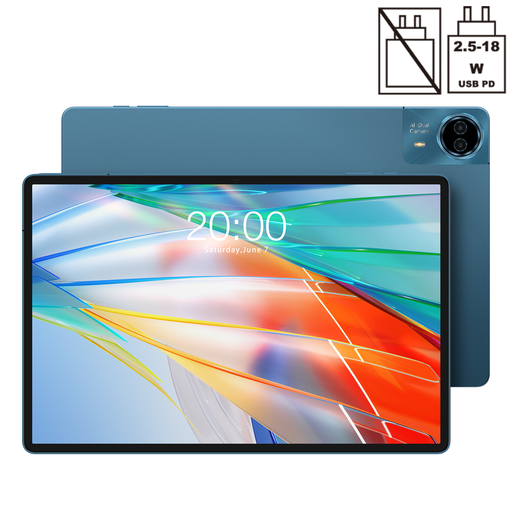
Teclast T70, 14 inch, 2.2K
The product name lists a 14-inch screen for showing a design proposal; decide for yourself whether this size suits where you’ll use the tablet.
Specifications as listed in the product name: 2240 × 1400 and Android 15. Check that your essential design app and files work with the version you choose.
View at Joybuy
 No image available
TECLAST ArtPad Pro, 12.7 inch, 256GB
The product name lists compatibility with a T-pen; check separately which pen is included and whether it works with your app.
Specifications as listed in the product name: 2K, Helio G99, 20GB (8GB + 12GB Virtual) RAM, 256GB storage and Android 15.
View at Joybuy
Frequently asked questions
Does a tablet for a design proposal need to be 13 inches?
No, it depends on how you present and carry your proposal. More screen space can be useful when others are viewing, while a smaller model may be easier to carry. Compare the weight and check for reflections under the lighting in your workspace.
Can I make notes with a pen straight away?
Only if the pen is compatible with the tablet and your app can handle the notes you want to make. Apple lists Pencil support for the iPad Air, but doesn’t include a Pencil in the box; Samsung lists a compatible S Pen for the Galaxy Tab S10+; Microsoft sells the Surface Slim Pen separately.
How can I stop my presentation from showing other information?
Prepare your file and any notifications that might appear before the meeting starts. If a proposal contains personal data and you share it with others, organisations may not do so without good reason, according to the Dutch Data Protection Authority; check the applicable privacy requirements. This isn’t a general requirement for every design file.
Do all tablets bought online come with a 14-day cooling-off period?
For a consumer buying online, the Dutch consumer and markets authority, ACM ConsuWijzer, says there is generally a statutory cooling-off period of up to 14 days after delivery, subject to exceptions. Don’t assume the same consumer rules apply to a business purchase without checking. Statutory warranty rights and an offered manufacturer’s warranty are also not the same thing.
Do all tablets in the Netherlands have the same EU energy label?
No, the rules don’t apply to every tablet category. The European Commission states that, from 20 June 2025, energy labelling rules apply to smartphones and slate tablets covered by the regulation, while tablet computers with a desktop-like operating system are treated separately. So only compare labels when the product category is covered by those rules.


