
Student working with an original 3D project file
You want to open the file in a suitable app, not just view it as an image or PDF. Check the file format and app first; SketchUp explains which formats SketchUp for iPad can import.


Start with the app and check that it can open your original project file and support the kind of review you need. More storage or a larger screen won’t solve an unsupported file format. An iPad is an option for local SketchUp files; Android is suitable only if a current, compatible app can handle your file, while a Windows tablet is worth considering if your course requires a compatible Windows app. Then compare screen space, weight, stylus support and the cost of any software and accessories you need.
You want to open the file in a suitable app, not just view it as an image or PDF. Check the file format and app first; SketchUp explains which formats SketchUp for iPad can import.
You take project files to a review and want to test in advance that they’ll be available locally. SketchUp explains how to save files locally on iPad; Autodesk explains how to use files offline after downloading them in advance through its mobile project workflow.
You want to see details alongside your notes, so screen size, weight and the stylus supplied with your chosen configuration all matter. Consumentenbond discusses the trade-off between a larger and smaller tablet screen.
First, check that the app supports your project file and the type of review you need. Then compare offline access, the screen and stylus, and the total cost of the setup you require.
A good fit if: your file and licence work with SketchUp for iPad and you want to open the project locally. SketchUp lists .skp, .stl and .dwg/.dxf among its import formats.
Bear in mind: check the subscription and app features you need. Pencil compatibility doesn’t mean the stylus is included with the tablet.
A good fit if: a current Android app supports your file and workflow, for example for viewing or annotating.
Bear in mind: SketchUp ended support and distribution of SketchUp Viewer for Android on 29 August 2025, so don’t choose this route based on that old viewer.
A good fit if: your course requires a specific Windows desktop app or the same desktop workflow.
Bear in mind: check the system requirements for the exact configuration, as well as the stylus, keyboard and software licence you’ll need.
| What to consider | What should you check? | Who is this important for? |
|---|---|---|
| File format and app | Note the file extension and the tasks you need to perform. Check that the app you plan to use supports importing, editing and any required licence. | If you want to review the original model in a particular app, it must support your file and the tasks you need to carry out. Around 33% of consumers prioritise file and app compatibility. |
| Local and offline access | After transferring the file, test whether the app can open it without a network connection. Distinguish between saving locally and downloading files in advance through a project service. | If you’re presenting somewhere without Wi-Fi, you’ll want to prepare the project in advance and open it offline. Among consumers who particularly need this access, the figure is around 27%. |
| Screen and stylus | Compare screen size and weight, and check both stylus compatibility and whether the stylus is included with that exact configuration. | If you want to point out details and add notes, look for a clear working area and a practical stylus. Around 20% of consumers say annotation and screen space are their main priorities. |
| Total cost | Check what’s included in the bundle, app or licence access, and the cost of any accessories you’ll need to buy separately. | If you want to use the tablet with the app and accessories you need, you’ll want to know the total cost of the complete setup. Around 20% of consumers prioritise the overall cost. |
A file can be stored on your tablet even if the app you want to use can’t open it in the right format. SketchUp lists specific import formats for SketchUp for iPad.
Test a representative project file and the task you want to perform, such as rotating, measuring or annotating, before choosing a device.
The features listed below apply to the specific product ranges and configurations mentioned. Always check that the app and file are compatible with your own project.
iPad Air configurations may suit students who have a compatible iPad app for their project file, including a suitable SketchUp workflow.
Galaxy Tab S10 FE configurations may suit an Android workflow if a current viewer supports your file and the tasks you need to perform.
The Idea Tab Pro ZAE40020SE is worth comparing if you’re looking for a larger Android screen and the stylus bundle described.
A Surface Pro for Business with Intel is a Windows tablet option to consider if your course requires a compatible Windows desktop workflow.
These Joybuy tablets have features that may be useful for design projects and annotation. For each model, check that your chosen app supports the file type and the review tasks you need; storage space alone doesn’t confirm this.
 No image available
Could suit you if you want to compare tablets with a stylus for viewing and annotating models. First check that your Android app supports your project file.
The product name lists an 11.1-inch screen, 256 GB of storage, 8 GB of RAM, Android 15 and an included Tab Pen Pro.
 No image available
Could be worth considering if you want to compare a larger screen and stylus for a design project. First check file compatibility in your chosen app.
The product name lists a 12.1-inch 2.5K screen, 8 GB of RAM, 256 GB of storage and a stylus.
 No image available
Could suit you if you want to compare a larger screen for model reviews. Check that the Android app you plan to use can open your file. Stylus compatibility doesn’t mean the stylus is included.
The product name lists Android 15, a 12.7-inch screen, 256 GB of storage and 20 GB of RAM, described as 8 GB plus 12 GB of virtual memory.
 No image available
Could be worth comparing if you’re looking for a tablet for project files. Don’t assume it will work for your design until a suitable app has opened your file.
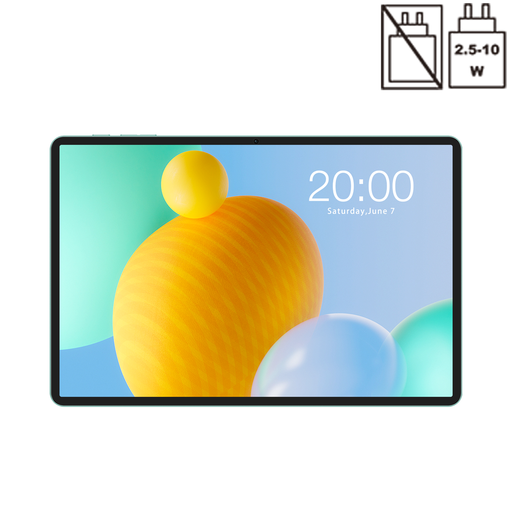
The product name lists an 11-inch screen, 128 GB of storage, 90 Hz and 32 GB of RAM, described as 6 GB plus 26 GB of virtual memory.
 No image available
Could be included in a comparison for viewing design projects. Check in advance that the app and file type are compatible.
The product name lists an 11-inch screen, Android 15 and 256 GB of storage.
No. Don’t rely on the old SketchUp Viewer for Android: SketchUp ended support and distribution through Google Play on 29 August 2025. For Android, check for a current app or another approved workflow that supports your file.
Save the file to your tablet in advance and test that the app you plan to use can open it with the connection switched off. SketchUp explains how to save files locally on iPad; Autodesk describes offline access to files downloaded beforehand through its own mobile project workflow. These workflows aren’t automatically interchangeable.
No. Apple lists the Pencils supported by iPad Air, but for the cited box contents it lists an iPad and USB-C cable. Check what’s included with the exact configuration or bundle you choose.
No. SketchUp describes a subscription option for the regular iPad app. SketchUp for Schools has separate terms for participating primary and secondary schools; SketchUp says you need a Google for Education account to access it through the iPad app. Check which option your course offers.
According to ACM ConsuWijzer, online product purchases generally come with a statutory cooling-off period that ends 14 days after delivery. You’re also entitled to a product that, under normal use, meets what you could reasonably expect; this isn’t simply a fixed two-year warranty period.
Check your educational institution’s guidance before using an external service. The Dutch Data Protection Authority emphasises that educational institutions must process personal data in digital systems carefully and securely.