
Model reviewer
You need to open, rotate and review a design file. Check in advance which file format and viewer your course uses; the SketchUp Help Center publishes specific import formats and system requirements for SketchUp for iPad.


Start with the model file and the app your course requires; a larger screen won’t help if the app can’t open the file. If you’ll be discussing the model on a video call, check the combination of model viewer, calling app and microphone settings too. For taking notes, pen compatibility and the accessories included with your chosen version also matter.
You need to open, rotate and review a design file. Check in advance which file format and viewer your course uses; the SketchUp Help Center publishes specific import formats and system requirements for SketchUp for iPad.
You discuss the model on a call while people nearby are talking. The calling app and available microphone settings matter more than a general claim about noise cancellation; test the combination on a trial call.
You want to sketch or add comments to the model, and take your tablet to classes or discussions. Check that the pen works with the app and is actually included with your chosen version.
First check that the required app can open the model file, then compare the calling features, pen and portability.
| What to consider | What should you check? | Who is this important for? |
|---|---|---|
| Opening the model file | Ask about the file format, required viewer and any account or education licence. The SketchUp Help Center and Autodesk Knowledge Network explain support for each app; check the file you’ll actually need to use. | If I need to open the specified model without any extra steps, I want to know first whether my file works in the required viewer. Around 36% of consumers give model compatibility top priority. |
| Keeping calls clear | Check the calling app and available microphone mode. Microsoft Support explains the settings for Teams; Apple Support describes Voice Isolation for FaceTime and certain third-party apps. | When I’m discussing a model with voices around me, I want to check whether the app I use has a suitable setting and try it out for myself. For around 29% of consumers, call clarity comes first. |
| Giving feedback with a pen | Check which pen works with the exact tablet version and whether it’s included. Apple Netherlands lists Pencil compatibility for the iPad Air M4; Lenovo lists an Idea Tab Pro version with a pen. | If I want to sketch on the model or add comments directly, I check both pen compatibility and what’s included with the version I choose. Drawing feedback is the main priority for around 21% of consumers. |
| Portability and the complete set-up | Compare the size and weight of the exact version and check which accessories and software access you’ll need. Microsoft Netherlands describes the keyboard and Slim Pen for Surface Pro as optional; the SketchUp Help Center explains the different education options. | If I take my tablet with me often, I want to know how bulky the complete set-up will be and which accessories I’ll need. Around 14% of consumers put portability and total cost first. |
Mobile modelling apps don’t automatically support every file format or review feature. A tablet may therefore be unsuitable for the required workflow, even if its screen is a good fit for discussing the model.
Start with the file and required viewer. If possible, ask for a representative file to test.
Microphone features are tied to specific apps and modes. The presence of a setting like this doesn’t prove that other voices will be removed in every room.
Check the calling app you’ll use and try it out in a similar environment.
Compatibility and what comes in the box are two different things. A pen bundle also doesn’t automatically tell you which features are available in your education app.
Check the product number, what’s included with your chosen version, and whether the app can save comments in the workflow you want.
The Surface Pro 12 inch (1st Edition) reviewed here uses a Snapdragon processor. Microsoft Support notes that app and driver compatibility on Arm-based Surface devices needs careful consideration.
Ask which design app your course requires and check compatibility with the exact Surface configuration.
An iPad option if the required model app and file are compatible with iPadOS.
An Android option if the education app works on the Galaxy Tab you choose.
An Android option if a large screen and a verified pen bundle suit your assignment.
A Windows 2-in-1 option if the required Windows workflow works on the configuration you choose.
The Joybuy options below have a large advertised screen for viewing and discussing models. Check each tablet to make sure the required viewer can open your file, and see which pen or accessories are included with that version.
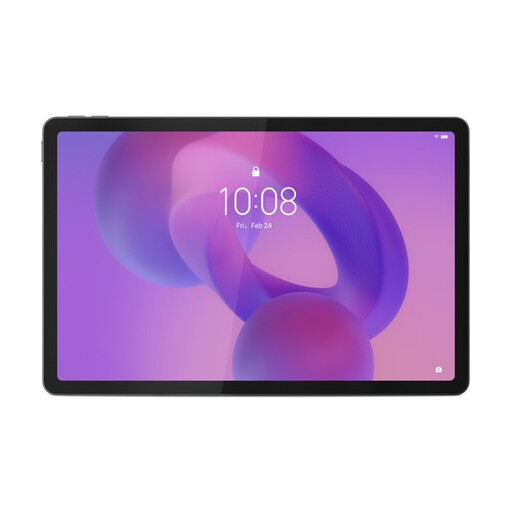 No image available
The 12.7-inch screen gives you plenty of space to view a model; check separately that the required viewer can open the file.
The product description mentions a Lenovo Tab Pen Plus. Check what’s included with the exact version.
Specifications in the product title: 3K display, 8 GB RAM and 256 GB storage.
 No image available
The advertised 13.4-inch screen could be suitable for viewing a model; check that the required viewer works on this tablet.
The product title lists a 120 Hz display, Android 16 and 128 GB of storage.
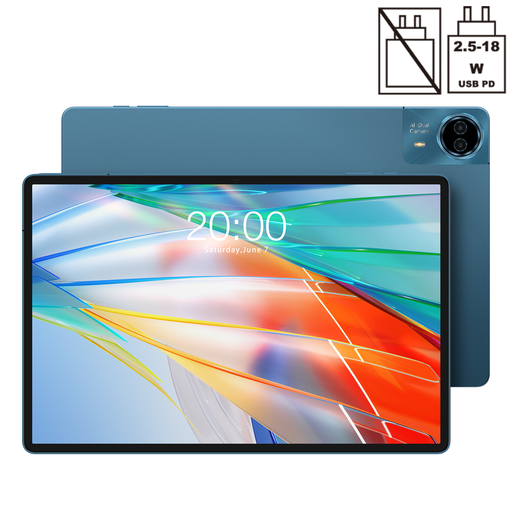 No image available
The advertised 14-inch screen gives you plenty of room to view a model; on its own, it says nothing about file compatibility.
The product title lists a 2.2K display, Android 15 and 128 GB of storage.
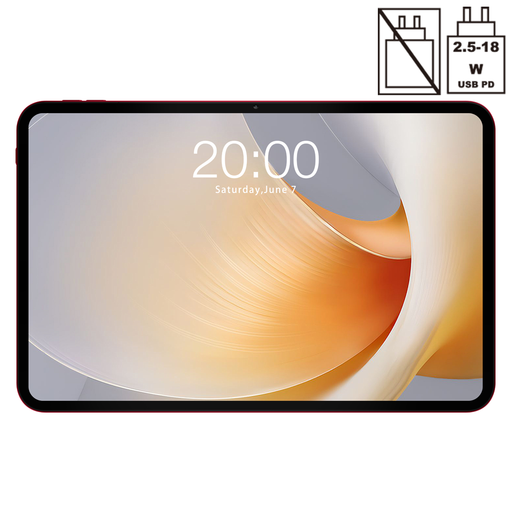 No image available
The 13.4-inch screen gives you plenty of space for discussing a model; first check that the required app supports the file.
The product title lists a 120 Hz display, Android 15 and 256 GB of storage, plus a folio case.
 No image available
The 12.7-inch screen is designed to give you plenty of space for discussing models; check separately that the model viewer you need works.
The product title mentions compatibility with a T-pen. Check the pen and bundle contents for the exact version.
Specifications in the product title: Helio G99 and 256 GB of storage.
No, the fact that a device is a tablet doesn’t mean it can do this. The SketchUp Help Center publishes the import formats for the iPad app; the Autodesk Knowledge Network separately explains which files can be viewed in Forma on mobile. First ask which file format and app your course uses.
That depends on the app, the settings available and the conditions. Microsoft Support describes noise cancellation for Teams on desktop and mobile; Apple Support describes Voice Isolation for FaceTime and certain third-party apps. Test the combination on a call, and don’t assume that all background speech will disappear.
Check that your iPad is running at least iPadOS 18.0; this is the version required for SketchUp for iPad according to the SketchUp Help Center. Also ask what access your educational institution provides, as the education options differ in access and account management.
Check the exact version and order rather than assuming that general pen support means a pen is included. Apple lists compatible Pencils for the iPad Air, Lenovo lists an Idea Tab Pro version with a pen, and Microsoft describes an optional keyboard and Slim Pen for the Surface Pro reviewed here. Also check what software access your course provides.
For a standard online consumer purchase, ACM ConsuWijzer says you generally have up to 14 days after delivery to change your mind, subject to legal exceptions. This is separate from your right to receive a product that meets what you could reasonably expect: if a product is faulty, the seller is responsible for providing an appropriate solution. According to the Netherlands Authority for Consumers and Markets, there is no fixed statutory guarantee period that applies equally to every tablet.