
Student with a small desk
You want to read plans digitally while keeping room for paper or other study materials. The size of the screen and tablet will help you decide what works best.


Choose a tablet around 11 inches if you want to leave room on a small desk for paper or other study materials. A 12.1-inch screen can give you a better overview, but takes up more space. If you want to write on plans, check whether the pen is included with the version you choose, and test that your own PDF file works well in the app you plan to use.
You want to read plans digitally while keeping room for paper or other study materials. The size of the screen and tablet will help you decide what works best.
You want to inspect lines and captions, and weigh up whether the extra screen space is worth having a larger tablet. Test readability with one of your own plan files.
You want to add notes or sketches to a PDF. So check both whether a pen is included and what the PDF app you use can do.
Start with the space you have available and the level of detail you need to see. Then check that the pen and PDF app suit the way you read and annotate plans.
| What to consider | What to look for | Who does this matter most to? |
|---|---|---|
| Desk space | Measure the space available, including any stand, and compare it with the tablet’s external dimensions. | If I want to use the tablet alongside paper, having enough clear desk space matters. Around 31% of consumers put workspace first. |
| Detail and overview | Open one of your own plans with fine lines and captions on the screen size you’re considering. | I want to see drawings and captions clearly, even if that means taking up more table space. Around 31% of consumers prioritise being able to read plan details. |
| Writing on plans | Check pen support, what’s included with the version you choose, and whether notes are saved in your PDF app. | For consumers who mainly want to add notes or sketches directly, the pen and app combination is decisive; they make up around 25%. |
| Storing files | Check the storage on the version you choose and find out where the PDF app saves or syncs files. | I want to store and find plans easily; around 13% of consumers put file management first. |
A tablet may work with certain pens without one being included in the box. Apple lists Pencil support for the iPad Air, but a pen isn’t included in the listed box contents. Samsung says the Galaxy Tab S10 Lite comes with an S Pen, while Lenovo describes an Idea Tab Plus version that includes a pen.
Check the contents and pen compatibility of the exact version you want to buy.
The screen size alone doesn’t tell you how much space the tablet will take up on your desk. Its external dimensions and any stand also make a difference.
Try setting out the tablet’s external dimensions and, if possible, open one of your own plans on the screen size you’re considering.
According to the Dutch government, you’re entitled to a product that works properly; an additional warranty package isn’t required for statutory protection. If a product doesn’t meet expectations, contact the retailer.
Check which additional situations a paid package covers and what it offers beyond your statutory rights.
The 11-inch iPad Air is a compact option if you want pen support without taking up too much desk space.
The Galaxy Tab S10 Lite is an option around 11 inches if you want a pen included with the version mentioned.
The 12.1-inch Idea Tab Plus is an option if having a better view of the screen matters more than keeping your workspace as small as possible.
These Joybuy picks include tablets for studying, with a range of screen sizes and features. Before using one to study and annotate restoration plans, check that it suits your own PDF files and way of working.
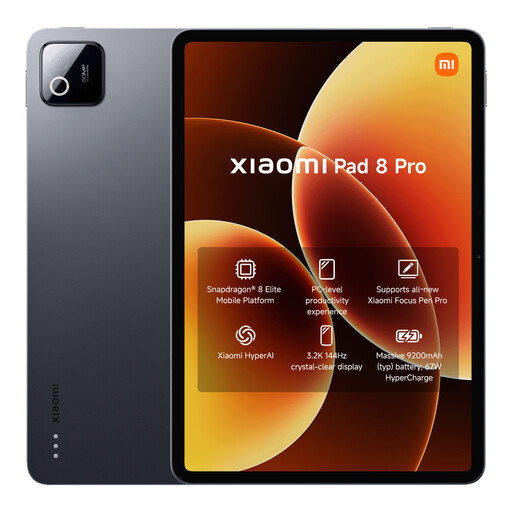 Image unavailable
An option to consider if storage space for plans and study files matters to you.
The product name lists 12G RAM and 512G ROM.
 Image unavailable
A compact option to consider if you want to use a tablet alongside other study materials and write on plans.
The product information lists an 11-inch IPS screen with a resolution of 2560 × 1600 pixels and an included Tab Pen. According to the description, a charger isn’t included as standard.
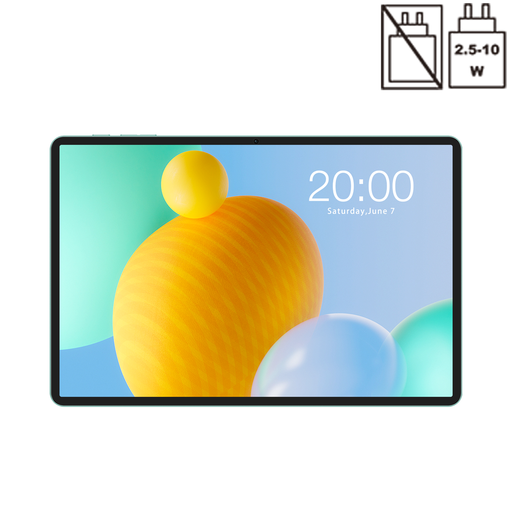 Image unavailable
An 11-inch option to consider if you’re looking for a tablet to study with at a small workspace.
The product name lists an IPS screen with a 90 Hz refresh rate, 6 GB RAM plus 26 GB virtual RAM, and 128 GB ROM.
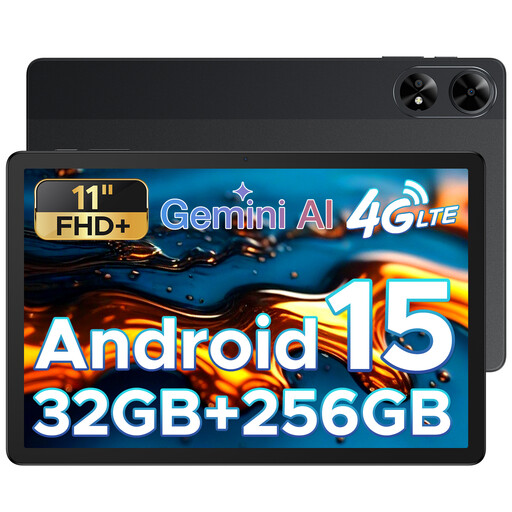 Image unavailable
A tablet to consider if an 11-inch screen fits the space available on your desk.
The product name lists an FHD+ screen and 256 GB ROM.
 Image unavailable
A compact digital notebook to consider if taking study notes is an important part of how you’ll use it.
The product name lists an E-Ink screen and speech-to-text features. Check that the PDF app you plan to use works with your plan files and the annotations you want to make.
First, check whether the version you’ve chosen supports the pen you want or includes one. Adobe explains how to add notes, mark-ups and drawings in Acrobat on mobile. Then test one of your own PDFs to make sure your notes are saved and can be viewed again as you expect.
For connected smart devices, the Dutch government recommends using a strong password and installing software and app updates promptly. Also check where the PDF app you choose saves or syncs your plan files.
An additional warranty package isn’t required for statutory protection in the Netherlands. According to the Dutch government, you’re entitled to a product that works properly, and there’s no fixed statutory warranty period; contact the retailer if something goes wrong. If you’re considering a paid package, compare what it offers beyond your statutory rights.
That depends on the rights and terms of use for the plan. The Dutch government describes making a private copy of copyright-protected material for personal use, not for distribution or publication. So check the terms that apply to the specific plan before sharing it.