
Collector with lots of photos stored locally
Wants to import, select and store photos at a café table, while keeping available storage and preserving the originals in mind.


First decide how your photos will get onto the tablet and where you’ll keep the originals. Then work out how much local storage you need and what screen size will be comfortable at a café table. An iPad fits in with Apple’s Photos and iCloud workflow, while some Android tablets offer expandable storage. A larger screen gives you more room to view photos, but is less convenient to carry around. Before deleting any photos, always check that your chosen backup is complete.
Wants to import, select and store photos at a café table, while keeping available storage and preserving the originals in mind.
Wants to carry on using the photo app and account they already use at home or on their phone, and understand in advance what syncing or deleting means.
Needs enough screen space to review photos, while also considering the café workspace, connectivity and how easy the tablet is to carry.
First decide how you want to import photos and whether you need them to remain available locally. Then compare how your existing photo library works, the screen size, and your plans for connectivity and backups.
A good fit if: you already use Apple Photos and iCloud Photos, or want to import photos into Photos from a camera or SD card.
Bear in mind: some import steps require a compatible card reader or adapter. Deleting photos from iCloud Photos also removes them from connected devices.
A good fit if: having extra local storage for a growing photo collection is a high priority.
Bear in mind: check that your photo app and the folders you want to use work with the card. Expandable storage is no substitute for a verified backup.
A good fit if: you want to view and compare lots of photos at the table, and screen space matters more to you than portability.
Bear in mind: according to buying advice from the Consumers' Association, tablets measuring 12 to 14 inches are less convenient to carry around.
| What to consider | What to look for when buying | Who is this important for? |
|---|---|---|
| Local storage and importing photos | Decide how many photos you need available locally. Check the storage option and make sure your camera, card reader and photo app are compatible with your import method. | If I want to import and store photos locally, I need to know how much space I’ll need and how the transfer works. Around 31% of consumers prioritise local archive storage and importing. |
| Compatibility with your photo library | Check which app, account and folders you use, then try the import, album and deletion steps you need with some test photos. | If I want to keep using my existing photo app and account, I need to understand in advance what syncing and deleting do. Around 25% of consumers give compatibility top priority. |
| Screen space and portability | Compare the size and weight of the exact model, and think about whether you’ll hold the tablet or set it down on the table. | If I want to compare photos at a café table, I need enough screen space without choosing a size that’s awkward to carry. Around 25% of consumers prioritise this balance. |
| Connectivity and backups | Decide whether you’ll need to be online when you’re out and check the connectivity options you need. Verify your backup status before clearing out photos. | If I work on my archive away from home, I need to know whether my connection is suitable and whether the originals will stay safe. Around 19% of consumers give connectivity and backups top priority. |
Apple Support says that deleting photos from iCloud Photos also deletes them from connected devices. Google Photos recommends checking that your backup is complete before freeing up space.
Keep any originals you want to retain separately, and check your backup status before deleting photos.
The space your photos need locally depends on your collection and how you work. A storage card, card reader or adapter will only be useful if it’s compatible with your chosen tablet and import method.
Decide how many photos you need available locally, and check the required connection, card and app in advance.
A larger workspace can be useful for viewing and comparing photos, but the Consumers' Association notes that extra-large tablets are less convenient to carry around.
Compare the size with the space available at your table and how you’ll carry the tablet.
A relevant choice if you manage photos with Apple Photos and iCloud Photos, or want to import them using a suitable connection.
The Galaxy Tab S10 FE series is worth considering if you’re looking at an Android tablet with microSD expansion.
The Redmi Pad 2 is worth a look if you want to compare storage options and card expansion.
The Idea Tab Pro is an option if you mainly want a larger screen for viewing and selecting photos at the table.
This selection from Joybuy includes tablets suited to keeping photos available locally and viewing images at the table. Check the storage and how you plan to import photos for each model.
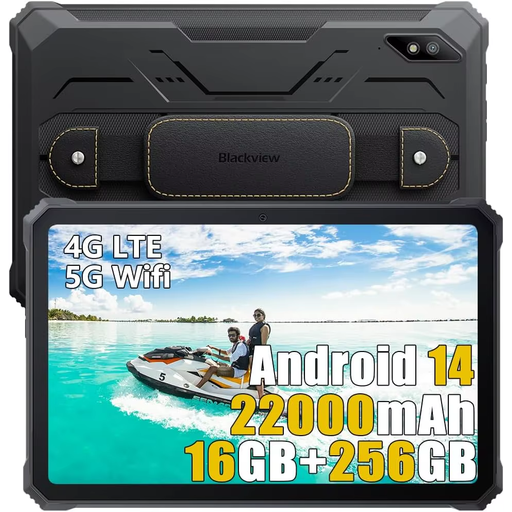 Image unavailable
For anyone who wants to organise photos locally and is looking for a tablet with a 10.36-inch screen.
The product name lists 256 GB storage, a 10.36-inch HD screen, dual SIM and 4G.
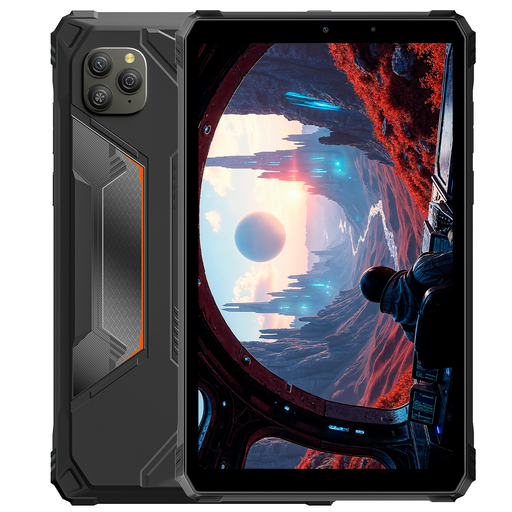 Image unavailable
Worth considering if you’re looking for a tablet with a smaller screen and local storage.
The product name lists 128 GB storage, an 8.68-inch 90Hz IPS screen, Android 15 and 4G.
 Image unavailable
For anyone who wants to view a local photo archive on a tablet with an 11.1-inch screen.
The product name lists a 3.2K 144Hz touchscreen, 12 GB RAM and 256 GB storage. A card reader isn’t listed in the product specifications, so check how you plan to import photos.
 Image unavailable
An option for anyone who wants to view photos on an 11-inch screen and is looking for 256 GB storage.
The product name lists 8 GB RAM, Wi-Fi 5 and Android 15.
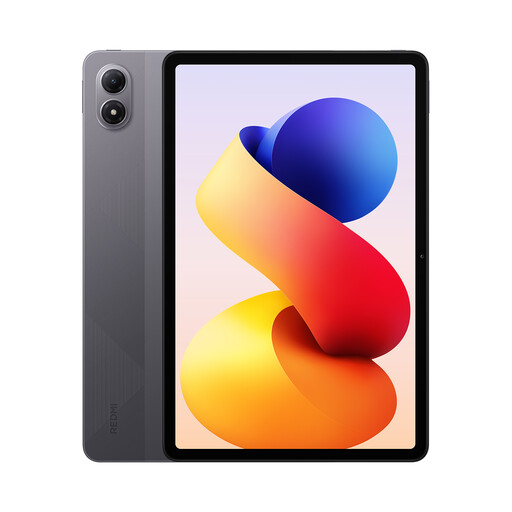 Image unavailable
For anyone who wants photos available locally and is looking for a tablet with 5G.
The product name lists 8 GB RAM, 256 GB storage and 5G connectivity. The screen size isn’t included in the product name.
Yes. Apple Support explains how to import photos into the Photos app from a digital camera or SD card. Depending on the connection, you may need a compatible camera adapter or card reader. Check which one works with your camera and iPad.
Only delete photos once you’ve checked that your chosen backup is complete. Apple Support says that deleting photos from iCloud Photos also removes them from connected devices. Google Photos explains how to free up space for photos that have been backed up.
You can organise photos stored locally first and sync them later. For public Wi-Fi, Veiliginternetten.nl recommends using mobile data or a VPN. Check that your tablet or hotspot supports the connection you need.
No, you don’t need additional cover to benefit from your statutory rights. The Dutch Government states that in the Netherlands you’re entitled to a product that works properly, with no fixed statutory warranty period. If there’s a problem, the retailer must provide a solution. Consider separately whether paid additional cover offers any extra rights.
It depends on how you use the photos. The Dutch Data Protection Authority describes an exception for photos kept private or shared only with a very limited group. If you share images of recognisable people more widely or for business purposes, the GDPR may apply and you’ll need a lawful basis.