Who is this choice relevant to?

Readers of detailed drawings

You want to see as much of a bridge drawing as possible at once when you’re sitting at a table, so extra screen space matters to you. The Consumers’ Association notes that tablets measuring 12 to 14 inches are less convenient to carry around.

Students who often move between rooms

You regularly read on your tablet while holding it, or move between classrooms. In that case, size and weight may matter more than the maximum drawing area. For example, Apple lists the 11-inch iPad Air M4 with Wi-Fi as weighing 464 grams.

Users of technical drawing files

You need to know whether you’ll be working with PDFs, DWG files or a specific desktop programme. Adobe describes PDF reviews on mobile devices, Autodesk offers a mobile option for viewing DWG files, and Microsoft sets out separate compatibility requirements for Windows on Arm.

What should you look for in a tablet for bridge drawings?

First, work out which file and app you need. Then weigh up screen space against how easy the tablet is to carry and hold.

What to consider What should you check? Who should prioritise this?
Viewing drawings Open a representative drawing and check how much detail you can see at the size and zoom level you find comfortable. If I want to compare details side by side at a table, seeing the whole picture comes first. Around 36% of consumers prioritise a clear overview for reading.
Carrying and holding Compare the weight and dimensions of the exact configuration, including the case you plan to use. If I move around a lot, I want a tablet that’s easy to carry and use in my hand. Around 29% of consumers prioritise portability.
Adding annotations Check whether the configuration includes a suitable pen and whether the app saves the annotations you need. If I want to add notes directly to drawings, the pen and annotation features are essential. Around 21% of consumers put annotation at the top of their list.
File and software Ask which file format and required app you’ll need; test a sample file and check for any required drivers. If my course requires a particular file format or programme, getting that to work comes first. Around 14% of consumers prioritise software compatibility.

Things to watch out for when buying a tablet for drawings

  • Assuming a larger screen guarantees readable detail

    A larger screen won’t automatically give you the overview you want: that also depends on the drawing and the details you need to read. The Consumers’ Association points out that larger tablets are less convenient to carry around.

    Open a representative drawing on the screen sizes you’re considering and check the details you often look at while studying.

  • Assuming pen support means a pen is included

    Apple lists Apple Pencil support, while Samsung says an S Pen is included with the Galaxy Tab S10 FE+ bundle mentioned here. Microsoft says the Slim Pen and keyboard for the Surface Pro mentioned here are sold separately. Samsung also states that the 45W adapter isn’t included as standard.

    Before deciding which accessories you need, check what’s in the box and confirm compatibility for the exact configuration.

    Depending on the bundle, a compatible pen, keyboard or power adapter may need to be bought separately.

  • Assuming every warranty label means the same cover

    For the Idea Tab Plus configuration reviewed, Lenovo lists a two-year courier service warranty; a Joybuy product listing states a nine-year manufacturer’s warranty. These are different warranty descriptions and don’t, by themselves, confirm that the terms are the same.

    Ask the seller about the terms for the exact configuration you’re buying. The Dutch Government distinguishes between statutory rights and an additional manufacturer’s warranty; if a product develops a fault, the seller must provide a solution.

  • Assuming screen size makes any drawing file or programme suitable

    Viewing or annotating a PDF is different from opening a DWG file or using a required desktop programme. With Windows on Arm, app and driver requirements may also come into play.

    Ask which file format and software you need, then test a real sample file. For a Windows device, also check the requirements of the specific programme and any drivers it needs.

    You may need a different app or, ultimately, a different device if the required workflow doesn’t work on your chosen tablet.

Brands and models to compare

Apple

The iPad Air M4 comes in 11- and 13-inch versions for anyone who wants to use iPadOS and is weighing portability against screen space.

  • According to Apple, the 11-inch Wi-Fi version weighs 464 grams and the 13-inch version weighs 616 grams.
  • Both sizes support Apple Pencil Pro and Apple Pencil (USB-C).
  • Check that your drawing app works with iPadOS and that the right pen is included with your chosen configuration.

Samsung

The Galaxy Tab S10 FE+ is an Android option with a 13.1-inch screen and an S Pen, suited to viewing and marking up drawings at a table.

  • Samsung lists the S Pen as included in the box.
  • Samsung says the 45W power adapter isn’t included as standard.
  • The larger size may be less practical to carry around or hold for long periods. Also check that your drawing app works with Android.

Lenovo

The 12.1-inch Idea Tab Plus configuration with 8 GB of memory, 256 GB of storage and a pen offers a middle ground between more compact and larger screen sizes.

  • Lenovo lists this configuration as weighing around 530 grams, with a screen resolution of 2560 × 1600 pixels.
  • Check the dimensions and weight of the exact configuration, and confirm which pen is included with your chosen bundle.

Microsoft

The 2nd Edition 12-inch Surface Pro is a Windows 2-in-1 to consider if you need a specific Windows workflow.

  • Microsoft says the Slim Pen and keyboard are sold separately.
  • Check that the required software and drivers work with your chosen Surface Pro configuration. Windows on Arm doesn’t mean every desktop programme or dependency will be compatible.

Joybuy product picks for this topic

These tablet options may be useful for studying drawings or making notes. For each configuration, check that the screen, required app and any pen are suitable for your files and studies.
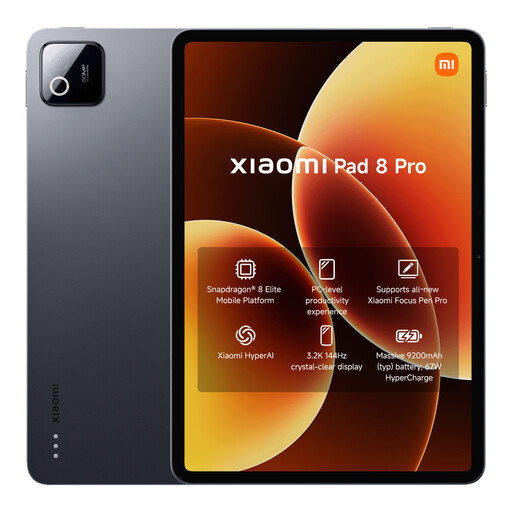
Xiaomi Pad 8 Pro, 12 GB RAM and 512 GB storage

Xiaomi Pad 8 Pro, 12 GB RAM, 512 GB

A tablet option to consider. Check whether the screen size and required drawing app suit your drawings.

The product name lists 12 GB RAM and 512 GB storage.

View at Joybuy

iFLYTEK AINOTE Air 2 E-Ink tablet with stylus and protective case

iFLYTEK AINOTE Air 2, 8.2-inch, with stylus

The product name describes an E-Ink tablet with a stylus for reading and note-taking. Check whether its features suit your drawing files.

The product name lists an 8.2-inch screen and a protective case.

View at Joybuy

Lenovo IdeaTab with 11-inch IPS screen, 8 GB RAM and 128 GB storage

Lenovo IdeaTab, Dimensity 6300, 8 GB/128 GB

An 11-inch version to compare if you’re looking for a more compact size. Check that your drawing app and files work on it.

The product name lists an 11-inch IPS screen, 90 Hz, 500 nits, Android 15, 8 GB RAM and 128 GB storage.

According to the product information, the charger isn’t included.

View at Joybuy
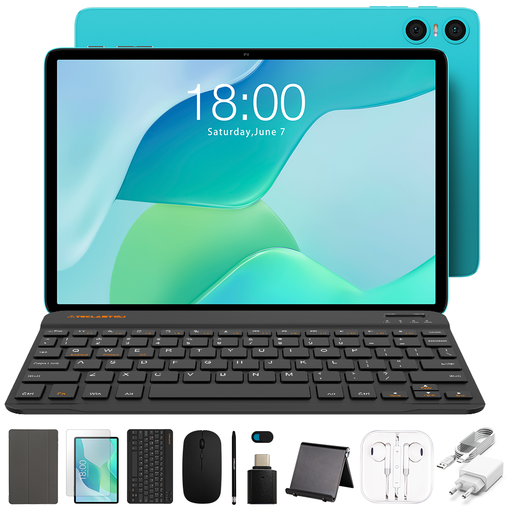
Teclast P33 10.1-inch tablet with stylus, case and accessories

Teclast P33, 10.1-inch, 64 GB, accessory set

The product name lists a stylus and accessories. Check whether the screen size and features suit the details you want to view in bridge drawings.

The product name lists 3 GB RAM plus 6 GB virtual memory and 64 GB storage.

The set includes a case, English Bluetooth keyboard, Bluetooth mouse, stand, charger and stylus, among other accessories.

View at Joybuy

Lenovo Idea Tab Plus Wi-Fi, 12.1-inch, with pen, 8 GB RAM and 256 GB storage

Lenovo Idea Tab Plus Wi-Fi, 12.1-inch, 8 GB/256 GB, with pen

The 12.1-inch version with a pen is worth comparing if you’d like more screen space at a table and also make notes.

The product name lists a 2.5K screen, 8 GB RAM, 256 GB storage and a pen.

The Consumers’ Association notes that tablets measuring 12 to 14 inches are less convenient to carry around.

View at Joybuy

Frequently asked questions about tablets for bridge drawings

Do I need a PDF app or a CAD app for bridge drawings?

That depends on the file you receive and the work you’ve been asked to do. Adobe describes reviewing and annotating PDFs on mobile devices, while Autodesk offers a mobile app for viewing DWG files. Ask which file format you’ll need and test a sample before choosing an operating system.

Can I make shared PDF comments offline?

For the shared review workflow described by Adobe, offline changes are synced once you’re connected again. Adobe says you need to sign in with an Adobe ID to add, edit or delete comments and annotations in this workflow. Check in advance that you can access your own document.

What should I check before using a Windows drawing programme on a Snapdragon Surface?

Check the requirements for your exact programme and any drivers with its publisher. Microsoft describes emulation for Windows on Arm, but apps that rely on drivers need compatible Arm drivers.

Is the statutory guarantee in the Netherlands always exactly two years?

No. According to the Dutch Government, there’s no fixed statutory guarantee period in the Netherlands. You’re entitled to a product that works properly for as long as you can reasonably expect it to. If a product develops a fault, the seller must provide a solution. A manufacturer’s warranty is additional.
