What should you look for in a tablet for bridge drawings?
Start with the file format and the tasks you need to do. Then compare the screen, stylus and any other essentials for the way you study.
| What to consider |
What to check |
Who is this important for? |
| Reading fine details |
Open the same drawing and compare the detailed view with the full drawing. |
If I want to read dimension lines without losing sight of the overall drawing, I need to check how my own drawing looks on screen. Around 36% of consumers rank drawing details as their top purchase priority. |
| Annotating the right file |
Check whether the app supports your file format and lets you save notes. |
If I want to add and save notes in my course file, I consider the stylus, app and file type together. Around 29% of consumers make annotation their top priority. |
| Studying in the evening |
Try the brightness, reflections and text display in your usual lighting. |
If I study in the evening, I want to judge for myself whether the drawing is comfortable to view where I work. Around 21% of consumers name evening use as their top purchase priority. |
| Essentials and costs |
Check whether the stylus, power adapter and required software are included with the exact model. |
If I’m considering the tablet and essentials together, I want to know in advance what I’ll still need for my files. Around 14% of consumers put total cost first. |
Joybuy tablets for drawings and study
This Joybuy selection includes tablets for viewing or annotating study files. Screen sizes and included accessories vary, so test how your files look and check what you need for them with each model.
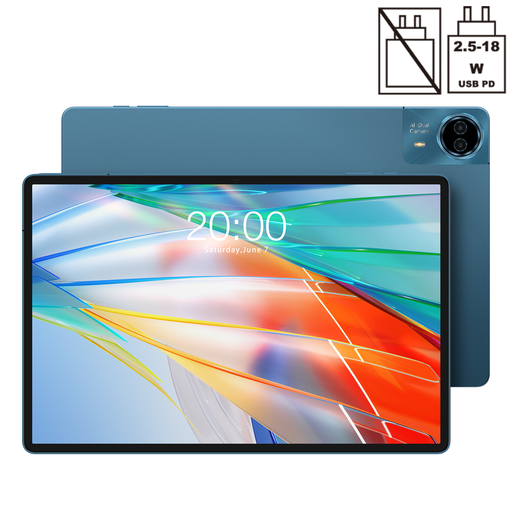 Image unavailable
TECLAST T70 14-inch 2.2K tablet
The 14-inch screen is worth considering if you want to view drawings on a large display. Test your own file to see whether the details are easy to read.
The product name lists a resolution of 2240 × 1400, an MTK Helio G100, 20 GB RAM (8 GB + 12 GB virtual) and 128 GB ROM.
View at Joybuy
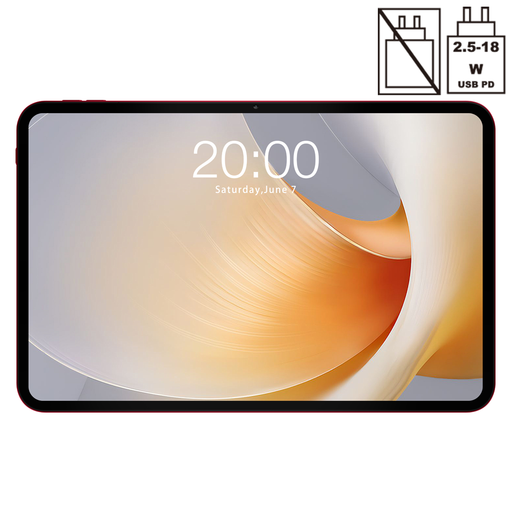 Image unavailable
TECLAST T65 Plus 13.4-inch tablet
The 13.4-inch screen is worth considering if you want to view drawings on a larger display. Check how they look using a representative file.
The product name lists a 120Hz screen, Android 15, an MTK G99, 20 GB RAM and 256 GB ROM.
View at Joybuy
 Image unavailable
TECLAST ArtPad Pro 12.7-inch 2K tablet
The product name lists a stylus. Check that it works with the app you use for annotations, and try it with your course file.
The product name lists a 12.7-inch 2K screen, 20 GB RAM (8 GB + 12 GB virtual) and 256 GB storage.
View at Joybuy
 Image unavailable
iFLYTEK AINOTE Air 2 8.2-inch E Ink tablet
The product name lists a stylus and protective case, while the product description mentions reading PDFs and taking notes. Its 8.2-inch screen is smaller than the large screen sizes discussed for bridge drawings.
Try your own course file to see whether the screen size and annotation features suit your studies.
View at Joybuy
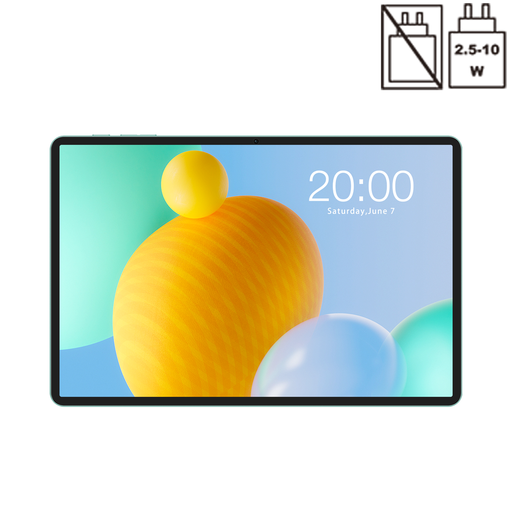 Image unavailable
TECLAST P50 11-inch Android 16 tablet
The 11-inch screen is smaller than the larger sizes discussed for drawings. Try your own file to see whether it’s practical for your needs.
The product name lists a 90Hz IPS screen, 32 GB RAM (6 GB + 26 GB virtual) and 128 GB ROM.
View at Joybuy
Frequently asked questions
Should I check for a PDF or DWG app for my bridge drawings?
Check which file type your course uses and what you need to do with it. Autodesk describes viewing and editing DWG files through AutoCAD on the web and mobile; try a sample file to see whether the app available to you supports your workflow.
How can I check whether I can annotate drawings on a tablet?
Check the stylus compatibility for the exact model, then use your chosen app to annotate a copy of a course file. Add a note, save the file and check that the note is still visible. For the Galaxy Tab S10 FE+ model reviewed here, Samsung lists an S Pen as included; Apple lists support for Apple Pencil Pro and Apple Pencil (USB-C) on the 13-inch iPad Air (M4).
How can I tell whether fine dimension lines will be easy to read?
Try the same drawing both zoomed in and in full view on the screen you’re considering. Manufacturer specifications such as screen size and resolution can help you compare devices, but they don’t replace checking with your own file.
What can I do in the Netherlands if my tablet breaks too soon during normal use?
According to ACM ConsuWijzer, the seller is responsible if the product doesn’t meet reasonable expectations. There is no fixed term for the statutory guarantee in the Netherlands, so contact the seller about the problem and keep your proof of purchase.
Can I use my tablet during lessons?
For secondary schools in the Netherlands, the Dutch government says that non-educational use of tablets and other mobile devices in the classroom isn’t allowed. Essential educational use is permitted, subject to the school’s rules; studying at home isn’t covered by those classroom rules.


