Start with the apps, files and accessories your course requires. A tablet with pen input may be suitable for reading, sketching and annotating, while a Windows 2-in-1 is worth considering if you also need PC software. Then weigh screen space against the size you’ll be carrying between lectures, and check in advance which pen, keyboard and charger are included with the exact version. If you’re considering a Surface with an Arm processor, check that your specific software and accessories are compatible too.
Who is this choice relevant to?
Student who needs specific design software
You want to know whether a tablet can handle the files and CAD or GIS apps required by your course. Autodesk describes mobile features for DWG files, but that doesn’t confirm that your entire course workflow will work on a tablet.
Sketching between lectures
You want to sketch cycle routes or annotate maps, and are looking for a screen and pen that work with your apps. Check whether the pen is included with the version you’re considering and whether it’s compatible with the device.
Student who wants to travel light
You take your tablet with you between campus sessions and need to balance a generous workspace against the size and weight of your bag. Models from Apple, Samsung, Lenovo and Xiaomi are available in a range of screen sizes.
What should you consider when choosing?
First, check that your required apps and files work on the platform you’ve chosen. Then compare the pen and what’s included in the box, screen space, portability and the accessories you’ll need.
| What to consider |
What should you look for? |
Who is this important for? |
| Required design software |
Ask about the exact app, version, plug-ins and file formats; test opening, editing, saving and exporting. |
If I need specific software or files for assignments, I want to be able to complete the entire workflow. Around 28% of consumers prioritise the software required for their course. |
| Pen for sketching |
Check pen compatibility, what’s included in the box and support in your annotation app. |
If I want to annotate cycle routes or maps by hand, I need a pen that works with my tablet and app. Around 22% of consumers give pen use top priority. |
| Taking it between lectures |
Compare the dimensions and weight of the exact version with your bag, and remember to factor in a case and accessories. |
If I carry my tablet throughout the study day, I want it to fit in my bag with everything I need. Around 22% of consumers prioritise portability. |
| Workspace for maps |
View one of your own maps or PDFs at the screen size you’re considering and check the text, legend and annotations. |
If I want to view maps and notes side by side, usable screen space matters a lot. Around 17% of consumers prioritise space for maps and documents. |
| Accessories and box contents |
Check whether the pen, keyboard and power adapter are included with the exact version or available separately. |
If I want to use the device for sketching and typing straight away, I want to know in advance what else I’ll need. Around 11% of consumers prioritise the accessories they need. |
Common buying mistakes
-
Assuming pen support means you have everything you need to sketch
A tablet may work with a pen without including one with the version you’ve chosen.
Check what’s in the box and whether the pen works with the exact model and your drawing or annotation app.
You may need to buy a pen separately for sketching; a compatible keyboard may also be useful for typing.
-
Assuming a mobile DWG app can replace all your course software
Being able to view or edit files on a mobile device doesn’t confirm that your required plug-ins, exports and other course tasks will work too.
Check your course’s software list and try completing an assignment from start to finish, including submission.
You may still need access to another device or a computer at your institution for part of the workflow.
-
Confusing an older Lenovo Idea Tab Pro with the Gen 2
The Lenovo Idea Tab Pro Gen 2 has a 13-inch screen; a Joybuy listing for the older Idea Tab Pro specifies 12.7 inches. These are different versions.
Compare the full model name, generation and specifications rather than relying on the product range or image alone.
-
Choosing a large screen without considering how you’ll carry it every day
A screen that’s comfortable for viewing maps also needs to suit the way you carry your tablet between campus sessions.
Compare the dimensions with your bag and view one of your own maps at the screen size you’re considering.
Brands to compare
Apple
The iPad Air range includes 11- and 13-inch models for anyone looking to combine iPad apps with pen input.
- Apple lists the 11-inch iPad Air (M4) with Wi-Fi as weighing 464 grams and supporting Apple Pencil Pro.
- Apple Pencil Pro is sold separately. Also check that your course apps and file-sharing requirements suit your workflow.
Samsung
The Galaxy Tab S10 FE range includes a 10.9-inch model and a larger 13.1-inch FE+ for taking notes and working with documents on Android.
- Samsung lists pen use and a peak display brightness of up to 800 nits in HBM for the FE series.
- The brightness specification doesn’t guarantee readability in every outdoor setting. Check pen support and what’s included in the box for each version.
Lenovo
The Idea Tab Pro Gen 2 is a 13-inch Android tablet; one Dutch bundle reviewed includes a pen and folio case.
- Lenovo lists a 13-inch 3.5K display for this range.
- The contents of the bundle aren’t automatically included with versions sold individually. Notebookcheck Netherlands highlights battery life and the update period as points to consider for the Gen 2.
Xiaomi
The Pad 8 is an Android option with a screen of around 11.2 inches and support for pen input.
- Xiaomi lists support for the Focus Pen Pro and a weight of 485 grams.
- Xiaomi states that the power adapter isn’t included in the box. Check whether the pen is included with the version you’ve chosen.
Microsoft
The Surface Pro 12-inch (1st Edition) is a Windows 2-in-1 for anyone who needs a PC workflow as well as tablet functionality.
- Microsoft supports a Slim Pen and a compatible keyboard for this version.
- The pen and keyboard are sold separately. This model has a Snapdragon processor and uses Arm; Microsoft warns that some software or accessories may work differently.
Tablets at Joybuy
These tablets are worth comparing for studying with sketches, notes and maps or documents. For each version, check that the software, pen and accessories suit the way you’ll use it.
 No image available
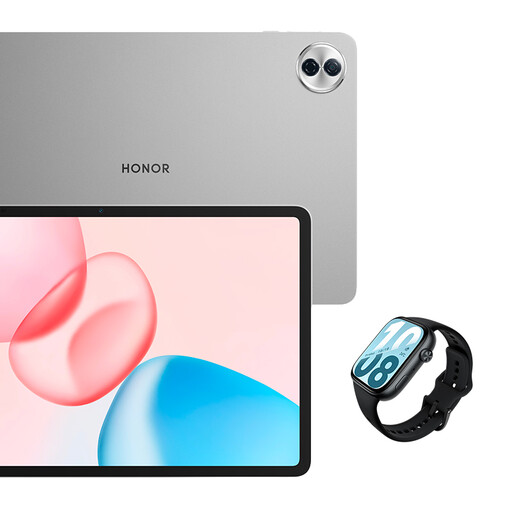
HONOR Pad 10 with Watch X5i bundle
This bundle is worth comparing if you’re looking for a smartwatch as well as a tablet.
The tablet listing specifies a 12.1-inch 2.5K screen, 120 Hz, Wi-Fi and 256 GB of storage. The bundle includes a Watch X5i with a 1.97-inch AMOLED screen and Bluetooth calling.
View at Joybuy
 No image available
Lenovo Idea Tab Plus Wi-Fi 12.1-inch with pen
The included Lenovo Pen makes this version worth comparing for handwritten notes and annotations.
The product name specifies a 12.1-inch 2.5K screen, 8 GB RAM, 256 GB of storage and the colour Rose.
View at Joybuy
 No image available
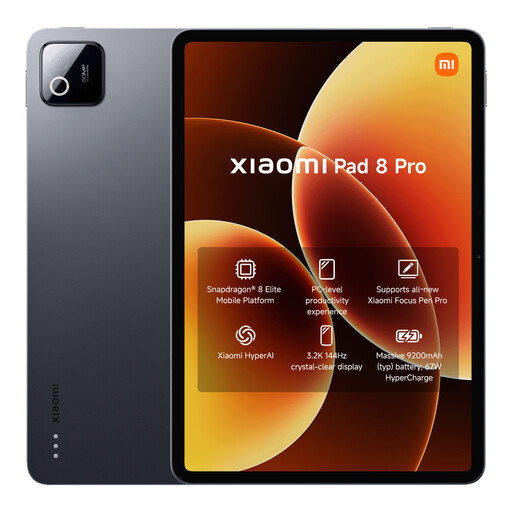
Xiaomi Pad 8 Pro 8 GB/256 GB, grey
Compare this version if the listed storage capacity suits the files and apps you use for your course.
The product name specifies 8 GB RAM, 256 GB of storage and the colour grey.
View at Joybuy
No image available
Xiaomi Pad 8 Pro 12 GB/512 GB, grey
Compare this version if storage capacity is one of your main considerations for studying.
The product name specifies 12 GB RAM, 512 GB of storage and the colour grey.
View at Joybuy
 No image available
Lenovo IdeaTab 11-inch, 8 GB/128 GB, with Tab Pen
The included Tab Pen makes this version worth comparing for writing, drawing and annotating.
The product description specifies an 11-inch IPS screen with a 2560 × 1600 resolution and 90 Hz, a weight of 480 g and Android 15. The charger isn’t included.
View at Joybuy
Frequently asked questions
Can I use my design or GIS software on any tablet?
No. Don’t assume that different tablets are interchangeable. Autodesk describes mobile features for DWG files, but that doesn’t confirm that your entire course workflow will work. Check the exact app, version, plug-ins, files and any course licence you need. If you’re considering a Surface with an Arm processor, check that your required software and accessories are compatible too.
How can I prepare drawings if I won’t have an internet connection while I’m out?
The AutoCAD Mobile workflow described requires an internet connection to download a drawing to your device first. Autodesk states that changes you make offline will sync when you reconnect. Try this in advance with a course file.
Which accessories should I check after buying?
Check which pen is compatible with your exact version and how it charges. Apple states that Apple Pencil Pro pairs magnetically and charges with compatible iPads; Microsoft lists a pen and keyboard sold separately for the Surface Pro 12-inch (1st Edition). Xiaomi states that the Pad 8 doesn’t come with a power adapter.
What are my rights when buying online in the Netherlands?
According to ACM ConsuWijzer, for products bought online you generally have a statutory cooling-off period of up to 14 days after delivery, subject to exceptions. The seller is also responsible for the statutory guarantee if the product doesn’t meet what you could reasonably expect; this isn’t the same as a fixed guarantee period for every tablet.
Can I hold a tablet while cycling between campuses?
No. The Dutch government explicitly lists tablets as mobile devices that you must not hold while driving. You may hold and use a device when you’re stationary.


