Who is this tablet guide for?

Maps and PDF reader

You compare cycle route maps, cross-sections and design documents during evening reviews, and want to view text and map details alongside your notes. Consumentenbond highlights screen size and use on the go as factors to consider when choosing a tablet.

Design student who sketches

You draw alternatives for cycle paths or junctions over documents. So check that the stylus is compatible with the exact model and actually comes in the box; Apple, Samsung and Lenovo offer different stylus and bundle options.

Student with GIS or CAD coursework

You want to know whether the required project files and operations work on your tablet, not just whether an app is available. Microsoft describes software use on Surface devices with Arm processors, but the requirements of your own course are what matter.

What matters when choosing a tablet for bicycle design studies?

iPadOS tablet

A good fit if: you mainly read design documents, take notes and sketch in apps supported by your course on iPadOS.

Bear in mind: check the stylus, app features and file sharing. Support for iPadOS doesn’t prove that every desktop task will work.

Android tablet with stylus

A good fit if: you want to annotate maps and find a specific stylus bundle that suits your document and sketching apps.

Bear in mind: check the exact model and what’s in the box. A mobile mapping or CAD app won’t necessarily have the same features as your course software.

Windows 2-in-1

A good fit if: alongside reading and sketching, you need a Windows workflow, once you’ve checked the required programmes and files on the model you’re considering.

Bear in mind: the stylus and keyboard may be sold separately. Also check that the required software works on a model with an Arm processor.

Factor What to look for Who should pay particular attention?
Reading maps and documents View one of your own maps or PDFs on the screen size you’re considering; also think about whether you’ll be holding the tablet for a long time. I want to compare map details and explanations clearly, possibly alongside my notes; around 29% of consumers prioritise reading maps and documents.
Sketching and annotating Check stylus compatibility, what’s included in the box and whether you can save your annotations in the required file format. If I want to draw routes or junctions directly onto course materials, the stylus bundle matters; around 22% of consumers prioritise sketching and annotation.
GIS or CAD coursework Ask about the required app version, features, plug-ins and project files; test them on the exact device and operating system. I need to carry out the required operations on my project files, not just open an app; around 21% of consumers prioritise software compatibility.
Comfort in the evening Try the text size, brightness and screen position with your own documents and lighting. I want to read comfortably during a long review session; around 14% of consumers prioritise comfortable reading in the evening.
Accessories and portability Check which accessories are included with each model, and compare the size and weight of the setup you plan to use. If I need a stylus or keyboard, I want to know what I’ll have to carry and whether the complete setup is still portable; around 14% of consumers prioritise accessories and portability.

What to look out for when buying

  • Assuming a mobile GIS or CAD app means your course software will work

    An available app doesn’t tell you whether the required features, plug-ins and project files will work on your device.

    Ask your course provider for a specific sample task and test it on the model you’re considering before relying on a tablet for that workflow.

  • Assuming stylus support means the stylus is included

    Support and box contents can vary by manufacturer and model.

    Compare what’s included with the exact offer against the stylus or keyboard you need for sketching or typing.

  • Choosing based on screen size alone

    More room for map details may mean extra weight when you’re holding the tablet for a long time.

    Try one of your own design documents at the screen size you’re considering, and see how comfortable the device feels to carry or hold.

Brands to consider

Apple

The iPad Air M4 is an iPadOS option for reading, annotating and sketching with study apps that work on iPadOS.

  • According to Apple, the 11- and 13-inch models support Apple Pencil Pro and Apple Pencil (USB-C).
  • According to Apple, the 13-inch Wi-Fi model weighs more than the 11-inch Wi-Fi model. Check the stylus, apps and file sharing for your course.

Samsung

The Galaxy Tab S10 FE is an Android option for anyone looking for a tablet with an S Pen.

  • Samsung describes the 5G model reviewed as having a 10.9-inch screen and an S Pen.
  • Check whether the model you’re looking at has Wi-Fi or 5G, and whether the colour, storage and included accessories meet your needs.

Lenovo

The Tab M11 may suit Android study notes if the stylus bundle matches the model you choose.

  • Lenovo describes an 11-inch LTE model with 4 GB of memory, 128 GB of storage and a stylus.
  • On another Tab M11 page, Lenovo says the stylus is optional. So check the box contents for the exact model.

Microsoft

Surface Pro is a Windows 2-in-1 option for students who want to test a specific Windows workflow.

  • Microsoft describes the Surface Pro reviewed as supporting a Windows workflow.
  • According to Microsoft, the Slim Pen and keyboard are sold separately. Test the required GIS or CAD software and peripherals on the model you choose, especially if it has an Arm processor.

Tablets at Joybuy for study materials and sketching

These Joybuy products are suited to viewing digital study materials and taking notes or sketching. Check that the features and files required for your GIS or CAD coursework work on each model.

Lenovo Idea Tab Plus WiFi, 12.1-inch 2.5K, 8 GB RAM, 256 GB, stylus, Rose

Lenovo Idea Tab Plus WiFi, 12.1-inch 2.5K, 8 GB RAM, 256 GB, stylus – Rose

The product description says a stylus is included for writing, drawing and annotating study materials.

12.1-inch screen with 2.5K resolution; 8 GB RAM and 256 GB of storage.

According to the product description, a charger isn’t included as standard; check what you’ll need to use it.

View at Joybuy

TECLAST ArtPad Pro, 12.7-inch, Helio G99, 256 GB, T-Pen

TECLAST ArtPad Pro, 12.7-inch, Helio G99, 256 GB, T-Pen

The product description says a T-Pen is included for sketching and note-taking, which may suit drawing design ideas.

The title lists a 12.7-inch screen, Helio G99 and 256 GB of storage. The product description specifies Android 15.

View at Joybuy
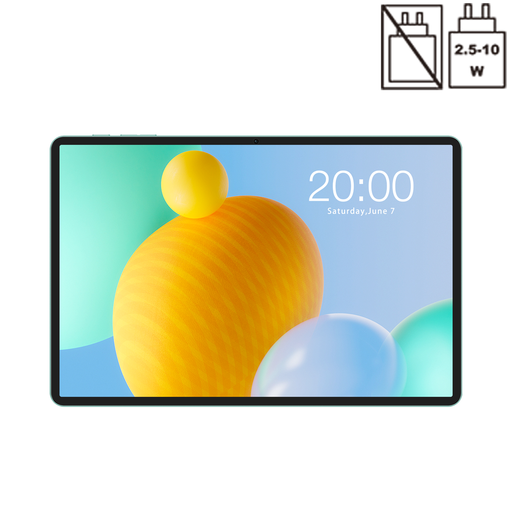
TECLAST P50, 11-inch, Android 16, 128 GB, 90 Hz, 4G LTE

TECLAST P50, 11-inch, Android 16, 128 GB, 90 Hz, 4G LTE

The product title mentions study use; check how the screen size works with your own documents and review tasks.

11-inch screen, 128 GB of storage, 90 Hz and 4G LTE. The title lists 32 GB RAM, made up of 6 GB plus 26 GB of virtual memory.

View at Joybuy

TECLAST ArtPad Pro, 12.7-inch 2K, 256 GB, stylus

TECLAST ArtPad Pro, 12.7-inch 2K, 256 GB, stylus

The product title lists an included stylus, for anyone who wants to sketch and take study notes on screen.

12.7-inch 2K screen and 256 GB of storage. The title lists 20 GB RAM, made up of 8 GB plus 12 GB of virtual memory.

View at Joybuy
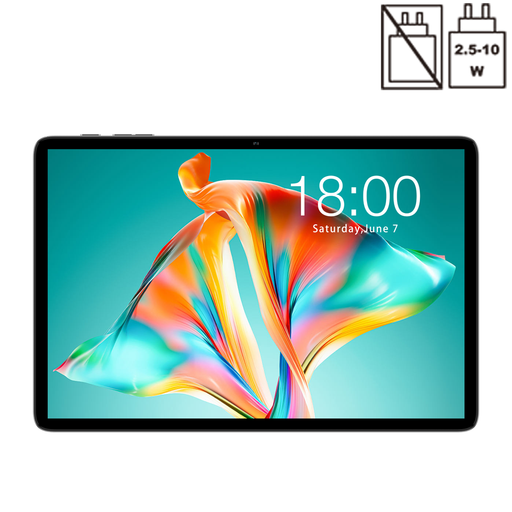
TECLAST P30T, 10.1-inch, Android 16, 128 GB, 120 Hz

TECLAST P30T, 10.1-inch, Android 16, 128 GB, 120 Hz

You can assess this 10.1-inch Android tablet with your own digital study materials; see whether the size gives you enough room for your documents.

The title lists 128 GB of storage, a 120 Hz HD screen and a 6000 mAh battery.

View at Joybuy

Frequently asked questions

Can I use a tablet for my GIS or CAD coursework?

Only if the required software, features and files work on the device you choose. Autodesk describes CAD features available on web and mobile; check whether these meet the needs of your coursework and test any plug-ins and project files on the exact model. If you’re considering a Windows device with an Arm processor, test that setup specifically too.

How can I set up a tablet for evening reviews?

Open one of your own maps and PDFs, then adjust the text size, brightness and screen position to suit you. If you have dry eyes, Thuisarts advises, among other things, blinking more often when reading or using a screen; a product claim is no substitute for that advice.

Are a stylus and keyboard always included?

No, what’s included varies by brand and model. Lenovo lists a Tab M11 model with a stylus, but says on another Tab M11 page that the stylus is optional. Microsoft says the Slim Pen and Surface keyboard are sold separately for the Surface Pro reviewed. So check the box contents for the exact model.

What consumer rights apply when buying a tablet in the Netherlands?

When you buy as a consumer in the Netherlands, you’re entitled to a product that meets legal standards, according to the Dutch government. For qualifying online consumer purchases, you generally have 14 days to change your mind; the Dutch government explains the conditions and exceptions that apply to your purchase.

Does every tablet in the Netherlands need an EU energy label?

No, it depends on whether the product falls into a category covered by the rules. The European Commission says the energy labelling rules that have applied since 20 June 2025 cover certain slate tablets, but not the separately defined category of tablet computers, which includes some Windows 2-in-1 devices. Check the category and the specific model before drawing conclusions about a label.
