For preparing arguments between client visits, a compact tablet with a stylus is particularly well suited to reading sources and making brief notes. For longer submissions, a physical keyboard or laptop-style setup is more practical. A larger screen gives you more room to view source material alongside your text, but is less convenient to carry around. Also check that the apps and connectivity you need will work, and agree with your organisation how personal data should be handled.
Who is this type of use for?
Argument writer on the go
Writes longer submissions or rebuttals between appointments. Think about the keyboard in advance and check that the software you need works on your chosen tablet or 2-in-1. The Consumers’ Association of the Netherlands (Consumentenbond) says a laptop is more convenient for word processing.
Source annotator
Reads documents on the go and wants to highlight passages with a stylus. Check the size, compatibility and packaging of the stylus; Apple and Samsung specify stylus support for particular models.
Traveller with client files
May need to access personal data away from the office. The Dutch Data Protection Authority says security measures must be appropriate to the processing and the risks involved, so agree with your organisation how the device can be used.
What should you look for when choosing?
| What to consider |
What to look for |
Who this suits |
| Typing longer texts |
Check the keyboard layout, compatibility and support for your writing software. |
If I write longer submissions between client visits, I want to type comfortably and use my usual software. Around 33% of consumers put typing first. |
| Portability and annotating |
Try holding the device and check that the stylus you want is compatible with the exact model and included in the box. |
If I mainly read documents and quickly highlight passages, I want a size that’s easy to carry. Around 25% of consumers prioritise portability and annotation. |
| Access to sources |
Decide whether Wi-Fi is enough or whether you need a mobile connection; also check if your apps make documents available offline. |
If I need to consult online sources between appointments, I want to know how I’ll stay connected and which documents will be available offline. Around 25% of consumers prioritise access to sources. |
| Protecting client information |
If you process personal data, ask which apps, accounts, access controls and updates your organisation allows. |
If I use client documents containing personal data while on the go, I want to know in advance what procedures my organisation allows. Around 17% of consumers prioritise appropriate protection of client information. |
Common purchasing mistakes
-
Assuming a stylus or keyboard is included
Stylus support doesn’t automatically mean the stylus comes in the box. A suitable typing setup may also require accessories sold separately.
Compare what’s included with the exact model and check that each accessory is compatible before you choose.
-
Choosing a large screen without considering how you’ll carry it
Extra screen space can be useful for documents, but 12 to 14-inch tablets are less convenient to carry around, according to the Consumers’ Association of the Netherlands (Consumentenbond).
Try the device with its case or keyboard in the bag you usually carry.
-
Confusing Wi-Fi with independent mobile internet access
A Wi-Fi model doesn’t automatically have its own mobile connection. Without a network, you won’t be able to access online sources straight away when you’re out and about.
Check whether Wi-Fi, an available hotspot or a model with mobile connectivity suits the way you’ll use it. Also see whether your apps can save documents for offline use.
-
Assuming a tablet alone will protect client data
If you process personal data, the measures you take must be appropriate to the processing and the risks involved; a single device feature doesn’t, by itself, prove that the data is adequately protected.
Before putting client data on the device, check with your organisation which apps, access controls and software updates are allowed.
Brands to consider
Apple
The iPad Air range is available with an 11- or 13-inch screen.
- Apple lists support for Apple Pencil Pro and Apple Pencil (USB-C). According to Apple, the 11- and 13-inch Wi-Fi models weigh 464 and 616 grams respectively.
- Check which stylus is compatible with your chosen model and whether it’s included in the box.
Samsung
The Galaxy Tab S10 FE range includes a 10.9-inch model and a larger FE+ version.
- Samsung lists an S Pen as included with the business 5G model reviewed.
- Check the Wi-Fi or 5G connectivity, storage, model code and bundle for each version; the larger FE+ may be less suitable if you want to travel light.
Microsoft
The Surface Pro 12 inch is a Windows 2-in-1 for anyone who wants to use a tablet in a laptop-style setup too.
- For the second edition reviewed, Microsoft lists Windows 11 and a Snapdragon X2 Plus.
- The keyboard and Slim Pen are sold separately for this model. Also check that the software you need works on the version you choose.
Lenovo
The Idea Tab Pro is an Android option with a larger screen for source material and notes.
- For model ZAE40105SE, Lenovo lists a 12.7-inch screen and 256 GB of storage.
- Lenovo offers the Tab Pen Plus as an add-on. Check what’s included in the bundle and consider whether the larger size is convenient enough to carry.
Xiaomi
The Pad 8 is an Android alternative with an 11.2-inch screen and stylus support.
- Xiaomi lists support for the Focus Pen Pro and several storage options.
- The stated battery capacity of 9200 mAh is a typical capacity, not a measured battery life. Check the stylus bundle, software and updates for the model you choose.
Joybuy product picks
These Joybuy picks include compact tablets for stylus notes, larger tablets for documents and a Windows 2-in-1 for a laptop-style typing setup.
 Image unavailable
Lenovo Yoga Tab ZAG60028PL, 11.1 inch, with Tab Pen Pro
A compact option for reading documents and making notes with a stylus.
11.1-inch touchscreen, Android 15, 12 GB LPDDR5X memory and 256 GB storage. The product title lists a Tab Pen Pro as included.
View at Joybuy
 Image unavailable
Apple 11-inch iPad Air (M4), Wi-Fi, 256 GB
A compact choice for reading sources and taking notes with a compatible Apple Pencil.
11-inch model with Wi-Fi and 256 GB of storage. Apple lists support for Apple Pencil Pro and Apple Pencil (USB-C); check which stylus suits your needs and whether it’s included.
View at Joybuy
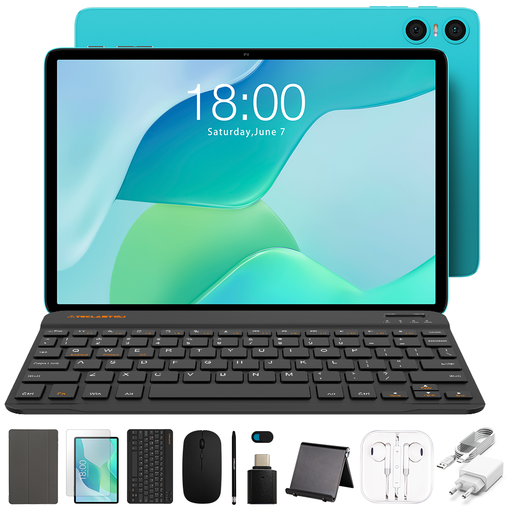 Image unavailable
Teclast P33, 10.1 inch, with keyboard and stylus
The listed bundle combines a Bluetooth keyboard for typing with a stylus for notes.
10.1-inch tablet with 64 GB of storage and 9 GB of listed memory, made up of 3 GB RAM and 6 GB of virtual expansion. The product title also mentions a case, mouse and stand. According to the product description, the stylus tip may scratch the screen; a screen protector is not included.
View at Joybuy
 Image unavailable
Teclast ArtPad Pro, 12.7 inch, with stylus
The larger screen may suit reading documents and making notes; bear its size in mind if you’ll be carrying the tablet around often.
12.7-inch 2K screen, 256 GB of storage and a stylus, according to the product title. The stated 20 GB of memory consists of 8 GB RAM and 12 GB of virtual expansion.
View at Joybuy
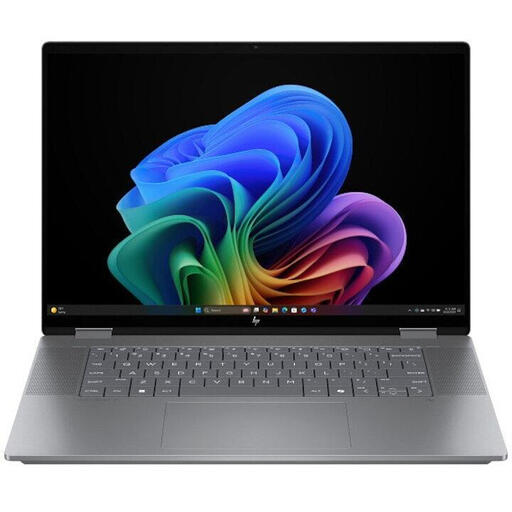 Image unavailable
HP OmniBook X Flip NG AI PC 16-ar0070nd, QWERTY
A 2-in-1 with a keyboard and tablet mode for anyone who writes longer arguments and also wants to use the touchscreen.
According to the product description, the 16-inch model weighs 1.890 grams. Its size and weight are worth considering if you’ll be carrying it between appointments.
View at Joybuy
Frequently asked questions
Can I write a long submission on a tablet?
Yes, but try the typing setup first and check that the apps you need work. The Consumers’ Association of the Netherlands (Consumentenbond) says a laptop is more convenient for word processing; for some tablets, a compatible keyboard is sold separately.
What should I arrange before using client documents on the go?
If the documents contain personal data, check with your organisation what security measures are appropriate to the risks involved. The Dutch Data Protection Authority lists access controls and vulnerability management among the possible measures; what’s needed depends on how the data is processed.
Do I need to buy a stylus or keyboard separately?
It depends on the model. Samsung lists an S Pen as included with the Tab S10 FE model reviewed; Microsoft says the keyboard and Slim Pen for the Surface Pro 12-inch model reviewed are sold separately. Check what’s in the box for the model you choose.
What warranty rules apply when buying as a consumer in the Netherlands?
According to the Dutch government, as a consumer you’re entitled to a product that works properly, and the seller must provide a solution if there’s a problem. For distance purchases, you’ll often have a 14-day cooling-off period. If you buy in a company’s name, don’t assume these consumer rights apply; check the terms of the relevant agreement.


