
Readers of large archive scans
If you’re examining pages, maps or images, clear detail and easy zooming are important. The KB explains that people may be able to read text in a scan even when a computer can’t recognise it automatically.


For large archive scans and lots of documents, a standard tablet with a generously sized screen is a sensible starting point. Choose a more compact tablet with a pen if portability and note-taking matter more, or a digital paper tablet if reading and annotating imported PDFs are your main priorities. Your choice also depends on app and pen support, and on how long you’ll be holding the device. A scan isn’t automatically searchable text, as the KB explains in its guidance on OCR. Try one of your own files to see whether zooming, searching, annotating and exporting work for the way you use it.
If you’re examining pages, maps or images, clear detail and easy zooming are important. The KB explains that people may be able to read text in a scan even when a computer can’t recognise it automatically.
If you want to highlight or add notes to PDFs as you read, check that your pen and chosen app support these features. Apple describes PDF annotation in supported apps, while reMarkable explains how to import and annotate PDFs.
If you read for long periods or switch between lots of documents, consider how easy the device is to handle and how you’ll organise your files. The Consumentenbond points out that larger tablets can be less practical to hold for long periods.
Start with the task you do most often: viewing scans, annotating documents, reading comfortably for long periods, or storing and finding files.
Best for: viewing large pages, maps or multiple documents, as well as using standard tablet apps. Lenovo lists a 12.7-inch screen for the Idea Tab Pro, while Apple offers the iPad Air M4 in 13 inches.
Trade-off: a larger screen doesn’t necessarily make the tablet more comfortable to hold for long periods. Try viewing one of your own scans at the size you’re considering.
Best for: reading and taking notes on the go. Samsung lists a 10.9-inch screen and S Pen support for the Dutch Galaxy Tab S10 Lite SM-X400NZAREUB.
Trade-off: on a smaller screen, you may need to zoom and pan more often to view a wide scan. Also check whether your reading app can access files stored on expandable storage.
Best for: focused reading and handwriting notes on imported PDFs. reMarkable lists an 11.8-inch colour screen and PDF import for the Paper Pro.
Trade-off: its own operating system is a different option from a standard iPad or Android tablet. reMarkable also includes certain extra features with Connect.
| What to consider | What should you check? | Who will find this most important? |
|---|---|---|
| Viewing scans clearly | Open a sample scan of your own, view a full page, then zoom in on small text or details on a map. | If I need to examine large maps or scans, I want to see the details without constantly zooming in; around 36% of consumers say scan readability is their top priority. |
| Saving notes | Try using one of your own PDFs to highlight, save, reopen and export it; check exact pen compatibility. | If I want to find my notes on archive materials later, the app must save my annotations; around 29% of consumers prioritise annotation. |
| Comfort during long reading sessions | Try the size and weight in your usual reading position, both in your hand and on a stand. | If I read for long stretches, I want a device that’s comfortable to hold; around 21% of consumers say comfortable reading is their top priority. |
| Storing and searching files | Check how the archive service makes files available and try searching in a real document. Also consider storage and import options. | If I want to store documents and find them again later, my files need to support this; around 14% of consumers prioritise file management and searchability. |
A scan may just be an image. The KB explains that a computer can’t automatically read the text in it; OCR results also depend on the source and the quality of the scan.
Try a representative document with the search function and check any results against the image.
A larger screen can give you more room to view scans, but it may not be comfortable to hold for long periods. The Consumentenbond notes that larger tablets can quickly become impractical for reading in your hand for a long time.
View one of your own pages on the screen and try holding the device in your usual reading position.
Pen compatibility and annotation features vary by model and app. reMarkable includes certain extra features with Connect.
Before buying, check the exact version, what’s in the box, pen compatibility and any subscription terms.
You may need to buy a compatible pen, charger or case separately. Also check whether the software feature you want requires a subscription.
Similar model names can refer to different versions, and specifications may vary between them.
Check any crucial features against the full model number and the manufacturer’s information for that specific version.
The iPad Air M4 range comes in 11-inch and 13-inch sizes for those looking for a standard tablet with iPad apps.
The Galaxy Tab S10 Lite is an Android option with a 10.9-inch screen and S Pen support.
The Idea Tab Pro has a 12.7-inch Android screen. Lenovo lists 256 GB of storage for version ZAE40020SE.
The Paper Pro is a digital paper tablet for reading and writing on imported documents.
These Joybuy tablets are suited to viewing scans and making or saving notes. Try one of your own documents in the app you plan to use before deciding.
 No image available
An option for viewing scans and taking notes with the specified pen. Check that your PDF app supports the annotations you need.
11.1-inch screen with 3.2K resolution, 256 GB of storage and Tab Pen Pro.
 No image available
An option for viewing scans and annotating documents with the specified pen. Check how it works with your own PDF app.
12.1-inch 2.5K screen, 8 GB RAM and 256 GB of storage. The product name lists a pen and the colour Rose.
 No image available
An option for viewing large scans on screen. Try one of your own files to check that your chosen app displays it as you need.
13.4-inch screen, 120 Hz, Android 16 and 128 GB of storage. The product name lists a folio case.
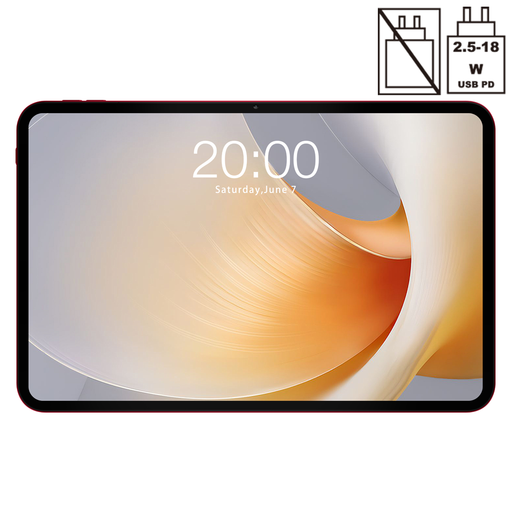 No image available
An option for viewing scans and files on a larger screen. Try your own documents and app before making a choice.
13.4-inch screen, 120 Hz, Android 15 and 256 GB of storage.
 No image available
An option for viewing scans and taking notes with the specified stylus. Check that your app saves annotations as you need it to.
12.7-inch 2K screen, 256 GB of storage and a stylus.
No, not if the file contains only an image. Searching the text requires computer-readable text, for example through OCR. The KB explains that recognition can be more difficult with low-quality scans, damaged sources and old spellings. So test the specific document you want to use.
Keep the original unchanged and try annotating a copy in the app you plan to use. Apple describes Markup for PDFs in supported apps, while reMarkable describes PDF import and annotation. Reopen the copy after saving to check that your notes are still there.
Not necessarily; options vary by archive service. Archieven.nl explains that you may sometimes need to view an original on site, while in other cases you’ll receive a download link. Digitisation on request isn’t available everywhere. Check how the relevant service works before relying on offline reading.
For a consumer purchase in the Netherlands, the product must conform to the agreement. The Rijksoverheid states that there is no fixed statutory two-year guarantee period and that you should contact the seller if there’s a problem. For eligible online distance purchases, you generally have a 14-day cooling-off period, subject to terms and exceptions. Check what applies to your purchase.
If you handle documents containing personal data or sensitive information, protect the files appropriately and check the access and sharing settings in your app or cloud service. The Autoriteit Persoonsgegevens offers advice on protecting documents; the measures you need depend on the information you handle.