Start with your existing files: test whether you can transfer them to the tablet, open them offline, edit them and transfer them back before choosing a screen size or stylus. A larger screen gives you more room for scans, while a smaller model may be easier to carry around. If your project requires specific desktop software, check that it works with the Windows configuration you’re considering.
Who is this tablet guide for?
Researcher with local files
You carry project folders, scans or photos with you and want to access them without an internet connection. Try transferring your own files and check that they open in the formats you need. Apple Support explains how to access external storage using supported apps; Google Android Help explains how to transfer files via USB.
Reader of archive scans
You view lots of scanned pages and want to weigh up screen space against portability. Before deciding, view one of your own scans on a screen of the size you’re considering.
Project writer who annotates
You make notes on PDFs or develop your findings. Check that the stylus and keyboard work with the app you want to use to continue editing your project. What’s included in the box varies by model and configuration.
What should you look for when choosing?
Start with the file workflow you need, then compare the space available for reading, and finally check how you want to annotate or type. This table can help you decide which checks matter most for your project.
| What to consider |
What should you check? |
Who should pay particular attention? |
| Local files |
Test whether you can transfer files, open them offline and transfer them back. Check the cable, connection and app you use. |
If I want to use project folders and scans without an internet connection, I need to be able to transfer them reliably in advance and find them again. Around 36% of consumers make local files their top priority. |
| Reading scans |
View one of your own scans on a screen of the size you’re considering, and weigh the extra reading space against how easy the tablet is to carry. |
I want to use my own scans to work out how much space I need and whether the size is practical to carry around. Around 29% of consumers prioritise reading space. |
| Taking notes |
Check whether your project app supports annotations and whether the stylus is included with the configuration you’ve chosen or sold separately. |
If I want to save comments on PDFs, the input method needs to work with the app where my project is stored. Around 21% of consumers make annotation their top priority. |
| Desktop software |
Check whether the specific programme works with the configuration you’ve chosen, and whether you need a keyboard or other peripherals. |
If I want to continue existing project work using desktop software, that specific programme needs to work with the tablet configuration. Around 14% of consumers prioritise this workflow. |
Common buying mistakes
-
Assuming enough storage means your project workflow will work
A tablet with enough storage doesn’t guarantee that you can open files using your chosen connection or app. Apple Support explains the requirements for using external storage with an iPad; Google Android Help notes that not every USB cable transfers data.
Test transferring, opening offline and copying back a small, representative project folder.
Depending on your workflow, you may need a suitable data cable, adapter, card reader or power supply for an external drive.
-
Assuming every tablet stylus comes in the box
What’s included varies by product and configuration. Apple doesn’t list a Pencil in the box contents for the iPad Air reviewed; Microsoft sells the Surface Slim Pen mentioned separately, while Samsung lists an S Pen as included with the Galaxy Tab S10 FE series reviewed.
Check the box contents and stylus compatibility for the exact configuration and offer.
With some configurations, you’ll need to buy a stylus separately or choose a different bundle.
-
Assuming a larger screen is always the right choice for archives
More screen space can be useful for scans, but a larger device is less convenient to carry around. A larger screen won’t automatically make an illegible or blurry scan clearer.
View one of your own scans on a screen of a similar size, then weigh the extra reading space against how you plan to carry the tablet.
-
Assuming an archived copy means you can share the material
Copyright, privacy and archive terms depend on the material and how you use it, not on the device where you store it.
Check the rights, any personal information and the archive’s terms before publishing or sharing material.
Brands to compare
Apple
The iPad Air is available in 11- and 13-inch versions, for those who find the iPad’s file-handling and annotation workflow a good fit.
- Apple Support explains how to access compatible external storage and annotate in supported apps.
- A connected drive may require suitable formatting, an adapter or additional power. Apple doesn’t list a Pencil in the box contents for the iPad Air reviewed.
Samsung
The Galaxy Tab S10 FE series is an Android option for studying documents with a stylus.
- For the FE models reviewed, Samsung lists an S Pen in the box and microSD expansion up to 2 TB.
- These specifications alone don’t tell you whether your project app will work with the stylus or your files. Check the exact configuration.
Lenovo
The Idea Tab Pro ZAE40020SE is worth comparing if you’re looking for a 12.7-inch Android screen and a stylus bundle.
- For this configuration, Lenovo specifies 256 GB of storage and a screen resolution of 2944 × 1840.
- Other Idea Tab Pro configurations may have different storage capacities or box contents. Check the product number and bundle.
Xiaomi
The Redmi Pad 2 is an 11-inch Android option to compare for reading and accessing files.
- Xiaomi lists a resolution of 2560 × 1600 pixels for this model.
- That screen specification doesn’t show whether a stylus or project app will suit your workflow. Check the configuration and app separately.
Microsoft
The Surface Pro is a Windows 2-in-1 option to explore if desktop-style project work is the deciding factor.
- Microsoft describes a laptop mode with an optional keyboard.
- The Slim Pen is sold separately. Check that the configuration you choose works with your project software and any peripherals you need.
Joybuy tablets for scans and project files
This selection features Android tablets with different screen sizes and listed storage capacities to compare for reading scans and keeping files locally. For your own project, also check file transfer and whether the apps you need work as expected.
 No image available
TECLAST T65, 13.4 inches, Android 16, 128 GB
Compare this screen size with your own scans if you’re looking for plenty of reading space.
The product name lists a 13.4-inch screen, Android 16 and 128 GB of storage. A folio case is also listed.
View at Joybuy
 No image available
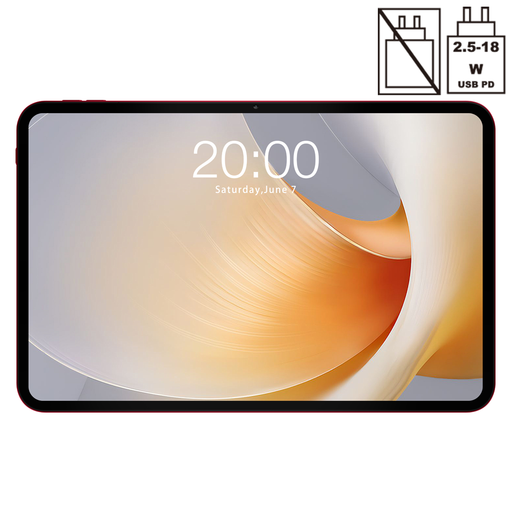
TECLAST T65 Plus, 13.4 inches, Android 15, 256 GB
Compare the 13.4-inch screen with your scans and think about how you plan to carry the tablet.
The product name lists a 13.4-inch screen, Android 15 and 256 GB of storage.
View at Joybuy
 No image available
Lenovo Idea Tab Plus WiFi, 12.1 inches, 256 GB, Rose
Compare the 12.1-inch size with your scans if you want to weigh screen space against portability.
The product name lists a 2.5K screen, 8 GB RAM, 256 GB of storage and a stylus.
View at Joybuy
 No image available
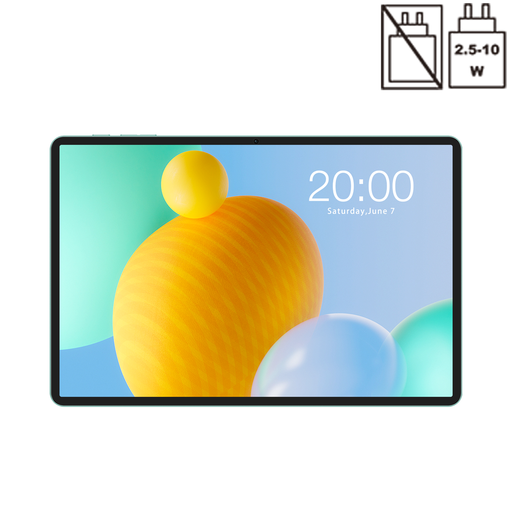
TECLAST P50, 11 inches, Android 16, 128 GB
Compare the 11-inch screen with one of your own scans if you’re considering a smaller size.
The product name lists an 11-inch screen, Android 16 and 128 GB of storage.
View at Joybuy
 No image available
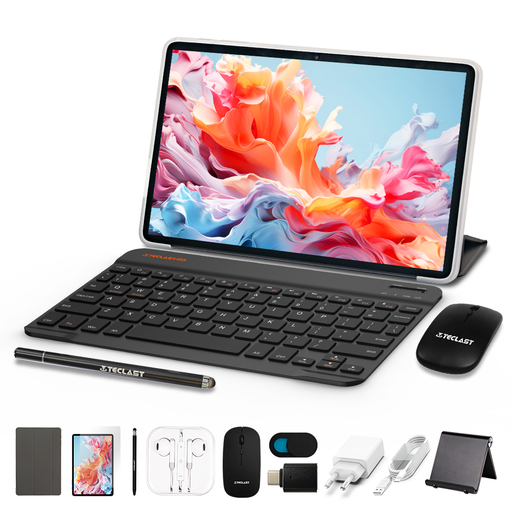
TECLAST P30TCase, 10.1 inches, Android 16, 128 GB
Compare the 10.1-inch size with your reading material and the accessories you need for your project.
The product name lists a 10.1-inch screen, Android 16 and 128 GB of storage. A keyboard, mouse and stylus case are also mentioned.
View at Joybuy
Frequently asked questions
Can I use my own USB drive with an iPad?
Yes. According to Apple, you can use the Files app to access supported external storage. Among other requirements, the drive needs to have a single data partition and a supported file format. You may need an adapter, depending on the connection, and a hard drive may require additional power. Test your own drive and files.
How do I transfer project files from a computer to an Android tablet?
Google Android Help explains how to transfer files using a Google Account or USB cable. If you use USB, select file transfer on the device; not all cables can transfer data. Then check that your project app opens the files.
Can I publish archive material after saving it on my tablet?
No. Saving a local copy doesn’t automatically give you permission to publish the material. The Government of the Netherlands distinguishes between making a private copy for personal use and distributing copyright-protected work. Privacy rules may also apply if people can be identified; the Dutch Data Protection Authority distinguishes between strictly private use and wider publication. Check the archive’s terms as well.
What are my rights if my tablet turns out to be faulty after purchase?
For a consumer purchase in the Netherlands, the seller must offer a solution if the product doesn’t meet the requirements. According to the Government of the Netherlands, there is no fixed statutory guarantee period in the country. For online purchases from a business, you’ll generally also have a 14-day cooling-off period; the applicable terms and exceptions determine whether it applies.


