Choose based on the reports you read. For full-page maps and small captions, a generous screen size matters, while annotating requires a pen and PDF workflow that work for you. A larger screen may be less comfortable to hold for long periods. E-paper with adjustable lighting offers a different way to read, but check how your own scans, colours and files look on it. A dimmer or warmer screen setting is no guarantee that your sleep, or your roommate’s, won’t be disturbed.
Who is this guide for?
Reader of reports full of maps and scans
You want to view plans, images and small captions clearly, and are considering a larger device so you don’t have to zoom as often. The Dutch Consumers’ Association warns that larger tablets can be less comfortable to hold for long periods. Samsung lists a 13.1-inch screen for the Galaxy Tab S10 FE+.
Evening reader in a shared room
You want to read with as little distracting light as possible, so you’re comparing screen types and adjustable lighting. Manufacturers describe the available settings, but the Dutch National Institute for Public Health and the Environment (RIVM) says more research is needed into the effect of built-in blue-light filters on sleep.
Researcher who annotates PDFs
You highlight passages or add comments, and want to know how to save and export those notes. Apple Support Netherlands explains how to annotate PDFs on an iPad; Rakuten Kobo lists export conditions and warns that notes may be lost if you sign out or reset the device.
What should you look for when choosing?
Large conventional tablet
Best for: you want to view maps, plans and captions together on one page more often, or use other apps alongside PDFs.
Trade-off: a larger screen takes up more space and may be less comfortable to hold for long periods. Try one of your own reports at your usual viewing distance.
Mid-sized conventional tablet
Best for: you want to hold your tablet regularly and use it to read or annotate PDFs. According to Apple, the iPad (A16) has a 10.86-inch screen diagonal and supports specific Apple Pencil models.
Trade-off: maps may need more zooming on a smaller page. Check which pen is compatible with the model you choose.
E-paper with reading light
Best for: focused reading and handwritten notes matter more to you than a general app experience. reMarkable describes PDF import and adjustable reading light; BOOX lists Android apps for the Note Air6 C.
Trade-off: test your own colour maps, scans and files for detail and zooming. For Kobo, also check the conditions for saving and exporting PDF notes.
| What to consider |
What should you look for? |
Who is this most relevant to? |
| Full report pages |
Open the same scan and map key on the screen you’re considering, then check how much detail you can see without zooming. |
If I want to view maps and small captions together, I test one of my own reports on the screen size I’m considering. Around 33% of consumers prioritise the readability of full report pages above all else. |
| Light in a shared bedroom |
Compare the lowest usable brightness setting and how the screen emits light; try it in your usual reading environment. |
If someone else in the room wants to sleep, I want to be able to read with as little distracting light as possible. Around 27% of consumers prioritise reading in dim light. |
| Annotations and notes |
Check the pen compatibility and test importing, annotating, exporting and reopening a representative PDF. |
If I want to find or transfer my highlights later, I test the entire file workflow in advance. Around 20% of consumers prioritise PDF annotation above all else. |
| Reading and other tasks |
Check that the apps and file workflow you need are compatible with the device; also consider storage and any accessories you’ll need. |
If I want to use the same device for other tasks as well as reports, I compare its app options with my reading workflow. Around 20% of consumers choose versatility as their top consideration. |
Common buying mistakes
-
Looking only at the screen diagonal
A larger screen may show more of a report page, but the Dutch Consumers’ Association notes that larger tablets can be less comfortable to hold for long periods.
Open one of your own maps and text pages in the position you usually read in. A stand or case may be worth considering if you’d rather prop up the device than hold it.
-
Assuming PDF support covers every annotation workflow
Conditions for protected files, exporting and saving notes vary between workflows. Rakuten Kobo warns that notes may be lost if you sign out or reset the device.
Before choosing, import, annotate and export a representative report, then open it again. Also check that the pen you need is compatible with the device.
-
Treating a comfort claim as a guarantee of undisturbed sleep
Adjustable lighting alone doesn’t mean that reading won’t affect your sleep or your roommate’s. The RIVM says more research is needed into the effect of built-in blue-light filters on sleep.
Choose a brightness setting that lets you read comfortably and be considerate of the other person in the room; don’t assume it guarantees a particular effect on sleep.
Brands to consider
Samsung
The Galaxy Tab S10 FE+ is an option if you want plenty of room for report pages and plan to use a pen.
- Samsung lists a 13.1-inch screen and S Pen support for the model reviewed.
- A larger screen may be less comfortable to hold for long periods; try one of your own reports in your usual reading position.
Apple
The iPad (A16) is a conventional tablet for reading and annotating PDFs.
- Apple specifies a 10.86-inch screen diagonal; Apple Support explains how to annotate PDFs on an iPad.
- Check which Apple Pencil is compatible with the model you choose and whether small map captions are readable at your viewing distance.
reMarkable
The Paper Pro is designed for reading and handwritten notes on an e-paper screen.
- reMarkable lists an 11.8-inch colour screen, adjustable reading light and PDF import.
- Check that its own operating system and file workflow suit the apps and reports you use.
BOOX
According to BOOX, the Note Air6 C combines a 10.3-inch colour screen with adjustable front lighting and Android 16.
- This combination may suit you if you want e-paper but also need Android apps.
- Test your own scans and map keys; BOOX’s claims about speed and reading comfort are not independent measurements.
Kobo
The Elipsa 2E offers an e-reader option for reading and stylus notes.
- Rakuten Kobo describes support for unprotected PDFs and the ability to export notes in those files.
- Kobo warns that notes may be lost if you sign out or reset the device, so check your backup and export process.
Tablets at Joybuy
This Joybuy selection includes conventional tablets for reading report pages and, where stated in the product name, taking notes with an included pen.
 No image available
Lenovo Yoga Tab ZAG60028PL
The product name lists an included Tab Pen Pro, making it an option if you want to annotate reports.
11.1-inch screen with 3.2K resolution and 144 Hz refresh rate; Snapdragon 8 Gen 3; 12 GB LPDDR5X and 256 GB UFS 4.0; Wi-Fi 7; Android 15.
View at Joybuy
 No image available
Lenovo Idea Tab Plus WiFi
The product name lists an included pen, making it an option if you want to take notes as well as read.
12.1-inch screen with 2.5K resolution; 8 GB RAM and 256 GB storage; Rose.
View at Joybuy
 No image available
TECLAST T65
The screen size may be worth considering if you want to view report pages on a larger display; compare the readability with your own scans.
13.4-inch screen with 120 Hz refresh rate; Android 16; 6 GB RAM plus 14 GB virtual RAM; 128 GB storage; folio case included.
View at Joybuy
 No image available
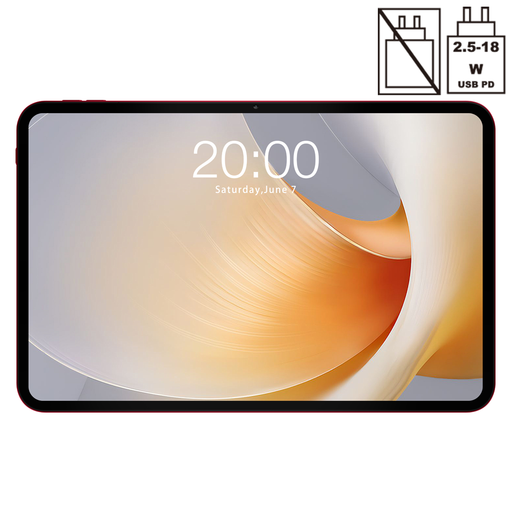
TECLAST T65 Plus
The 13.4-inch screen is worth considering if you want to view report pages at a larger size; try one of your own maps and text pages on the display.
13.4-inch screen with 120 Hz refresh rate; Android 15; 20 GB RAM and 256 GB storage.
View at Joybuy
 No image available
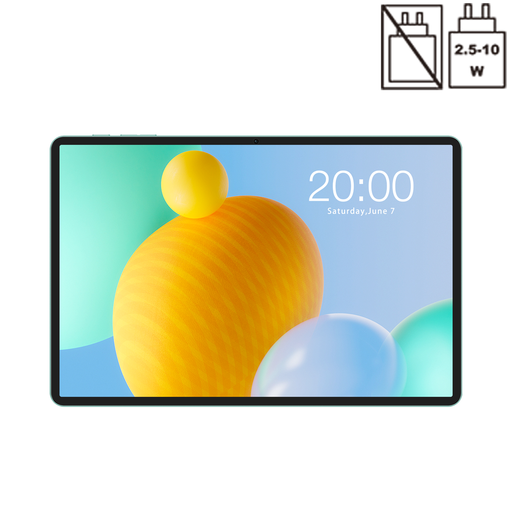
TECLAST P50
An option to compare if you want to read reports on an 11-inch tablet; check how small text and map keys appear in your own files.
11-inch IPS screen with 90 Hz refresh rate; Android 16; 6 GB RAM plus 26 GB virtual RAM; 128 GB storage.
View at Joybuy
Frequently asked questions
Can I read a scanned archaeological report without zooming?
That depends on the scan, font size and your viewing distance. Compare the same full page and map key on the screen sizes you’re considering; a larger diagonal doesn’t guarantee that small text will be readable.
What should I test before choosing a tablet for PDF notes?
Use one of your own reports to test whether you can import, annotate and export it, then open it again. Apple Support Netherlands explains how to annotate PDFs on an iPad; Rakuten Kobo describes how to export handwritten notes from unprotected PDFs.
Does a warm screen setting prevent sleep problems?
This has not been demonstrated for these tablets. The RIVM describes a link between evening screen use and disrupted sleep, and says more research is needed into built-in blue-light filters. These findings do not measure the effect of these devices or of adult archaeological report readers.
Can I share an annotated report from a notes app?
Being able to export a PDF does not in itself give you permission to distribute it. The Dutch government states that a private copy for personal use is permitted under certain conditions, but it must not be distributed or made public; also check the terms of use for the specific report.
How can I protect personal data in research apps?
Check which app permissions are needed and what data the app can use. The Dutch Data Protection Authority provides information about personal data and apps. For confidential reports, also check separately which storage and sharing methods are permitted.


