
Reader of reports rich in maps
You want to view maps, profiles and images on a full-colour page as much as possible, so screen space matters more to you than compactness. The Cultural Heritage Agency of the Netherlands describes the reports as PDFs.


For reports with maps and colour plates, a larger colour screen is a natural place to start. If you often hold your tablet, a more compact size may suit you better. Choose based on how you read and annotate, too: check the stylus and PDF app for the specific model, and test your own scans. A scanned PDF may consist of images rather than searchable text.
You want to view maps, profiles and images on a full-colour page as much as possible, so screen space matters more to you than compactness. The Cultural Heritage Agency of the Netherlands describes the reports as PDFs.
You add comments to passages and compare reports. Consider the stylus, the PDF app and the types of files you work with. Apple and Samsung describe stylus support for their relevant tablet models.
You take your tablet with you regularly and sometimes read while holding it. In that case, weight and a comfortable reading experience may matter more than being able to view a whole page at once. Apple publishes the weights of its 11- and 13-inch iPad Air Wi-Fi models.
First decide how much of a report page you want to see at once. Then compare portability, annotation features and the PDF workflow your files require.
| What to consider | What should you check? | Who should prioritise this? |
|---|---|---|
| Maps and plates | Open one of your own reports on the screen size you’re considering, then view a full map page and its small legend. | If I want to see maps and legends on one page at a glance, screen space comes first; around 33% of consumers say full-page maps are their top purchase priority. |
| Making notes | Check that the stylus is compatible with the model and included, and that your PDF app can save annotations. | If I want to highlight passages and keep notes, my annotation workflow is decisive; around 27% of consumers say annotation is their top priority. |
| Carrying and holding | Compare the stated weight and size with how you hold the tablet while reading. | If I often take my tablet with me or read while holding it, ease of handling matters more than seeing a full page at once; around 20% of consumers put portability first. |
| Working with PDF files | Test a text-based PDF and a scan to check that searching, annotating, saving and opening files offline work as you expect. | If I mainly read scans or prepare files in advance for offline use, my PDF workflow is my first concern; around 20% of consumers say access and file handling are their top priorities. |
A scanned report may consist of images of text, so searching and editing text work differently than they do in a PDF with a text layer.
Try a representative scan and, before buying, check that the feature you need works in your chosen app.
Adobe states that editing text in scanned files with Acrobat for mobile requires a subscription.
Apple lists support for compatible Apple Pencil models, but does not include a Pencil in the iPad Air box contents.
Check stylus compatibility and the exact box contents for the model you choose.
The screen type or finish alone won’t tell you how easy it is to read small map labels and colour legends in your reports.
View one of your own map pages on the screen size and type you’re considering.
Apple offers the iPad Air in 11- and 13-inch models, giving you a choice of how much screen space suits your needs.
The Galaxy Tab S10 FE+ is an Android option with a large screen for colour pages and note-taking.
The Note Air6 C is an option if you want to use colour e-paper for reading and note-taking.
The Tab P12 with Matte Display is a large-screen option with a matt finish, if that’s the combination you’re looking for.
This Joybuy selection includes tablets with screens from 11 to 13.4 inches for reading reports and making notes. Check the stylus, apps and handling of your PDF files for each model.
 Image unavailable
The 13-inch model is well suited to reading at a table when you want to see more of a report page at once. The product name lists Wi-Fi, 128 GB of storage and Space Grey.
 Image unavailable
The stated screen size is worth considering if you want to view maps and tables on a larger display. The product name lists a 13.4-inch screen, 120 Hz, Android 16, 128 GB of storage and a folio case.
 Image unavailable
This model may suit you if you’re looking for a larger screen and a stylus included in the product bundle for reading and annotating. The product name lists 12.7 inches, 2K, 256 GB of storage and an included stylus.
Image unavailable
The smaller screen size may suit you if you read on the go or often hold your tablet. The product name lists an 11-inch iPad Air (M4), Wi-Fi and 256 GB of storage.
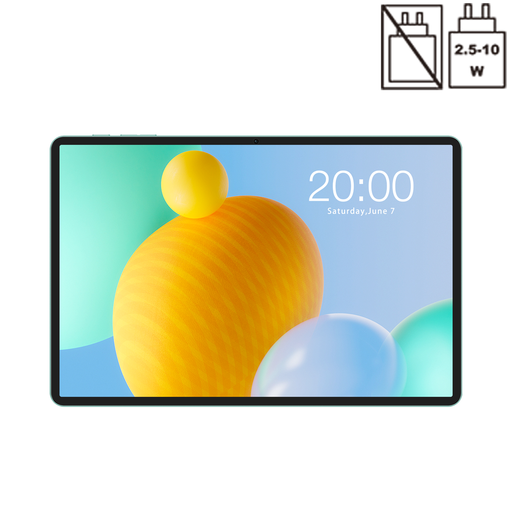 Image unavailable
The 11-inch size is worth considering if you’re looking for a smaller tablet for reading reports on the go. The product name lists Android 16, 128 GB of storage and a 90 Hz IPS screen.
Not necessarily. A larger screen gives a fixed PDF page more room, but try one of your own pages with small map labels at the size you’re considering. If you often read while holding your tablet, you may prefer a smaller size.
That depends on the file and the app. First check whether the PDF has a text layer. Adobe describes OCR for scanned text and states that editing text in scanned files with Acrobat for mobile requires a subscription.
Save a report you’re permitted to use locally in advance, then check before you leave that the file and your annotations open in your chosen app. Also make sure you’ll be able to access that particular report offline.
For online purchases, a 14-day cooling-off period applies in many cases, according to the Dutch government; whether it applies and any exceptions depend on the purchase. If the product is faulty, contact the seller to find a solution.