What should you consider when choosing?
Start by checking your complete PDF workflow, then weigh portability against writing space, and finally check the stylus, syncing and data protection needed for the way you work.
Compact app-based tablet
Best if: you want to annotate papers and also use apps for other work.
Trade-off: a smaller device is easier to carry, but gives you less screen space than a larger model.
Larger tablet for writing
Best if: you want more room to view text, figures and notes in the margins.
Trade-off: a larger model may be less convenient for short journeys; also check the exact screen specification and stylus.
E-ink paper tablet
Best if: you mainly read papers you’ve already downloaded and annotate them by hand.
Trade-off: reMarkable uses its own operating system rather than a standard iPadOS or Android app environment; check that it supports the apps and file-transfer method you need.
| What to consider |
What should you check? |
Which shoppers is this for? |
| PDF and stylus workflow |
Try it with one of your own papers: can you import it, write on it, save it and reopen or export the file? |
If I want to find or share my notes in the same PDF later, I’ll test the whole workflow. Shoppers who prioritise a PDF workflow account for around 29%. |
| Portability and offline use |
Compare the size and stated weight of the model; download papers to the device in advance and test your workflow without Wi-Fi. |
If I’m travelling frequently, I want a tablet that’s easy to carry and lets me open a paper saved locally. Shoppers who prioritise portability account for around 23%. |
| Reading and writing space |
View one of your own PDFs at full size and check that text, figures and notes in the margins are comfortable to read. |
If I read long papers with figures, I want enough room for text and notes without constantly adjusting the view. Shoppers who prioritise reading and writing space account for around 18%. |
| Stylus and services |
Check compatibility and what’s included with the exact model, as well as which syncing features you need. |
I want to know in advance which accessories and services I’ll need for the workflow I want. Shoppers who prioritise the total cost account for around 18%. |
| Data protection |
If you process personal data, follow your organisation’s policies for devices, accounts and cloud services. |
If I’m carrying client data, I want to know which storage and sharing methods are permitted. Shoppers who prioritise protecting client data account for around 12%. |
Joybuy products
These Joybuy picks are suited to reading and taking notes on the go. For each model, check that the stylus, PDF import and export, and any offline functionality meet your needs.
 No image available
Teclast T70 14-inch tablet
The 14-inch screen may be useful if you want more room to view papers; check for yourself whether the PDF view suits the way you annotate.
The product name lists a 2.2K screen with a 2240 × 1400 resolution and Android 15.
View at Joybuy
 No image available
Lenovo IdeaTab Dimensity 6300, 8 GB / 128 GB
If you’re looking for a tablet for handwritten notes, check whether the model and box contents include the stylus you need.
The product name lists an 11-inch IPS screen, 90 Hz, 500 nits, Android 15, 8 GB RAM and 128 GB storage.
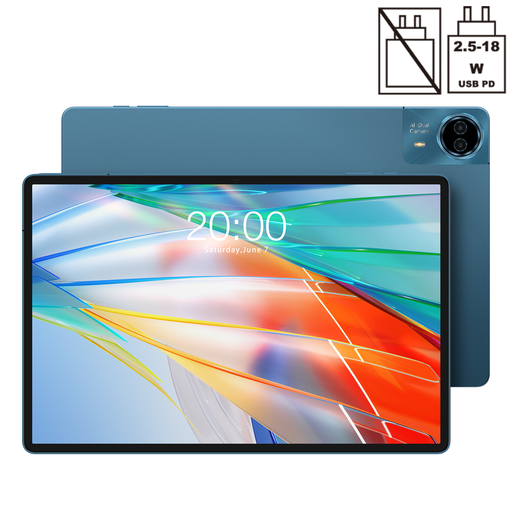
The product description says that a charger isn’t included.
View at Joybuy
 No image available
Teclast ArtPad Pro 12.7-inch, T-pen compatible
The stated stylus compatibility may suit handwritten notes; check that the stylus and PDF workflow you want are right for you before ordering.
The product name lists a 12.7-inch screen, Helio G99, 8 GB RAM plus 12 GB virtual RAM and 256 GB storage.
View at Joybuy
 No image available
Teclast ArtPad Pro 12.7-inch 2K, with stylus
The product name says that a stylus is included; test whether the stylus and PDF apps suit the way you annotate papers.
The product name also lists 20 GB RAM, stated as 8 GB plus 12 GB virtual RAM, and 256 GB storage.
View at Joybuy
 No image available
iFLYTEK AINOTE 2 10.65-inch e-ink tablet
This e-ink tablet is worth comparing if you want one device for reading and taking notes. Check specifically that PDF import, annotation and export suit the way you work with papers.
The product name lists a 10.65-inch e-ink screen.
View at Joybuy
Frequently asked questions
How can I check that my annotations are saved in the file?
Before buying, test your workflow with a sample paper: import the file, add notes, save it and reopen the exported PDF. Apple Support describes Markup for PDFs, Samsung Support explains PDF import and export in Notes, and reMarkable Support covers PDF import and export. This doesn’t mean the results will be identical across these workflows.
Can I work on a paper offline?
Yes, if the paper is already saved on the device and your chosen app works offline. Test your complete workflow without a network connection; syncing between devices may require a connection. reMarkable says that, without Connect, files that haven’t been opened and synced for more than 50 days will no longer sync with the mobile and desktop apps.
Does a suitable stylus come as standard?
Not with every tablet model. Apple says a Pencil isn’t included with the iPad Air; Samsung Netherlands lists an S Pen with the Tab S11 series but warns that box contents may vary by region or retailer. Lenovo describes Idea Tab Pro configurations without a stylus. So check the model and box contents you’re planning to buy.
Do I need Connect to annotate PDFs on a reMarkable?
No. reMarkable describes PDF annotation without Connect. Without a subscription, files that haven’t been opened and synced for more than 50 days will stop syncing with the mobile and desktop apps. So decide whether annotating on the device is enough, or whether you need ongoing syncing.
What security should I check if I’m carrying client data?
If your organisation processes personal data, it must decide on appropriate security measures based on the risks. The Dutch Data Protection Authority gives access controls and device security as examples; you should also follow your organisation’s relevant policies for storage, accounts and sharing.


