
Anyone who regularly processes piles of paper invoices
You regularly receive several paper supplier invoices and want to capture them with less manual loading. Canon and Epson models offer automatic document feeding for larger batches.


If you receive few paper supplier invoices and already use a bookkeeping app that suits your needs, try the scanning feature in that workflow first. For recurring piles of paper, a scanner with automatic document feeding and duplex scanning is more practical; if desk space is limited, consider the paper path and connections too. Check that invoices can be stored in full and found again later: text recognition alone doesn’t create a verified bookkeeping entry.
You regularly receive several paper supplier invoices and want to capture them with less manual loading. Canon and Epson models offer automatic document feeding for larger batches.
You want to store invoices in a readable format, find them alongside the relevant bookkeeping entry and check any recognised data. The Dutch Tax and Customs Administration explains how received invoices can remain accessible in your records.
You scan smaller quantities and want to know whether a compact device would add anything to your existing app-based workflow. A compact model may need different connections or space for paper input and output.
Start with the number of paper invoices you actually process. Then consider the feed, how you want to archive them and how much space the scanner takes up in use.
| What to consider | What should you check? | Who is this important for? |
|---|---|---|
| Feeding piles of paper | Compare the automatic document feeder, duplex scanning and capacity with the size of your usual batch. | If I regularly process piles of paper, I want to refill the feeder less often; this is the main priority for around 36% of consumers. |
| Finding invoices again | Check whether the software creates searchable files and whether you can link them to your archive or bookkeeping system. | I want to store invoices in a readable format and find them alongside bookkeeping entries; around 29% of consumers prioritise this. |
| Space and connection | Check the space needed while scanning, the paper output and the required power supply or network connection. | On a small home desk, the scanner needs to fit with paper going in and coming out; this is the biggest consideration for around 21% of consumers. |
| Few paper invoices | Count how much paper you process and try the features in your existing bookkeeping app first. | If invoices usually arrive digitally, I don’t want to add a device that will rarely be used; around 14% of consumers prioritise this consideration. |
Text recognition can suggest data, but it still needs to be checked. The Dutch Tax and Customs Administration also requires a digitally stored invoice to be a true and complete representation of the original.
Check both sides of the scan, review the bookkeeping details and test whether you can find the invoice again from the relevant entry.
Allow time to check your scans and correct any incomplete scans or inaccurate data.
Canon lists different speeds for black-and-white and colour scanning at A4 and 200 dpi for the imageFORMULA R30. Pages per minute and images per minute are different measures.
Compare like with like and check the stated settings before comparing speeds.
Feeder capacities of 10, 20 or 60 sheets are designed for different batch sizes. Brother lists optional accessories for the ADS-1800W, including a power supply and an output tray.
Compare your usual paper volume, the space needed for the feeder and what’s included with the exact model.
A separately available power supply or output tray may mean you need to arrange another component before you can use the scanner.
Epson lists the WorkForce ES-580W as discontinued. For the ES-C380W and other models, check that the feature you need is available on the exact version you’re considering.
Check the manufacturer’s specifications for the model and, if product information conflicts, ask for confirmation before you buy.
The ADS-1800W is designed for smaller batches and flexible placement.
The imageFORMULA P-208II is designed for mobile scanning of small batches; the R30 is a desktop model for larger batches.
The ES-C380W offers different paper paths, while the WorkForce ES-550W is designed for larger batches.
The iX1600 is worth comparing if scan profiles and wireless operation are important to you.
This selection includes desktop scanners for larger piles, as well as more compact models for smaller batches or limited desk space.
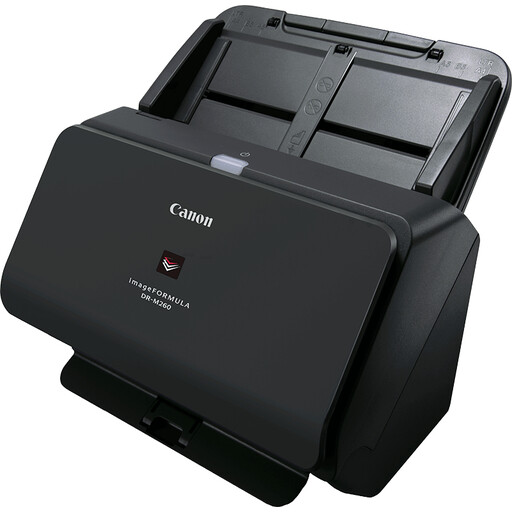 No image available
A sheet-fed scanner to consider if you want to digitise larger batches of documents and different types of media.
The product description lists scan speeds of up to 60 ppm and support for network and SharePoint.
 No image available
The combination of an automatic document feeder and flatbed scanner could suit you if you need to scan both loose invoices and other paper documents.
The product description lists a 50-sheet feeder and duplex scanning. The product name specifies a flatbed scanner and ADF.
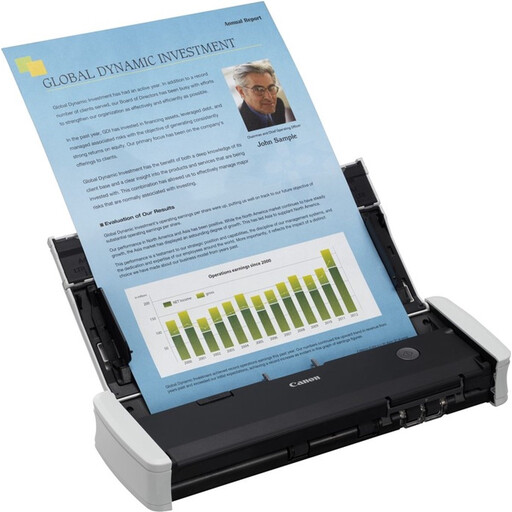 No image available
A compact model to consider for smaller piles of paper and a workspace where you may want to move the scanner around.
The product description lists duplex scanning, a 20-sheet feeder and power via a USB cable.
 No image available
This compact sheet-fed scanner is worth comparing if you process invoices on a small desk.
The product description mentions a U-turn paper path and support for PDF, JPG and TIFF files.
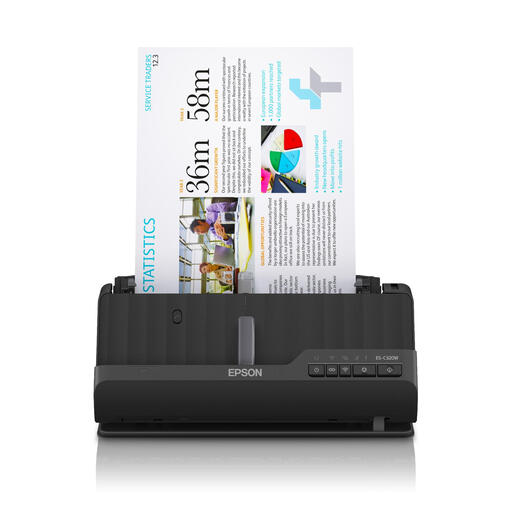 No image available
This compact model is worth considering if you want to scan smaller batches of invoices and wireless connectivity is important to you.
The product description lists Wi-Fi, automatic duplex scanning and speeds of up to 30 ppm. Its U-turn path is designed for spaces with limited room.
No. The Dutch Tax and Customs Administration says digital invoices must be stored digitally in the form in which you received them. A document scanner is for paper documents.
Not automatically. According to the Dutch Tax and Customs Administration, the scan must be a true and complete representation of the original, and features that establish its authenticity must be stored. Check that your records meet these requirements before destroying the paper original.
The Dutch Tax and Customs Administration generally specifies a retention period of 7 years, or 10 years for invoices relating to immovable property. It also specifies 10 years for certain supplies and services under the Union or Import Scheme of the One Stop Shop. Digital records must be available for inspection within a reasonable period.
Don’t assume so. Snelstart’s Scan & Recognise workflow creates a suggested entry for you or your bookkeeper to check. Check which features and integrations your own bookkeeping software offers.
First decide where the files should be stored, then check that your computer, network and power supply are compatible with the model you choose. Check scans for missing sides or illegible sections, and follow the model’s instructions for cleaning and replacement parts.