Vandaag of morgen in huis

Kwaliteit gegarandeerd

Welkomstaanbiedingen ontgrendelen: GRATIS bezorging | Tot 80% korting | Gratis 30 dagen JoyPlus-proefperiode
Download de app
A stylus pen for a tablet can make handwritten notes, sketching and controlling a touchscreen much easier. However, buying any digital pen you come across can be risky. A pen that works with an iPad is not automatically suitable for a Samsung tablet, Windows laptop or 2-in-1 device.
The main problems usually arise from three misunderstandings:
Therefore, always check the exact model of your tablet or laptop before ordering a tablet pen.
An active stylus communicates with the digitiser in the screen. Common standards include AES, USI and MPP. These standards are not interchangeable.
For example, a pen for iPad uses Apple Pencil technology and only works with certain iPad generations. For a stylus for a Samsung tablet, support for S Pen technology may be important. A stylus for Microsoft Surface generally uses a compatible Microsoft protocol, while a stylus for a Dell laptop must be compatible with the specific 2-in-1 model.
Pay attention to the following points:
A capacitive touchscreen pen is often more widely compatible, but may offer fewer features than a model-specific active stylus.
For writing and basic navigation, a fine pen tip is important. For drawing, shading and calligraphy, pressure sensitivity and tilt functionality are more relevant. Products with 4096 pressure levels can register subtle differences in pressure according to the product description. The overall experience also depends on the tablet, app and screen technology.
Palm rejection prevents your hand from being registered as an additional touch. This is practical when taking long notes or drawing digitally. A pen without this feature can still be useful, but the app or tablet will need to compensate in another way.
Also consider:
An active stylus may use an AAAA battery, a built-in rechargeable battery or wireless charging via the tablet. A battery-powered model is convenient if you do not want to recharge regularly. A rechargeable battery means you do not need spare batteries, but it does need to be charged in good time.
The stated battery life is a product specification, not a guarantee for every usage scenario. Intensive drawing, Bluetooth and shortcut functions can affect power consumption. Also check whether a battery is included. With some models, you need to purchase one separately.

Why it suits this profile: This pen for iPad is designed for writing, drawing and everyday use without Bluetooth pairing. According to the product description, it works with iPad models from 2018 onwards that support iOS 12.2 or later.
The compatibility information is clearly limited to suitable iPads. This reduces the risk of buying a general touchscreen pen with limited functionality.
USB-C charging, tilt recognition, palm rejection and up to 6.5 hours of battery life according to the product information.
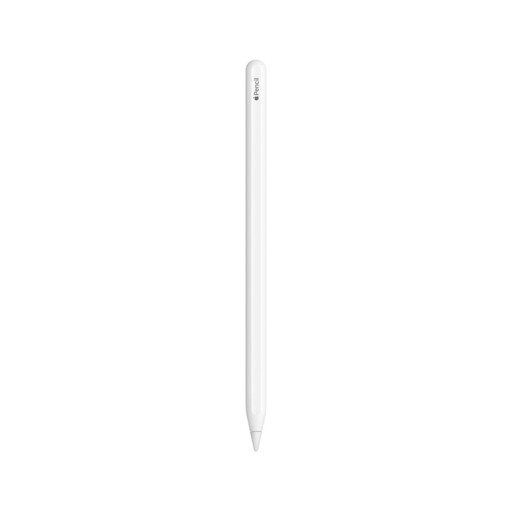
Why it suits this profile: This Apple Pencil is intended for users who draw, annotate PDFs and take notes on compatible iPad Pro, iPad Air and iPad mini models.
The pen is not presented as a universal model: the supported iPad models are listed specifically. This helps you check compatibility before buying.
Magnetic pairing and charging, double-tap tool switching, palm rejection and tilt support according to the product details.

Why it suits this profile: For business users, students and creative professionals with a compatible Dell 2-in-1, this active stylus offers features for intensive writing and drawing.
The pen is intended for specific Dell models and supports Bluetooth pairing. Check this list before ordering to avoid a mismatch with a standard Dell laptop.
4096 pressure levels, programmable buttons, Bluetooth and up to 40 days of battery life after a single charge according to the product description.
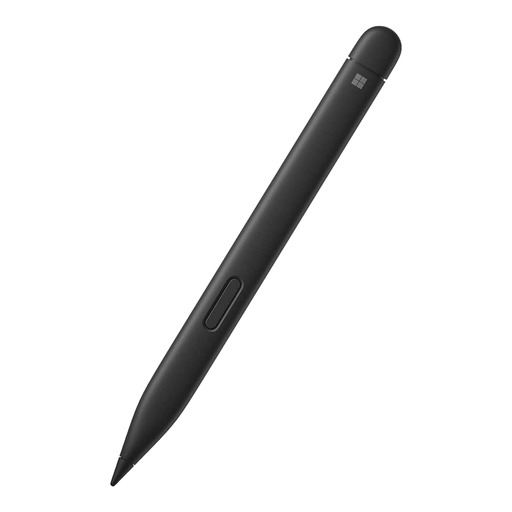
Why it suits this profile: This pen for 2-in-1 laptops and Surface devices is ideal for users who combine Windows note-taking, sketching and device control.
The compatibility list names Surface models separately. This makes it easier to check whether your device supports it.
4096 pressure levels, palm rejection, tilt support and haptic feedback according to the product information.
Use this quick checklist:
Also pay attention to your statutory consumer rights. According to the product information, the products listed are covered by a minimum of two years’ legal guarantee under European consumer legislation. Additional rights may apply under the relevant national law.
We have put together a complete, up-to-date list of products that fully meet these strict selection criteria and the applicable European safety regulations.
No. A basic capacitive touchscreen pen will often work for simple device control, but an active stylus requires compatible screen technology. Pressure sensitivity, palm rejection and Bluetooth only work when both the pen and the device support these features.
This varies by model. Some pens use an AAAA battery that lasts for many months according to the product description. Other models have a built-in rechargeable battery offering anything from a few hours to several weeks of use. Check whether the stated duration refers to active use or standby.
No. An Apple Pencil is designed for specific iPad models and generations. Therefore, check both the pen’s compatibility list and your iPad’s model number. Also check the charging method: magnetic, via USB-C or using another connection.