
iPad user working with scans
You already have an iPad and are looking for a Pencil or compatible alternative that suits your tablet model and drawing style.


Start by checking your exact tablet model, then make sure your drawing app can add a scan as a layer. For smooth outlines, a compatible pen without pressure sensitivity may be enough. If you want your lines to respond to how hard you press, the pen, tablet and app must all support this feature. Storage, charging and extra controls vary by model.
You already have an iPad and are looking for a Pencil or compatible alternative that suits your tablet model and drawing style.
You want to draw on your existing Android tablet and need a pen designed for that specific tablet model.
You want to vary your lines or shading by pressing harder or more lightly, so you’re also checking whether your drawing app supports pressure input.
| What to consider | What should you check? | Who is this important for? |
|---|---|---|
| Compatibility | Compare your exact tablet model and pen version with the compatibility list, and check for any software requirements. | If you want to keep drawing on your current tablet, you’ll want to make sure the pen is compatible with that model. Around 33% of consumers put compatibility first. |
| Line weight and shading | Check that both the pen and your drawing app support pressure sensitivity. Tilt control is a separate feature. | If you want to vary outlines by pressing harder or more lightly, the pen, tablet and app must all support pressure input. Around 27% of consumers prioritise this pressure-sensitive control. |
| Working with a scan | Check whether your app can import the scan file and manage separate layers. | If you want to keep the original intact while drawing over it, you’ll need an app that supports layers. Around 27% of consumers start by checking whether they can work with scans and layers. |
| Charging and accessories | Check how the pen charges and where it can be stored, and find out which cables, adapters or replacement tips you’ll need. | If you mainly want to draw with ease, charging, maintenance and the accessories you need could make all the difference. Around 13% of consumers look at these first. |
On iPad, Procreate lets you add a scan as a separate layer using supported image formats. Procreate’s documentation also explains how to adjust layer opacity.
Compatibility varies between pen and tablet models. A pen designed for one generation won’t necessarily work with another.
Make a note of your exact tablet model and compare it with the compatibility list for the specific pen.
If the pen and tablet aren’t compatible, you may need to replace the pen.
Tilt control doesn’t automatically mean that pressing harder will change the line. For pressure-sensitive outlines, both the pen and drawing app must support the feature.
Check that pressure sensitivity is supported by the exact pen model and the app you want to use.
Your app also determines whether you can import a scan and trace over it on a separate layer.
Try your scan file to check that the app you have in mind supports importing images and working with layers.
The Apple Pencil (USB-C) attaches magnetically, but pairing and charging are done using a USB-C cable. Apple says the Pencil Pro pairs and charges magnetically.
Check storage and charging separately for the model that’s compatible with your tablet.
Remember that the Apple Pencil (USB-C) needs a charging cable.
Pencil models for specific iPads; compatibility and the required iPadOS version vary by model.
S Pen models for specific Galaxy Tab models.
Focus Pen Pro for the Xiaomi Pad models specified by Xiaomi.
The Note⁺ 2 is an active pen for specific iPads.
Crayon for drawing and writing on supported iPads.
These Joybuy products are designed for drawing and tracing scans on compatible tablets. Before buying, check that the pen works with your exact tablet model.
 No image available
An option for drawing on a compatible iPad. Check whether tilt control suits the way you want to create lines.
The product information lists compatibility with iPads from 2018 onwards and iOS 12.2 or later.
 No image available
Ideal for artists who want to use pressure-sensitive strokes on a supported iPad. Check compatibility with your exact model.
The product information lists pressure and tilt sensitivity, as well as magnetic pairing and charging.
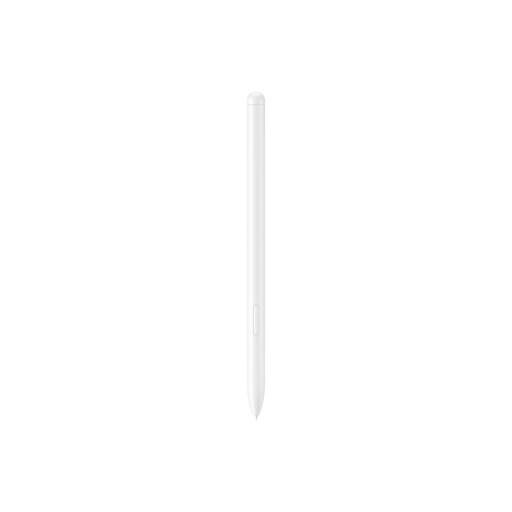 No image available
A model-specific option for drawing on a Galaxy Tab S9 FE or Tab S9 FE+. Check that your tablet is one of these models.
The product name lists a weight of 8.7 g.
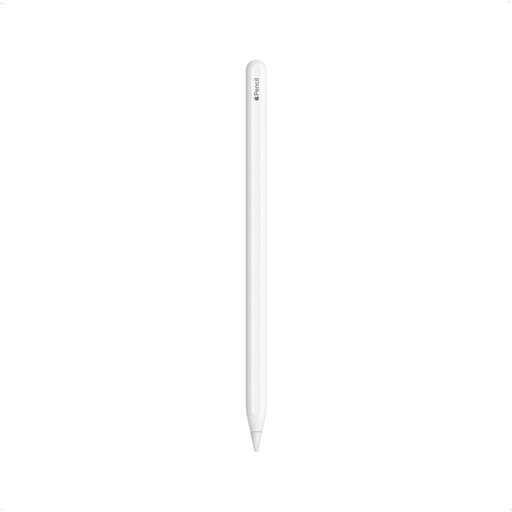 No image available
An option for drawing on iPad models compatible with this version. Check that the generations listed match your tablet.
The product name lists the 12.9-inch iPad Pro (3rd, 4th, 5th and 6th generations), 11-inch iPad Pro, iPad Air (4th and 5th generations) and iPad mini (6th generation). The product information lists magnetic attachment, pairing and charging.
 No image available
May suit tracing scans with smooth, consistent lines on a supported iPad. Tilt sensitivity isn’t the same as pressure sensitivity.
Pairing and charging are done via USB-C; with this model, magnetic attachment doesn’t mean magnetic charging.
In an app that supports it, add the scan as a separate layer and draw on a new layer above it. In Procreate on iPad, you can add supported images and adjust a layer’s opacity. Check that your chosen app can open your scan file.
No, these are different features. Apple describes the Pencil (USB-C) as tilt-sensitive. For pressure-sensitive lines, check separately that both the pen and drawing app support pressure input.
Check whether a replacement tip is available for your pen model. For example, Samsung says the S Pen for Tab S10 Lite has a replaceable tip. If a product is faulty, under Dutch statutory warranty law the seller must offer an appropriate solution, depending on what you could reasonably expect from the product under normal use.
Not necessarily. According to Dutch government information, original drawings may be protected by copyright. Before publishing or using one in another way, check that you have the rights or permission, or that a relevant legal exception applies.
For online purchases made by consumers, there is generally a statutory 14-day cooling-off period from the day the product is delivered. ACM ConsuWijzer lists exceptions; check these and the returns information for your order.