Start by checking your exact tablet or computer model against the compatibility list: a pen that works with one device won’t necessarily work with another. For drawing shapes and adding annotations, palm rejection and a suitable pen tip are worth considering. Compare how the pen pairs and charges, and check what’s already included before paying for drawing features you don’t need.
Who is this pen guide for?
Tutor with their own tablet
Draws shapes and adds measurements or angle labels while explaining a topic. A pen that works with their existing device and doesn’t accidentally add marks is important. Apple Support Netherlands, Logitech and Microsoft provide compatibility details and explain pen features for individual devices.
Student annotating their work
Writes solutions and corrections on digital learning materials. A pen suitable for notes and annotations may be all you need; extra drawing features aren’t necessarily essential. Apple and Logitech explain the writing and annotation features available on supported iPads.
Teacher using different devices
Wants to point things out or write on more than one touchscreen. Check the difference between basic touch controls and active pen features, which may only work on certain devices or in a specific mode. Microsoft and Adonit explain these device and mode requirements.
What should you look for?
First, check that the pen is compatible with your exact device. Then compare its writing features and the practical details of pairing, charging and carrying any parts you need.
| What to consider |
What should you check? |
Who is this important for? |
| Compatibility |
Check the full device model and software version with the manufacturer. For a Windows PC outside the Surface range, the pen’s MPP version must also be compatible, according to Microsoft Support Netherlands. |
I want to be sure the pen works with my existing tablet or computer; otherwise, I can’t use its main feature. Around 36% of consumers put compatibility first. |
| Clear, accurate drawing |
Check that palm rejection works with your device and in the pen mode you’ve chosen. Logitech describes this feature for supported iPads; Adonit distinguishes between the Neo Duo’s modes. |
When I draw shapes and labels with my hand resting on the screen, I want to avoid accidental marks. Around 29% of consumers say clear, accurate drawing is their main concern. |
| Ready to use |
Compare the pairing process and charging method. Apple describes USB-C pairing and charging for the Pencil (USB-C); Logitech says the Crayon works without Bluetooth pairing. |
I want to get the pen ready quickly before a lesson and know what I need to charge it. Around 21% of consumers prioritise being able to use their pen straight away. |
| Parts you need |
Check what comes with the tablet or pen, and whether you need an adapter, charging equipment or a compatible replacement tip. Samsung says an S Pen is included with the Galaxy Tab S10 FE and FE+. |
I don’t want to buy a pen or accessory I already have, or discover later that something is missing. Around 14% of consumers say additional costs are their main concern. |
Common buying mistakes
-
Choosing a pen based only on the tablet brand
Compatibility can vary depending on the pen model, tablet model and software version. Microsoft also says that not every Surface Laptop supports pen input.
Make a note of the full model name and software version, then check them with the manufacturer before comparing features.
-
Assuming ‘universal’ means all writing features are supported
Palm rejection on the Adonit Neo Duo varies by mode; the universal green mode doesn’t offer this feature.
Check which features work with your device and in the mode you want to use.
-
Buying a separate pen without checking what comes with the tablet
Samsung says an S Pen is included in the box with the Galaxy Tab S10 FE and FE+.
Check what comes with your specific tablet before choosing a replacement pen.
-
Confusing magnetic attachment with charging
Apple says the Pencil (USB-C) pairs and charges via USB-C. The Surface Slim Pen can be charged using a compatible device or accessory.
Check how the pen charges with your model and what you need to do so.
Brands to compare
Apple
Apple Pencil models are designed for specific iPads and can be used for notes and annotations when the model and iPadOS version are compatible.
- Apple Support Netherlands lists compatibility for each Pencil generation and iPad model. The Pencil (USB-C) pairs and charges using a USB-C cable.
- Magnetic attachment isn’t the same as magnetic charging. Pencil Pro only works with the iPads listed by Apple.
Logitech
The Crayon (USB-C) is designed for supported iPads and lets you write or annotate without pairing via Bluetooth.
- Logitech lists tilt control and palm rejection via the iPad.
- Logitech says the Crayon isn’t pressure-sensitive. Check compatibility for the specific model.
Samsung
S Pen models are worth considering with compatible Galaxy Tab models, for example if you already own one of these tablets.
- Samsung says an S Pen without BLE is included in the box with the Galaxy Tab S10 FE and FE+.
- Don’t assume that every S Pen sold separately works with every Galaxy Tab; check the exact model.
Lenovo
The Tab Pen Plus is an option for Lenovo tablets that Lenovo confirms are compatible.
- Lenovo specifies Bluetooth pairing, palm rejection, tilt detection, 4096 pressure levels and one extra pen tip in the box.
- These specifications don’t confirm that the pen works with every Lenovo tablet; check the exact tablet model.
Microsoft
The Surface Slim Pen is designed for Surface models with pen support, and may also work with other Windows devices that have compatible MPP support.
- Microsoft explains how pen features and charging methods vary by device.
- Not every Surface Laptop supports pen input. Microsoft says haptic signals are only available in certain apps.
Adonit
The Neo Duo is designed for switching between supported iPad pen input and basic touchscreen controls.
- According to Adonit, the blue mode offers palm rejection on supported iPads.
- The universal green mode doesn’t offer palm rejection. The Neo Duo doesn’t support tilt or pressure sensitivity.
Stylus pens for geometry
These product picks are designed for writing and sketching on selected iPad and Galaxy Tab models. Before you choose, check that the pen works with your exact tablet and find out which features and accessories come with that model.
 No image available
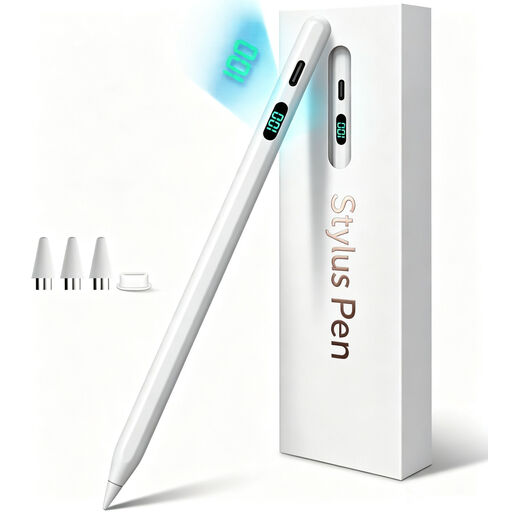
Input Pen stylus for iPad 2018–2026, USB-C
For sketching and adding annotations on an iPad; check that your exact model is compatible.
The product information lists USB-C charging, tilt detection, palm rejection and double-tap activation, with no Bluetooth pairing required.
View at Joybuy
 No image available
Stylus for selected iPad models, USB-C
For writing and drawing on the iPad models this pen is designed for; check model compatibility.
The product name lists tilt detection, palm rejection, magnetic attachment and an LED battery level indicator. The product information says it works without Bluetooth pairing or an app.
View at Joybuy
 No image available
Logitech Crayon, USB-C, silver
For writing and annotating on an iPad that’s compatible with this Crayon model.
Logitech lists palm rejection and tilt control, and says the Crayon works without Bluetooth pairing. According to Logitech, this pen isn’t pressure-sensitive.
View at Joybuy
 No image available
Apple Pencil Pro 2024
For writing, drawing and taking notes on a compatible iPad; Apple Pencil compatibility varies by iPad model.
The product information lists tilt and pressure sensitivity, as well as magnetic pairing and charging on compatible iPads. The models listed for this version are the iPad Pro 11-inch and 13-inch (M4), iPad Air 11-inch and 13-inch (M2), and iPad mini (A17 Pro).
View at Joybuy
 No image available
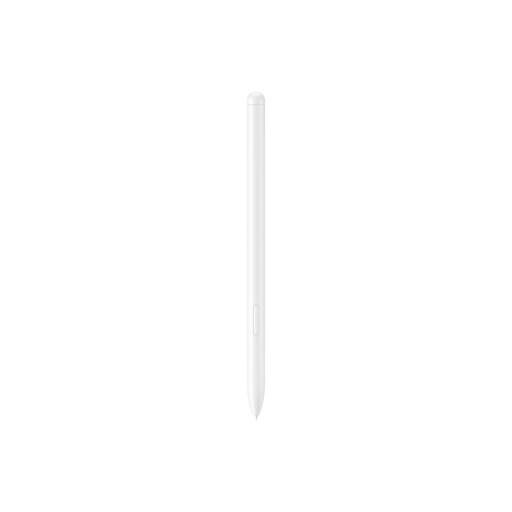
Samsung EJ-PX510 stylus, beige, 8.7 g
According to the product information, this pen is designed for the Galaxy Tab S9 FE and S9 FE+; check that your tablet model is compatible.
The product information lists automatic Bluetooth pairing and wireless charging via the tablet. Samsung warns that an S Pen won’t necessarily work with every Galaxy Tab.
View at Joybuy
Frequently asked questions
Do I always need pressure sensitivity for digital geometry?
No, not necessarily. GeoGebra Geometry includes tools for drawing shapes such as triangles, circles and angles, while Logitech says its non-pressure-sensitive Crayon can be used for writing and annotation. Only prioritise pressure sensitivity if it would benefit the drawing app you use and the way you sketch.
How do I get started with an Apple Pencil (USB-C)?
First, check your iPad model and iPadOS version. Apple says pairing and charging are done via USB-C; attaching the pen magnetically to the iPad doesn’t charge it by itself.
What should I do if the pen tip wears out?
Look for a replacement tip that’s explicitly compatible with your pen model. Adonit says the Neo Duo has a replaceable tip; Microsoft’s instructions for replacing pen tips apply to specific Surface Pen and Slim Pen models, not every Surface pen.


