
Sketching with a tablet you already own
You want to check first which pen works with your specific iPad, Galaxy Tab, Surface or Lenovo tablet. Apple, Samsung, Microsoft and Lenovo link compatibility to specific models.


First, choose a stylus that’s compatible with your exact tablet model; the pens covered here aren’t interchangeable. If you need plenty of line variation, check specifically for pressure sensitivity and tilt support. For quick sketching sessions at a shared desk, it’s also worth considering how the pen starts up, charges and stores away.
You want to check first which pen works with your specific iPad, Galaxy Tab, Surface or Lenovo tablet. Apple, Samsung, Microsoft and Lenovo link compatibility to specific models.
You create several concept variations and want to know whether pressure sensitivity or tilt support suits the strokes you need for your drawing workflow. Samsung and Lenovo describe these features for specific pen and tablet combinations.
You want to pick up, use, charge and put away a pen quickly, without extra steps during short sketching sessions. Logitech says the Crayon (USB-C) can be used with an iPad without complicated Bluetooth pairing.
Start by checking your tablet’s compatibility, then decide whether line control, convenience at your desk or the accessories you need matter most for your sketching.
| What to consider | What should you check? | Who is it most important for? |
|---|---|---|
| Compatibility | Note down your exact tablet model and compare it with the compatibility information for the specific pen. For Apple Pencil, also check the required iPadOS version. | I want to keep using my current tablet and check that the pen works with it before buying. Around 36% of consumers prioritise compatibility with their existing tablet. |
| Control over lines and shading | Check separately whether the pen, tablet and drawing app you want to use support pressure sensitivity and tilt detection. | When creating several concept variations, I want to know how I can vary my lines. Around 29% of consumers give line and shading control top priority. |
| Quick to start and put away | Check how the pen connects and charges, and whether your tablet or a compatible accessory provides somewhere to store it. | For quick sketching sessions at a shared desk, I want to be able to use the pen straight away and find it again easily. Around 21% of consumers value this convenience at their desk most. |
| Accessories and what’s included | Check whether the pen is already included with your tablet bundle and whether you have the right charging cable or a compatible charging accessory. | I want to know in advance whether I’ll need anything besides the pen. Around 14% of consumers focus mainly on what’s included and which extra accessories are needed. |
Support can depend on the exact tablet model and, for Apple Pencil, the iPadOS version. So a pen that works with one product family won’t necessarily work with every model.
Before buying, note down the full model name and check it against the specific version of the pen. Choosing the wrong one could mean having to place another order.
These are different features. A mention of tilt detection alone doesn’t confirm that a pen registers pressure for varied sketching strokes.
If you need pressure sensitivity, check for it specifically. Also make sure your tablet and drawing app support the feature you want.
With Apple Pencil (USB-C), storing the pen magnetically doesn’t replace the USB-C charging cable. A compatible charging device or accessory may be needed for Surface Slim Pen.
Check how the exact version charges and which cables or accessories you already have.
Apple Pencil versions are designed for the iPads that Apple lists as compatible.
Samsung S Pens are models whose compatibility you should check against the relevant Galaxy Tab.
The Logitech Crayon (USB-C) is an iPad pen for drawing and writing without complicated Bluetooth pairing.
Surface Slim Pen versions are designed for compatible Surface devices and pen workflows.
The Tab Pen Plus is an option to consider for tablets with confirmed compatibility.
These Joybuy products are suited to product sketching on a supported Surface, iPad or Galaxy Tab. Check each pen’s compatibility with your exact tablet model.
 No image available
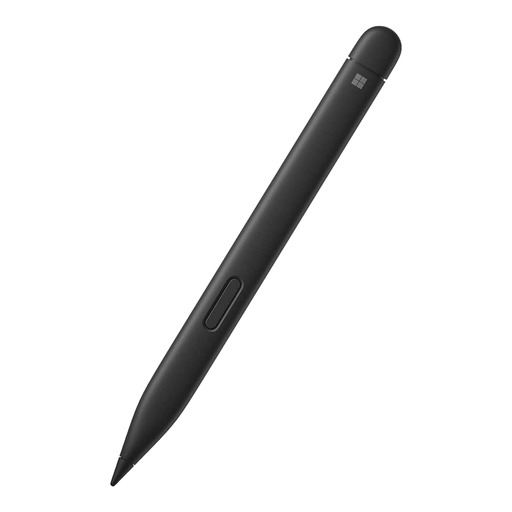
An option for sketching on a supported Surface device when pressure sensitivity matters.
The product description lists 4,096 pressure levels, haptic feedback and Zero Force Inking. Check which features your Surface model supports; the stated Type Cover compatibility applies to Surface Pro 8 or Surface Pro X.
 No image available
Suitable for sketching on an iPad model that supports this pen, with gesture controls as an added benefit.
The product description lists pressure and tilt sensitivity, squeeze, barrel roll and double tap, as well as magnetic pairing and charging. Apple lists supported iPads and iPadOS 17.5 or later for Pencil Pro; check your exact model.
 No image available
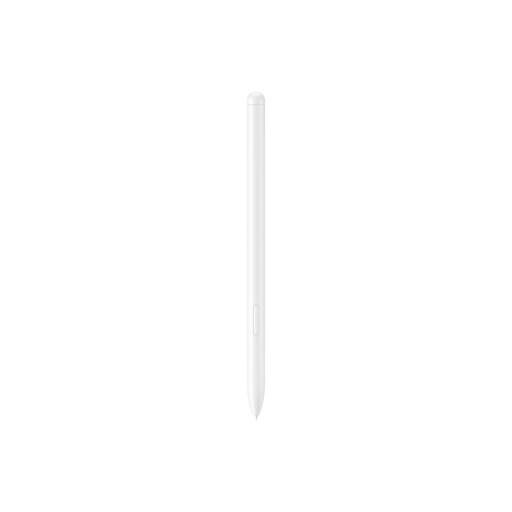
A pen to consider for sketching on a tablet that’s compatible with this specific model.
The product description mentions sketching and drawing, plus a magnetic place to store the pen on the tablet. The stated compatibility is with Galaxy Tab S9 FE and Tab S9 FE+.
 No image available
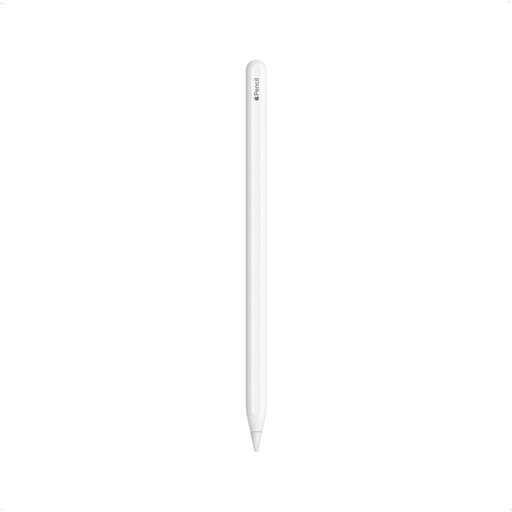
An option for sketching on an iPad that supports this version of Apple Pencil.
The product description lists double tap to switch tools and magnetic attachment, pairing and charging. The compatible models listed are the 12.9-inch iPad Pro (3rd to 6th generation), 11-inch iPad Pro, iPad Air (4th and 5th generation) and iPad mini (6th generation).
 No image available
An option for quick sketching sessions on a compatible iPad when you want to get started without complicated Bluetooth pairing.
The product description lists tilt support for variable line thickness, palm rejection and USB-C charging. The stated compatibility is with iPad models from 2018 onwards running iOS 12.2 or later.
No. Check your exact tablet model and the pen’s compatibility information. For Pencil Pro, Apple also lists a required iPadOS version; for the S11 pen covered here, Samsung lists the Tab S11 and Tab S11 Ultra.
First, charge the pen using a compatible device or accessory, as described by Microsoft. Then, to use the Bluetooth shortcut, press and hold the top button to pair the pen with your Surface. Check separately which pen features your Surface model supports.
For consumer purchases in the Netherlands, products must be of satisfactory quality, and you should contact the seller if there’s a fault. According to the Dutch government, there is no fixed general statutory warranty period; what you can expect depends on the product and the circumstances.
For distance purchases from a business, the Dutch government says you have a 14-day cooling-off period in many cases. This is separate from any voluntary returns policy offered by the seller; check the terms that apply to your purchase.