
Still-life painter with an existing tablet
You want to check first that the stylus works with your tablet model and painting app. Apple, Samsung and Adonit publish compatibility information or app requirements for their stylus options.


Start by checking the exact model of your tablet and the painting app you use. Then see whether the stylus offers pressure sensitivity, tilt sensitivity or other brush features supported by the app. A pressure-sensitive stylus suits strokes you want to control with the pressure of your hand, while tilt sensitivity may be enough for sketching and writing. Compatibility and features depend on the stylus, tablet and app.
You want to check first that the stylus works with your tablet model and painting app. Apple, Samsung and Adonit publish compatibility information or app requirements for their stylus options.
You want to know whether you can control brush strokes with pressure or tilt, and whether your app supports that input. Procreate explains how brushes respond to pressure, tilt and rotation from supported Apple Pencil input.
You want to get started, charge and store your stylus easily; pressure-controlled brush strokes may be less important. Apple lists tilt sensitivity for Apple Pencil (USB-C), while Logitech says Crayon lets you start drawing straight away, without Bluetooth pairing.
First, check that the stylus works with your tablet and app. Then compare brush controls and how you pair, charge and store the stylus.
| What to consider | What should you check? | Who is this important for? |
|---|---|---|
| Tablet and app compatibility | Full tablet model, software version, stylus version and app requirements. | If I already own a tablet, I want to know whether the stylus and app work with it before comparing features. Around 36% of consumers prioritise compatibility. |
| Pressure and tilt | Check these features separately and see whether your app and brush support them. | If I want to control outlines and shadows with the pressure of my hand, I need both a stylus and a brush that respond to it. Around 29% of consumers prioritise pressure-controlled brush strokes. |
| Getting started and charging | Check how the stylus pairs, how it charges and whether you can use it while it’s charging. | If I paint in short sessions at my desk, I want to get started without unnecessary pairing steps and store the stylus easily. Around 21% of consumers prioritise this kind of workflow. |
| Tips and maintenance | Check which tips are included and which replacement tips fit the stylus. | If I want to use my stylus for a long time, I want to know in advance what to do if the tip wears out or gets damaged. Around 14% of consumers give tips and maintenance top priority. |
Apple and Samsung list compatibility by stylus version and device. Some combinations with Apple Pencil (1st generation) require an adapter for pairing and charging.
Before buying, compare your tablet’s full model name with the compatibility information for the exact stylus version.
The iPad combinations mentioned may require a separate adapter.
Tilt and pressure are different ways to control a brush stroke. Logitech states in its user guide that Crayon isn’t pressure-sensitive.
If you want to vary your lines with the pressure of your hand, check both the stylus input and how your painting app responds to it.
Apple describes magnetic attachment and charging for Pencil Pro, but USB-C charging for Pencil (USB-C). With some combinations, storing and charging the stylus are separate steps.
Check separately for your tablet and stylus whether magnetic attachment is just for storage or also charges the stylus.
A stylus that charges via USB-C requires a separate charging step and a suitable cable.
Apple Pencil models are designed for specific iPads. Apple positions Pencil Pro as offering extra controls, while Pencil (USB-C) is intended for uses including sketching and note-taking.
The S Pen Creator Edition is Samsung’s drawing- and writing-focused option for compatible Galaxy devices.
Adonit Note⁺ 2 is an iPad option worth comparing if you’re looking for different tip types and pressure features that depend on the app.
Logitech Crayon is an option for sketching and writing on a compatible iPad if you want to get started without Bluetooth pairing.
These Joybuy products are styluses for iPad, with options for tilt-controlled sketching and brush control on a compatible tablet.
 No image available
An option for sketching and tonal work using tilt; the product information says pressure sensitivity isn’t supported.
The product name lists USB-C fast charging.
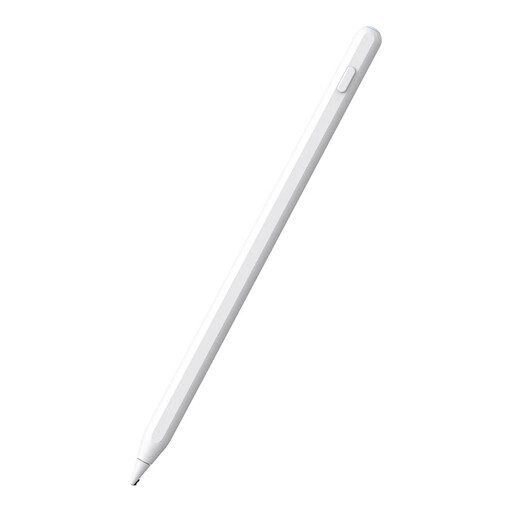 No image available
The product information mentions drawing on an iPad and palm rejection; check that this stylus is compatible with your exact tablet model.
The product name lists magnetic charging.
 No image available
An option for sketching and shading using tilt; the product information limits compatibility to selected iPad models.
The product name lists USB-C charging, palm rejection and magnetic attachment.
 No image available
For pressure- and tilt-controlled brush strokes on a compatible iPad; check whether your iPad model is supported.
Apple describes squeeze, rotation and magnetic attachment and charging for Pencil Pro.
 No image available
An option for sketching and shading using tilt on a compatible iPad.
Apple lists USB-C charging. The magnetic attachment is for storage.
Compare your iPad’s full model name with Apple’s compatibility information for the exact Pencil generation. Check the required iPadOS version too. For Apple Pencil (1st generation), Apple lists an adapter for pairing and charging with iPad (A16) and iPad (10th generation).
Check that both your stylus and the brush you’ve chosen in the app support pressure input. According to Adonit, Note⁺ 2 needs to be paired with specific apps for pressure sensitivity; Procreate describes pressure responses for supported stylus input. Tilt sensitivity alone doesn’t mean pressure sensitivity is supported.
That depends on the stylus and how it charges. The Logitech Crayon user guide consulted says the stylus doesn’t work while charging; Apple describes magnetic attachment and charging for Pencil Pro, and USB-C charging for Pencil (USB-C).
For online purchases from a business, the Dutch government says you’ll generally have 14 days to change your mind, although exceptions apply. You’re also covered by the statutory guarantee. If a product is faulty, contact the seller and distinguish your statutory rights from any manufacturer’s guarantee.