
Storyboard artists with an existing tablet
You want to sketch frames quickly without choosing a pen that isn’t compatible with your device. Apple, Samsung, Huion and XPPen publish compatibility information for specific devices or pen models.


First, choose a stylus that’s compatible with the exact model of your existing tablet or pen display: pens aren’t automatically interchangeable between systems. Then consider whether you need pressure sensitivity and quick tool switching for storyboard lines, or simply want to sketch. Charging, pairing and storage can also matter at a shared desk.
You want to sketch frames quickly without choosing a pen that isn’t compatible with your device. Apple, Samsung, Huion and XPPen publish compatibility information for specific devices or pen models.
You want to tailor line control and tool switching to your pen, device and drawing app as you work. Check the features available with the specific combination you use.
You pack away your things after a session or move to another workspace. In that case, the charging method, replaceable nibs and a dedicated place to store your pen are worth considering.
Start with the full model name of your tablet or pen display and check which pen is compatible. Then consider the drawing features and practical details you really need.
| What to consider | What should you check? | Who does this matter to? |
|---|---|---|
| Compatibility with your device | Look up the exact tablet or pen display model and check the corresponding pen model and any system requirements. | I want to avoid buying a new pen that won’t work with the screen already on my desk; consumers who prioritise compatibility make up around 36%. |
| Control over storyboard lines | Check pressure sensitivity, tilt control and any eraser or switching functions for the specific pen, device and drawing app. | If I’m drawing expressive frames, I want to know which features my app supports; consumers who prioritise line control make up around 29%. |
| Getting started and packing away quickly | Check how the pen charges, whether it needs to be paired and whether you have a dedicated place to store it. | I want to spend less time setting up for a quick drawing session and be able to find my pen afterwards; consumers who prioritise quick workspace changes make up around 21%. |
| Extras you may need | Check what’s included in the box and whether your setup needs an adapter, charger or replacement nibs. | Before choosing, I want to know what extra parts my existing setup requires; consumers who weigh up additional costs first make up around 14%. |
Apple, Samsung, Huion and XPPen specify compatibility for particular devices or pen models, so matching brands alone doesn’t confirm that they’ll work together.
Before buying, compare the full model names with the manufacturer’s compatibility information.
If a pen isn’t compatible with your device, you may need to choose a different model after all.
Tilt control and pressure sensitivity are different features. Having one doesn’t mean the other is available.
If you need pressure-controlled line width, check that the feature is supported by the exact pen, device and drawing app you use.
Some device and pen combinations may also require a suitable adapter, charger or replacement nibs.
Check what’s included and which accessories you’ll need before working out the total cost for your setup.
Depending on the combination you choose, you may need an adapter, charger or compatible replacement nibs.
Different Apple Pencil models are designed for different iPad models, so they may be worth considering if you storyboard on an iPad you already own.
S Pen models are designed for supported Galaxy devices; Samsung lists the Tab S11 series pen separately.
The Crayon (USB-C) is an option for sketching and annotating on a compatible iPad.
Huion pens such as the PW550 are designed for specific Kamvas pen displays and Inspiroy drawing tablets.
XPPen describes X3 Elite pen models for certain Deco and Artist drawing devices.
These pens are designed for storyboarding on existing, compatible tablets; some models are made for specific device series. Before buying, check that the pen works with your exact model and drawing app.
 No image available
According to the product description, this pen is designed for drawing and getting started quickly without pairing on a supported iPad.
Tilt control; USB-C charging. The product description lists iPads from 2018 or later running iOS 12.2 or above as a compatibility requirement.
 No image available
An option for drawing storyboard lines on an iPad that supports this pen; the product description lists pressure and tilt sensitivity.
The product description lists gestures for switching tools, as well as magnetic pairing and charging. Check compatibility with your exact iPad model.
 No image available
For drawing and sketching on a compatible iPad; the product description lists tilt sensitivity.
USB-C charging. Check that your iPad model supports this pen.
 No image available
According to the product description, this S Pen is designed for drawing and sketching on the Galaxy Tab S9 FE and Tab S9 FE+.
The description mentions drawing in Samsung Notes and PENUP, and attaching the pen to a magnetic holder on the tablet. Check that your exact model is supported.
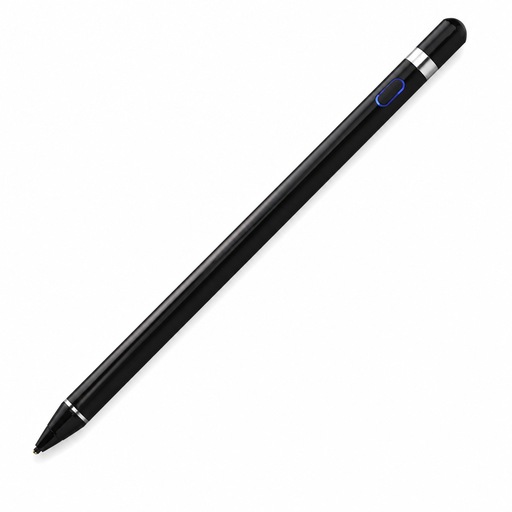 No image available
The product description lists drawing on capacitive screens and pressure sensitivity; check that it works with your device and drawing app.
According to the product description, you need to download an app and pair the pen via Bluetooth before use. The product name lists iOS, iPad, Android and PC.
First, find your exact iPad model and compare it with Apple’s compatibility list for the Pencil model you’re considering. Check the required iPadOS version too. Some combinations with the first-generation Apple Pencil require an adapter for pairing and charging.
It depends on the pen model. Logitech describes the Crayon (USB-C) as a pen that works without complex Bluetooth pairing. Check the instructions for your exact model before assuming pairing isn’t required.
Check whether the nib on your specific pen can be replaced and which replacement part it needs. Samsung provides instructions for replacing the nib on the S Pen for the Tab S11 series; this doesn’t automatically apply to other S Pen models.
According to the Dutch government, consumers buying from a business at a distance are often entitled to a 14-day cooling-off period. You’re also entitled to a product that’s in good condition, and you can contact the seller if there’s a problem. Check the terms for your purchase; these rights don’t necessarily apply to business purchases.