
Detail-focused artist
You develop characters with varied line weights, shading and fine details. First, check which drawing features your tablet and app support.


Start with your exact tablet model: choosing a compatible stylus matters more than having a long list of drawing features. Pressure sensitivity is useful if you want to control line thickness and shading with hand pressure; for quick sketches, tilt sensitivity and simple operation may be enough. Then check how the pen is stored and charged, and whether its tip can be replaced.
You develop characters with varied line weights, shading and fine details. First, check which drawing features your tablet and app support.
You want to buy a separate pen without replacing your iPad, Galaxy Tab or Lenovo tablet. The exact tablet model determines which options are suitable.
You switch between drawing and other desk work, so you’ll want to consider storage, charging and whether the pen tip can be replaced if needed.
Start with your exact tablet model and operating system version. Then assess how the pen responds to your strokes, and choose storage, charging and tip replacement options that work for a shared desk.
| What to consider | What to look for when buying | Who should pay extra attention? |
|---|---|---|
| Tablet compatibility | Compare the full tablet model and required operating system version with the information for the exact pen version. | If I want to keep using my existing tablet, the stylus needs to work with that exact model. Around 36% of consumers prioritise compatibility. |
| Control over lines and shading | Check pressure sensitivity and tilt detection separately, and see which features your drawing app supports. | When drawing characters with varying line weights, I want to know whether hand pressure or pen angle controls my brushstrokes. Around 29% of consumers put line control first. |
| Quick start-up and storage | Check whether the pen attaches magnetically to your tablet, and how it turns on, pairs and charges. | At a shared desk, I want to be able to pick up the pen quickly and put it away again after sketching. Storage and quick start-up come first for around 21% of consumers. |
| Tip and maintenance | Check whether the tip can be replaced and whether a spare tip is included. | If I want to know what maintenance will be needed after buying, I check the tip and any spares in advance. This is the main priority for around 14% of consumers. |
Apple Pencil models have different lists of supported iPads. So check both the pen version and the full tablet model.
Before buying, compare your exact tablet model with the compatibility information from Apple Support Netherlands or the relevant manufacturer.
These features respond to different movements. Logitech describes the Crayon as not pressure-sensitive, so tilt sensitivity won’t automatically give you pressure-controlled brushstrokes.
Check pressure, tilt and how your favourite brush works separately.
Adonit notes a limitation with magnetic attachment to certain 2024 iPads.
Check whether the pen can be stored magnetically with your device and how it charges.
Apple Pencil Pro, Apple Pencil (2nd generation) and Apple Pencil (USB-C) are designed for different iPad groups specified by Apple.
The S Pen EJ-PX510BJEGEU is a model-specific option for the Galaxy Tabs listed by Samsung for this pen.
The Crayon (USB-C) is an option for iPad users who want to get started easily and prefer tilt-controlled lines.
According to Adonit, the Note⁺ 2 is designed for iPads on its compatibility list.
The Tab Pen Plus ZG38C05190 is an option to explore if you have a compatible Lenovo tablet.
This selection includes Apple Pencil models for iPad, a Samsung stylus for the specified Galaxy Tab models and an HP MPP stylus. Check that each pen is compatible with your exact tablet.
 Image unavailable
An option for sketching with pressure- and tilt-controlled strokes, provided your iPad model and operating system version are supported; Apple specifies iPadOS 17.5 or later for the Pro.
 Image unavailable
An option for sketching if tilt sensitivity suits your way of working; check compatibility with your iPad and the features of your drawing app.
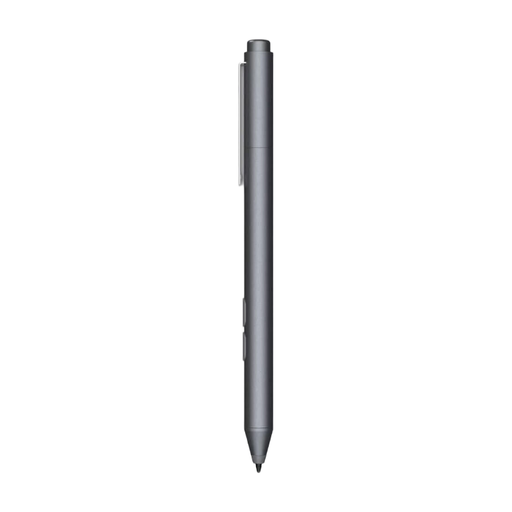 Image unavailable
An option to explore if you want to control lines with hand pressure; check that your tablet supports this model before buying.
 Image unavailable
For sketching on the Galaxy Tab S9 FE and S9 FE+; check that your tablet matches the compatibility information for the EJ-PX510.
 Image unavailable
An option for compatible iPads if magnetic storage and charging suit your shared workspace; check that this generation is compatible with your model.
Find your exact iPad model and compare it with Apple’s separate compatibility lists for Pro, USB-C and older generations. Apple specifies iPadOS 17.5 or later for the Pencil Pro; check the system requirements for your chosen pen version separately.
According to Logitech, you can switch on the Crayon and start using it without complicated Bluetooth pairing. Check that your iPad is supported and charge the pen before use.
Check the information for the specific model. Logitech says a replacement tip for the Crayon is sold separately; Lenovo states that one extra tip is included with the Tab Pen Plus.
Online consumer purchases generally come with a statutory 14-day cooling-off period from the date of delivery. ACM ConsuWijzer explains the exceptions; check the terms that apply to your purchase.
No. In addition to a manufacturer’s or seller’s warranty, you may have statutory rights if a product doesn’t perform as you could reasonably expect under normal use. According to ACM ConsuWijzer, the seller is responsible for providing an appropriate solution; there isn’t one fixed warranty period for every pen.