Vandaag of morgen in huis

Kwaliteit gegarandeerd

Welkomstaanbiedingen ontgrendelen: GRATIS bezorging | Tot 80% korting | Gratis 30 dagen JoyPlus-proefperiode
Download de app
A stylus pen for a tablet can make taking notes, sketching and giving presentations much more practical. However, not every digital pen is suitable for every tablet or laptop. A model that works with a touchscreen does not automatically support pressure sensitivity, palm rejection or accurate pen input.
The biggest purchasing mistakes usually arise from three assumptions:
Do not just look at the brand of your device. Check the exact model and supported technology, for example:
So, a pen for iPad is not automatically suitable for an Android tablet or a laptop pen. The product page should explicitly mention your model. If the model is not listed, check the device manual or contact the manufacturer.
For simple navigation or tapping buttons, a basic touchscreen pen may be sufficient. If you want to draw, write or shade, an active stylus with additional features is a better choice.
Look out for these terms:
According to Apple’s product information, the Apple Pencil USB-C supports tilt detection and hover on selected iPads. So check which features are actually available for each iPad model.
An active stylus usually runs on a battery or built-in rechargeable battery. This affects maintenance and everyday use:
A quoted long battery life is a product specification, not a guarantee for every usage scenario. Bluetooth, intensive drawing and settings can affect power consumption.

Why it suits this profile: This tablet pen is designed for iPad users who want to write, draw and navigate without complicated pairing. According to the product description, it works with iPad models from a certain generation onwards and with iOS 12.2 or later.
The stated iPad compatibility and USB-C connection make it clear which device and charging solution are required. According to the product information, no pairing is required.
USB-C charging, palm rejection and tilt support for variable line thickness; weight and battery life should be checked in advance.
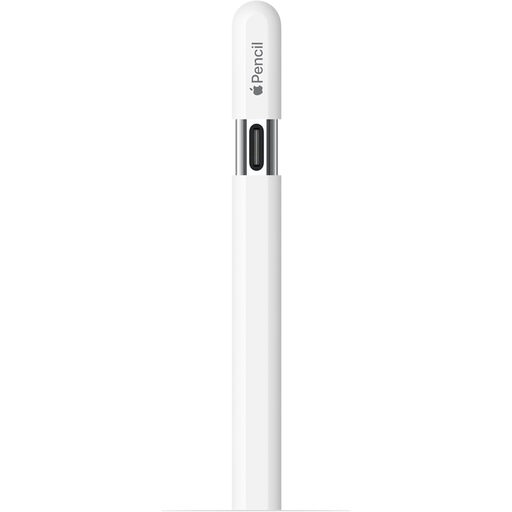
Why it suits this profile: This pen for iPad is ideal for students, designers and business users who work within the Apple ecosystem and value magnetic attachment and USB-C charging.
The compatibility list names specific iPad models. This allows you to check before buying whether writing, tilt and hover are supported by your tablet.
USB-C connection, magnetic attachment, tilt detection and palm rejection support according to the listed product specifications.
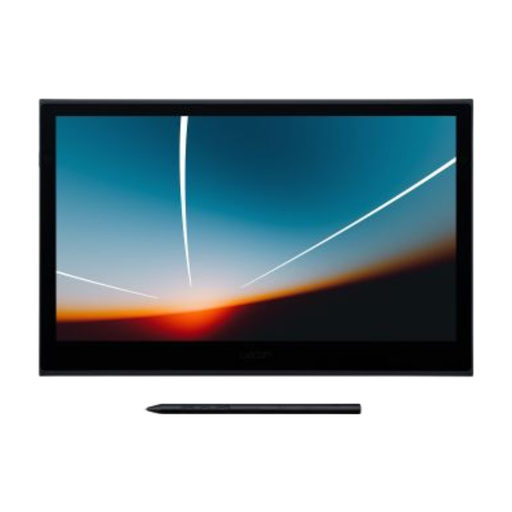
Why it suits this profile: This combines a pen display and tablet for creative professionals and designers. The 13.3-inch OLED screen has an active working area of 294 × 165 mm.
The specifications state the screen size, resolution, connection method and pen sensitivity. You therefore know exactly what you are getting, rather than relying solely on marketing terms.
8,192 pressure levels, touch control, OLED screen and a single USB-C cable for data and power; compatible with Windows, macOS, Android and ChromeOS.
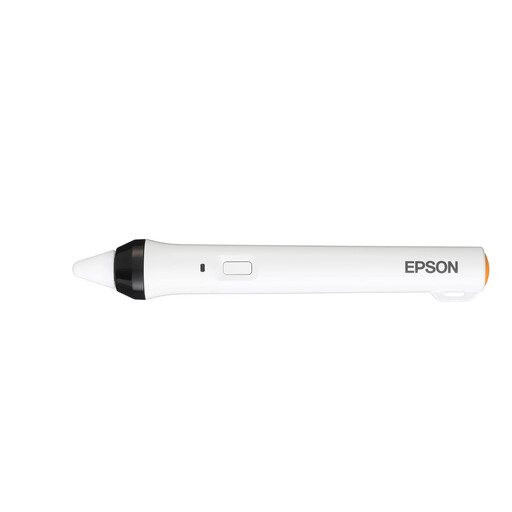
Why it suits this profile: This digital pen is not a general-purpose tablet pen. It is designed for interactive Epson projectors in classrooms and meeting rooms.
The compatible Epson projector models are listed. Check this list before buying; the pen is not intended for use with a standard tablet.
IR interface, one pen per pack and support for annotating, drawing and controlling content on a compatible projection surface.
We have put together a complete, up-to-date list of products that fully meet these strict selection criteria and the applicable European safety regulations.
No. A basic capacitive pen can often provide basic input on a touchscreen, but features such as pressure sensitivity, tilt and palm rejection require specific support. Always check the exact tablet model and pen technology.
This varies by model. Some pens work immediately after inserting a battery or switching them on. Other models need to be set up via Bluetooth, USB-C or a companion app. Follow the instructions and check that the correct drivers or software are available.
Its lifespan depends on the battery type, charging habits, usage and wear on the pen tip. A replaceable AAAA battery can be practical for business use, while a USB-C rechargeable battery is suitable if you can charge it regularly. Also check whether replacement pen tips are available.