Vandaag of morgen in huis

Kwaliteit gegarandeerd

Welkomstaanbiedingen ontgrendelen: GRATIS bezorging | Tot 80% korting | Gratis 30 dagen JoyPlus-proefperiode
Download de app
A stylus pen for a tablet can be handy for taking notes, drawing, signing PDFs or using a touchscreen. However, not every tablet pen works with every device. A pen that works with an iPad won’t automatically work with an Android tablet or Microsoft Surface.
Most disappointing purchases come down to three common pitfalls:
First, make a note of your tablet’s full model number. Then check whether the product description explicitly lists that model. This is particularly important when choosing:
A capacitive touchscreen pen may work with many touchscreens, but that doesn’t mean every feature will work. Bluetooth pairing, pressure sensitivity, tilt recognition and palm rejection often require specific hardware and software.
A basic touchscreen pen usually has a rubber or metal tip and works as a substitute for your finger. It’s suitable for navigating, tapping and making simple notes.
An active stylus contains electronics and can offer extra features, such as:
An active pen is usually more practical for writing and drawing. However, check that your tablet supports these features. A pen with plenty of features won’t offer any extra benefits if your tablet only registers standard touch input.
Check how the digital pen is powered. Product information may list several options:
Also check whether replacement nibs are available. A worn nib can make writing less comfortable, and excessive pressure may damage the screen or the pen. Follow the instructions for use and only charge the pen with a suitable cable or adapter.
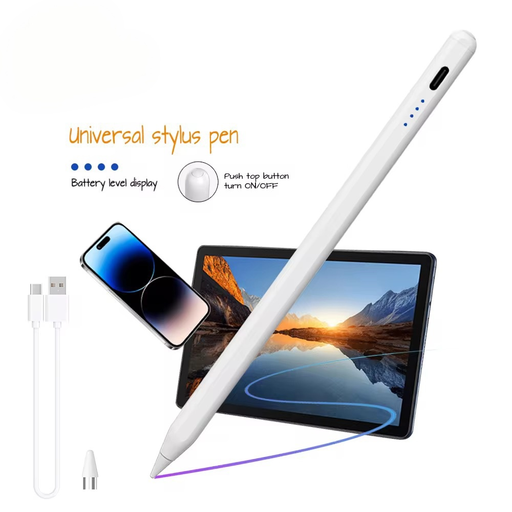
Why it suits this user: This active stylus is aimed at users with a capacitive iOS or Android screen who want to try writing, drawing and navigating without immediately opting for a model-specific pen.
The product information specifically mentions iOS, iPad, Android and capacitive screens. Still, check your tablet model and follow the stated app and pairing instructions.
140mAh built-in battery, aluminium and plastic casing, and support for writing, drawing and navigation, according to the product description.
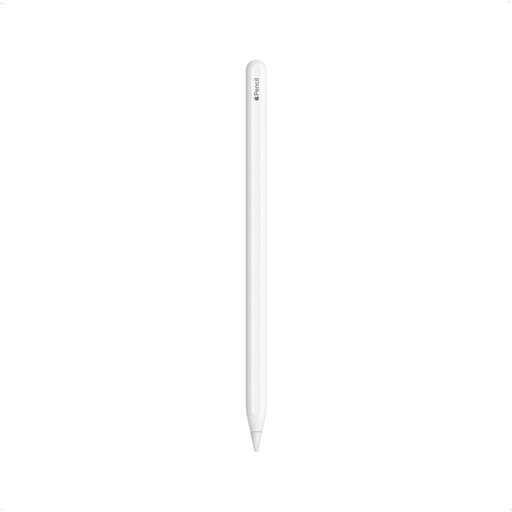
Why it suits this user: For iPad users who draw, write and annotate PDFs, and want a pen that pairs with and charges on the side of a compatible iPad.
The compatible iPad Pro, iPad Air and iPad mini models are listed, so you don’t have to rely on the general term “iPad pen” alone.
According to the product information, the pen supports double-tap functionality, magnetic attachment and low latency for drawing and note-taking.
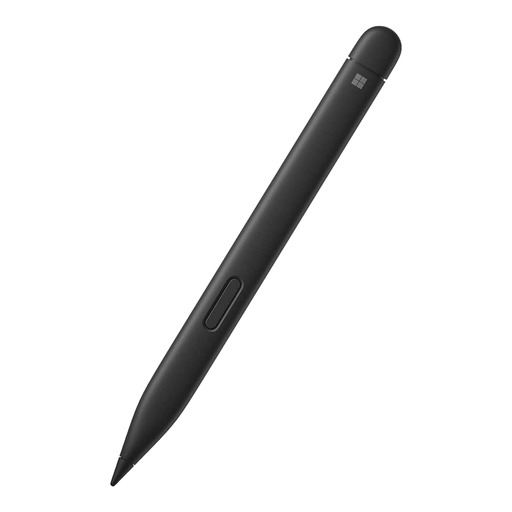
Why it suits this user: Designed for Surface users who write, draw and work with Windows apps. The stated compatibility list includes several Surface Go, Surface Pro and Surface models.
The product details list specific Surface models and features such as palm rejection and tilt sensitivity. Compare them with your own Surface before ordering.
According to the product specifications, the pen offers 4,096 pressure levels, adjustable haptic feedback and Zero Force Inking.
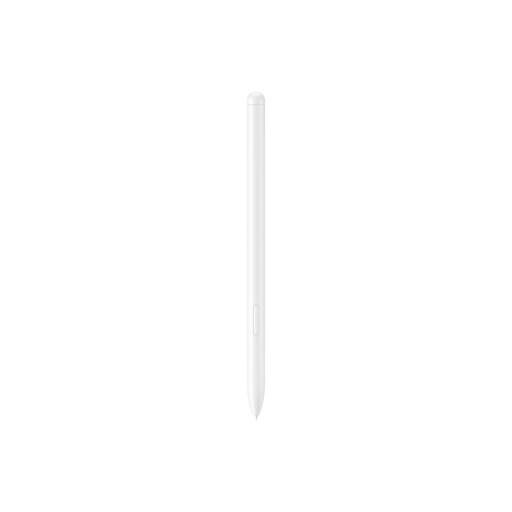
Why it suits this user: A targeted choice for Galaxy Tab S9 FE or Tab S9 FE+ owners who want to use Samsung Notes, PENUP and magnetic storage.
Compatibility is clearly defined and limited to specific devices. Samsung states that the pen is IP68-certified; don’t charge it when the pen or tablet is wet.
Weighing 8.7 grams, it attaches magnetically and charges wirelessly, according to the product information. The pen is designed for specific Galaxy Tab models.
We’ve put together a complete, up-to-date list of products that meet these strict selection criteria and the applicable European safety regulations.
No. A basic capacitive pen often works for simple tasks, but features such as pressure sensitivity, palm rejection and Bluetooth require compatibility between the pen and tablet. Always check the model number.
Its lifespan depends on how you use, press and store it. The nib may wear down sooner if you draw every day. A battery may also lose capacity over time. Keep the pen dry, avoid extreme temperatures and replace a damaged nib.
It depends on how you plan to use it. A basic touchscreen pen is fine for scrolling and tapping. For writing, drawing, handwriting and using shortcut buttons, an active pen and compatible tablet features may justify the extra cost. Check which features your device supports first.