Vandaag of morgen in huis

Kwaliteit gegarandeerd

Welkomstaanbiedingen ontgrendelen: GRATIS bezorging | Tot 80% korting | Gratis 30 dagen JoyPlus-proefperiode
Download de app
A stylus pen might seem simple at first: choose a digital pen, connect it to your tablet and start writing. In practice, most disappointing purchases come down to a mismatch between the device, pen and software. A pen for an Epson projector won’t automatically work with an iPad, while a universal touchscreen pen may offer fewer features than an active stylus made by your tablet’s manufacturer.
So focus on compatibility, input technology and power. Read on to find out what to look for and which options suit different uses.
A stylus for a capacitive screen can often tap and swipe, but that doesn’t necessarily mean it also offers pressure sensitivity, tilt recognition or palm rejection. An active stylus is recognised electronically by the device. This usually requires specific protocols, such as Apple Pencil technology, Microsoft Pen Protocol or a system from Samsung and Wacom.
Always check:
Terms such as “lag-free”, “precision” and “natural writing” are only useful if you know which features they refer to. According to VoxorAI’s product description, the HL-U05 supports writing, drawing and navigation on capacitive screens. The description lists iOS and Android as supported systems, but still check compatibility with your specific device before buying.
You should also treat brands’ claims about writing feel and performance as just that: brand claims. According to Apple, the Apple Pencil Pro offers features including tilt and pressure sensitivity, haptic feedback and magnetic pairing. These features are only relevant if your iPad model is actually supported.
The tip of a digital pen wears down with frequent drawing or writing. A flattened or damaged replacement tip can change how the pen feels to write with and, in some cases, scratch the screen or drawing tablet. Check whether replacement tips are available and whether they’re made for the right model.
For example, the Wacom Pro Pen 3 uses different tips from the Wacom One Standard Pen. Wacom Standard Pen Nibs with model number ACK22211 are designed for selected Pro Pen 2 and Pro Pen 3D pens. Wacom ACK24911Z tips are specifically for the Wacom One Standard Pen.
The right pen for your tablet depends on the device. An Apple Pencil won’t necessarily work with every iPad model. Apple’s product information lists certain iPad Pro, iPad Air and iPad mini models as compatible with the Apple Pencil Pro. The Apple Pencil with USB-C has a different compatibility list.
The model matters just as much for Samsung. According to the product specifications, the Samsung EJ-PX510 S Pen is compatible with the Galaxy Tab S9 FE and Tab S9 FE+. An S Pen for a different Galaxy model may have a different connection, tip or range of functions.
For Windows laptops, check which pen protocol they use. The HP MPP 1.51 Stylus Pen is designed for compatible HP and Microsoft devices with MPP support. Before buying, check that your laptop has a compatible touchscreen.
A basic touchscreen pen usually works by touching the capacitive screen. This type is suitable for tapping, scrolling and taking simple notes. An active stylus contains electronics and may offer extra features, such as:
Not every feature listed will work with every device. So check the pen and device together, rather than looking only at the pen’s specifications.
A stylus can run on a replaceable battery, a built-in rechargeable battery or no battery at all. According to the product information, Epson interactive pens, for example, use AA batteries. The HP MPP 1.51 uses a replaceable AAAA battery and has a stated battery life of up to 18 months. This is a product specification, not a guarantee for every use.
The Apple Pencil Pro charges magnetically through a compatible iPad. The Apple Pencil with USB-C has a USB-C connector under the cap. Samsung lists magnetic pairing and wireless charging in the designated tablet area for the EJ-PX510. Always check that your device supports the relevant charging method.
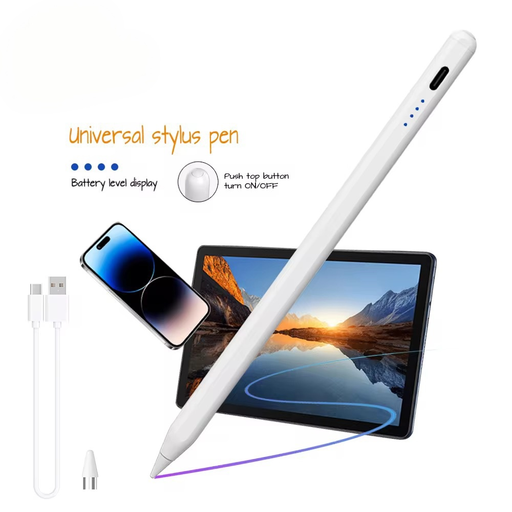
Why it suits this user: An accessible option if you want to navigate, write or make simple sketches on a capacitive iOS or Android screen.
The product information specifically mentions capacitive screens and support for iOS and Android. Still, check whether your model is fully supported.
Built-in 140 mAh lithium battery, aluminium and plastic casing, and support for writing, drawing and navigation.
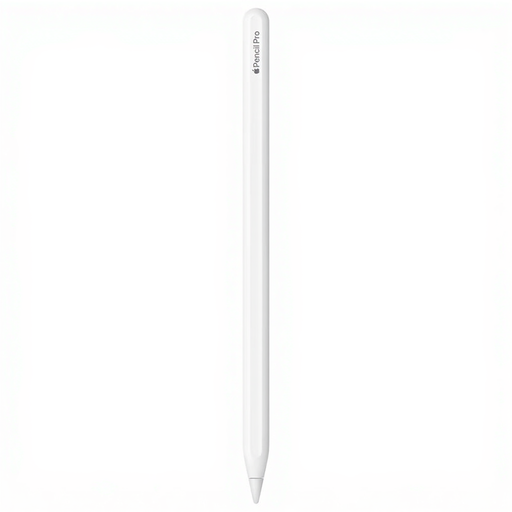
Why it suits this user: Designed for iPad users who draw, design, take notes and need advanced pen features.
Compatible iPad models are specified, reducing the risk of buying an advanced pen that doesn’t suit your iPad generation.
Pressure and tilt sensitivity, palm rejection, magnetic pairing and charging, plus haptic feedback according to the product information.
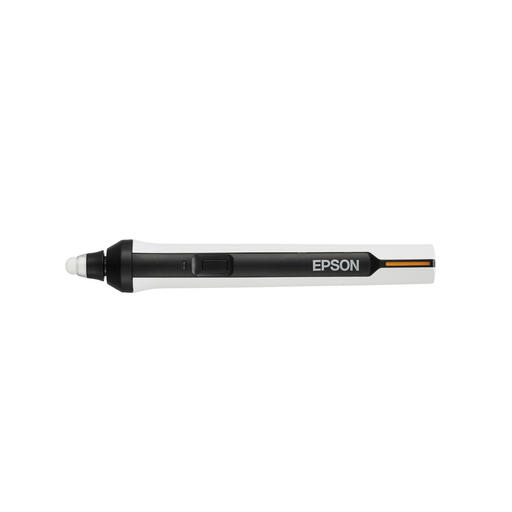
Why it suits this user: Designed for teachers, meeting rooms and business users with a compatible Epson BrightLink or interactive projector.
Compatible BrightLink models are listed, so you don’t have to guess based on the pen’s appearance alone.
Designed for navigation and annotations on an interactive projector; runs on an AA battery and is available in different colours.
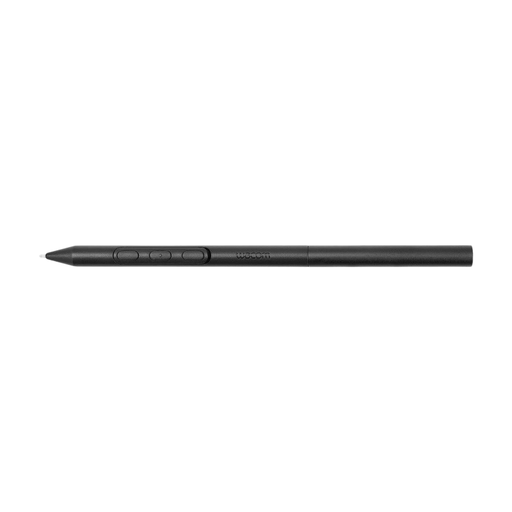
Why it suits this user: A focused choice for users of compatible Wacom pen displays who value adjustability and consistent pen control.
Compatibility is limited to selected Wacom devices. This helps prevent you from buying a pen without a compatible drawing tablet.
Adjustable weight, grip thickness, buttons and balance point; battery-free EMR technology according to the product description.
We’ve put together a complete, up-to-date list of products that meet these strict selection criteria and the applicable European safety regulations.
No. A basic touchscreen pen can often register simple touches, but features such as pressure sensitivity, palm rejection and magnetic charging require a compatible model. Check your iPad generation and the official compatibility list before buying an Apple Pencil or another active pen.
Battery life depends on the battery type, charging method and how often you use it. A pen with a replaceable battery may last a long time, while one with a built-in rechargeable battery needs regular charging. The tip usually wears down sooner if you draw every day, so check whether replacement tips are available.
Not always. A capacitive touchscreen pen may be enough for short notes and navigation. If you write or draw a lot, or use a pen with a laptop, pressure sensitivity, accuracy and palm rejection are often more important. Choose features to suit how you’ll use the pen, rather than going by the name “active stylus”.