Vandaag of morgen in huis

Kwaliteit gegarandeerd

Welkomstaanbiedingen ontgrendelen: GRATIS bezorging | Tot 80% korting | Gratis 30 dagen JoyPlus-proefperiode
Download de app
A stylus pen can turn a tablet into a notepad, drawing surface or presentation tool. However, not every touchscreen pen is suitable for every device. A pen for iPad will not automatically work with a Samsung tablet, while an active stylus for a Windows laptop often requires a specific input protocol.
Most disappointing purchases usually stem from three misunderstandings:
Do not start with the appearance or price. Start with the exact model of your tablet, laptop or projector. Then check the input protocol.
When looking for a pen for iPad, you will often end up choosing an Apple Pencil or an alternative such as the Logitech Crayon. Pay attention to the generation and iPad model. An Apple Pencil USB-C, Apple Pencil 2nd generation and Apple Pencil Pro do not have the same compatibility list.
The Apple Pencil USB-C supports writing, drawing and tilt recognition, as well as the hover function on certain iPads, according to the product information. The Apple Pencil 2nd generation works with a different range of iPad models and connects and charges magnetically. Always check the list of supported models before buying.
A Samsung S Pen is generally designed for specific Galaxy Tab models. The Samsung EJ-PX510 S Pen is suitable for the Galaxy Tab S9 FE and Tab S9 FE+, according to the product specifications. This makes it less suitable as a general digital pen for other Android devices.
A universal capacitive stylus, such as a VoxorAI HL-U05, may work with iOS and Android devices with a capacitive screen, according to the product description. With these models, do not automatically expect the same features as those offered by a branded active stylus.
For a Microsoft Surface device, check support for the MPP protocol. The Microsoft Surface Slim Pen 2 lists compatibility with various Surface models, pressure sensitivity and palm rejection among its features.
For Acer and certain other Windows devices, AES, USI or MPP may be important. The Acer ASA410 supports AES 2.0, USI 2.0 and MPP2.5, according to the product specifications. This makes it particularly important to compare your specific screen model with these standards.
A Wacom pen is usually linked to a specific Wacom device. The Wacom Pro Pen 3, for example, is designed for selected Wacom models. A standalone drawing pen will therefore not simply work with every graphics tablet.
An interactive projector requires a different type of input. The Epson Interactive Pen ELPPN04A uses an IR interface and is suitable for certain Epson projectors, according to the product information. This is not a general-purpose pen for tablets or laptops.
Pressure sensitivity determines how a drawing app responds to light or firm pressure. This is particularly relevant for illustrators, designers and users who want to create shading or variable line widths. For ordinary note-taking or navigation, it is less important.
Also consider the difference between pressure sensitivity and tilt recognition. A pen may support tilt for creating broader brush strokes, without every pressure-related function being available in every app.
Palm rejection prevents your hand from being registered as an additional touch while you are writing. This only works when both the stylus and the device support the feature.
Low input latency feels comfortable when writing and sketching, but marketing terms such as “lag-free” are not a universal guarantee for every app or screen. Instead, look at verifiable information such as compatible operating systems, connection type and supported software.
An active stylus may work with:
The Acer ASA410 states a battery life of up to 96 hours and uses AAAA batteries, which are not included according to the product information. The Dell PN5122W also uses an AAAA battery and states a lifespan of up to 12 months. Such figures depend on usage and standby behaviour.

Why it suits this profile: This digital pen is aimed at iPad users who want to write, draw and take notes without a complicated pairing process.
The product information states compatibility with iPads from supported 2018 models onwards. Even so, check your exact model and iOS version before ordering.
USB-C charging, tilt recognition, palm rejection and instant use without separate pairing, according to the product description.
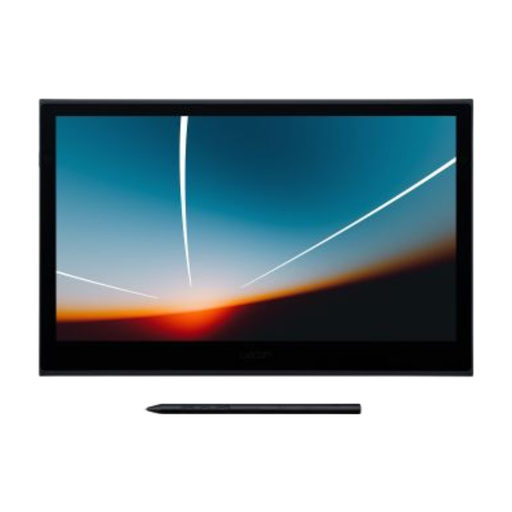
Why it suits this profile: Suitable for designers and digital artists looking for an integrated display with pen input.
The specifications state an active area of 294 × 165 mm and 8192 pressure levels. This means you know in advance what workspace and input sensitivity you are buying.
13.3-inch OLED display, USB-C connection and support for Windows, macOS, Android and ChromeOS, according to the product information.
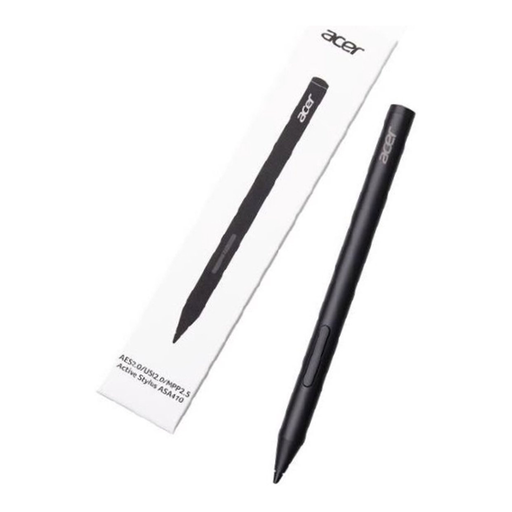
Why it suits this profile: A practical choice for students and professionals with a compatible Acer device who write or draw regularly.
The supported standards AES 2.0, USI 2.0 and MPP2.5 are clearly stated. However, you will need to purchase the AAAA battery separately.
Weight of 16.5 grams, 4096 pressure levels and a stated battery life of up to 96 hours.
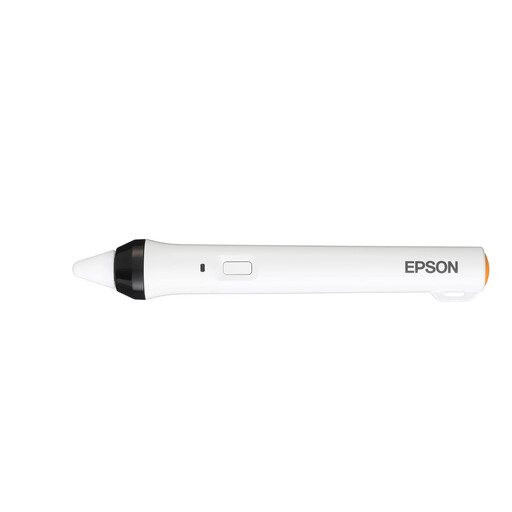
Why it suits this profile: This pen is designed for annotating, writing and controlling compatible Epson interactive projectors in classrooms or meeting rooms.
The IR interface and compatible Epson models are specified. Check the projector code; this is not a general-purpose touchscreen pen.
Designed for interactive presentations and supplied as one pen, according to the product information.
We have put together a complete, up-to-date list of products that fully meet these strict selection criteria and the applicable European safety regulations.
No. A basic capacitive touchscreen pen may work as a substitute for a finger, but it does not always support pressure sensitivity, palm rejection or tilt recognition. An active stylus often uses a specific protocol, such as AES, USI, MPP or a proprietary system. Always check the exact device model.
This depends on the nib, battery and intensity of use. A pen with a replaceable AAAA battery remains usable as long as the battery and nib are replaced. Rechargeable models have a specified operating time per charge. Keep the pen dry, avoid dropping it and do not press unnecessarily hard on the screen.
Usually not for basic note-taking. For drawing, photo editing and handwriting with variable line widths, pressure sensitivity is relevant. Also consider palm rejection, compatible apps and your tablet’s supported features. Ultimately, the combination of device and software determines which functions are available.