Vandaag of morgen in huis

Kwaliteit gegarandeerd

Welkomstaanbiedingen ontgrendelen: GRATIS bezorging | Tot 80% korting | Gratis 30 dagen JoyPlus-proefperiode
Download de app
A stylus pen may seem straightforward at first glance: choose a pen, pair it with your device and start writing. In practice, however, many models work only with specific tablets, display technologies or projectors. A pen for iPad is therefore not automatically suitable for an Android tablet, while an interactive Epson pen is an entirely different type of accessory.
Anyone who focuses only on terms such as “active stylus”, “low latency” or “universal tablet pen” risks making the wrong purchase. Always check compatibility, power requirements and the features you actually need first.
A touchscreen pen for a capacitive display may work with several iOS and Android devices. That does not automatically mean that all functions will be available. Pressure sensitivity, palm rejection, tilt recognition and Bluetooth pairing may vary from one device to another.
For branded accessories, compare your tablet’s exact model number with the compatibility list. A Samsung S Pen for the Galaxy Tab S9 FE and Tab S9 FE+, for example, is not necessarily suitable for another Galaxy Tab.
An active stylus usually requires a battery, charging function or specific pairing process. Some models charge via USB-C, others use a replaceable battery or charge magnetically when attached to the device. Also check whether an app is required. With some universal pens, the instructions require you to download an app before pairing the pen.
Also pay attention to what is included in the box. The Lenovo Idea Tab comes with a Tab Pen, but according to the product information, the charger is not included as standard. This may increase the total purchase price.
With intensive drawing and writing, the replacement pen tip wears out faster than it does during occasional navigation. A blunt or damaged tip can reduce accuracy and, in some cases, put additional strain on the surface of a graphics tablet.
Check in advance whether replacement nibs are available and whether they are compatible with your pen model. Wacom, for example, uses different types of nibs for the One Standard Pen, Pro Pen 2, Pro Pen 3D and Pro Pen 3.
Always start with your device’s exact model. Pay attention to the following:
A capacitive digital pen works with many touchscreen devices for basic navigation, but features such as pressure sensitivity and palm rejection cannot be taken for granted.
Pay attention to the type of power supply:
A stated long battery life is a product specification, not a guarantee for every usage scenario. Intensive use, Bluetooth and additional features can affect power consumption.
For note-taking and basic operation, a fine, stable tip is often sufficient. For drawing, pressure sensitivity, tilt recognition and palm rejection are more important. Check that these features are supported by the pen, your app and your tablet.
A pen with extra buttons or a double-tap function can be useful for quickly erasing, selecting or switching between tools. For teaching and presentations, range, battery monitoring and projector compatibility are often more important than creative features.
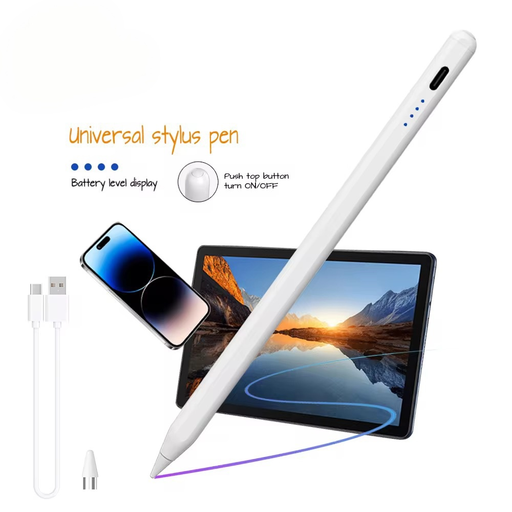
Why it suits this profile: This touchscreen pen is designed for capacitive displays and, according to the product information, supports iOS and Android. That makes it an appealing choice for everyday tasks such as navigation, writing and simple sketches.
The product information explicitly mentions capacitive displays and an integrated 140 mAh lithium battery. However, check beforehand whether your device supports the features you want to use.
140 mAh battery, USB charging according to the product description and support for multiple capacitive displays.
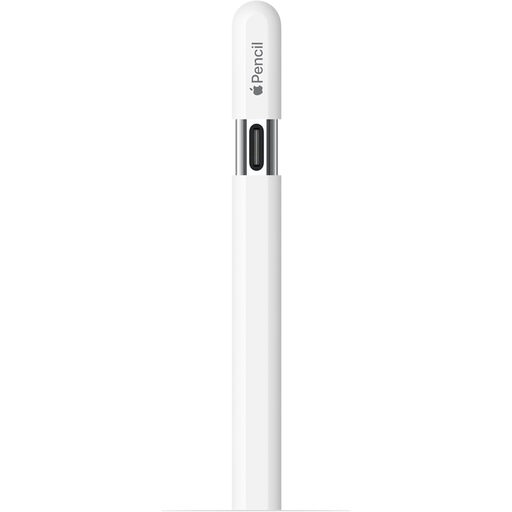
Why it suits this profile: An ideal choice for students, designers and iPad users looking for a branded pen with magnetic attachment, tilt recognition and USB-C charging.
The product page lists the compatible iPad models explicitly. This allows you to verify compatibility before placing your order.
USB-C connection, magnetic attachment, tilt sensitivity and hover support on selected iPads.
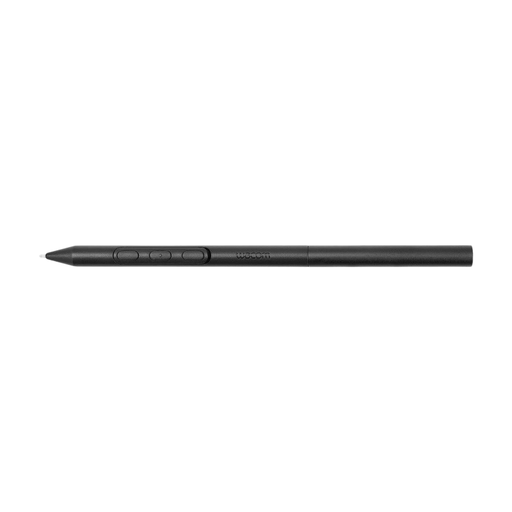
Why it suits this profile: Designed for users of compatible Wacom devices who regularly combine drawing and writing with an adjustable grip, customisable buttons and a configurable balance point.
Compatibility is limited to devices including the MovinkPad 11 and selected Cintiq Pro models. This clearly defined limitation helps prevent an unsuitable purchase.
Adjustable weight, grip thickness, buttons and balance point; battery-free EMR technology according to the product information.
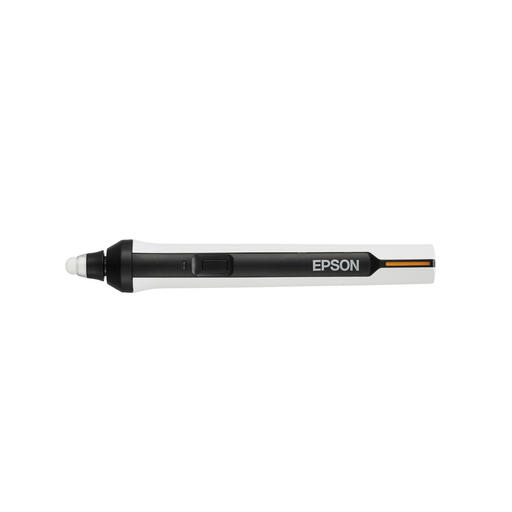
Why it suits this profile: This Epson interactive pen is designed for BrightLink projectors in classrooms, meeting rooms and presentation environments.
The product information names specific BrightLink models, including the 475Wi, 480i, 485Wi, 575Wi, 585Wi, 595Wi and 600. Check your projector before purchasing.
Runs on AA batteries and is designed for writing, navigation and annotation on a compatible projected screen.
We have compiled a complete, up-to-date list of products that fully meet these stringent selection criteria and the applicable European safety regulations.
That depends on the iPad model and the generation of the pen. Apple Pencil USB-C and Apple Pencil 2nd generation have different compatibility lists. Always check your exact iPad model on the product page before ordering.
Service life depends on usage, storage and the type of pen tip. With daily drawing, a pen tip may wear out sooner than it would with occasional note-taking. Keep the pen dry, avoid applying excessive pressure and replace a worn tip with the correct model.
For navigation and basic text input, a capacitive touchscreen pen may be sufficient. If you want to draw or write accurately, an active stylus with features such as palm rejection, tilt recognition or pressure sensitivity is usually the better choice. Always check that your device supports these features.