Vandaag of morgen in huis

Kwaliteit gegarandeerd

Welkomstaanbiedingen ontgrendelen: GRATIS bezorging | Tot 80% korting | Gratis 30 dagen JoyPlus-proefperiode
Download de app
At first glance, a stylus pen seems simple: you charge it, touch the screen and start writing. Yet many people end up with the wrong one because they make a false assumption about compatibility. A pen that works on an iPad won't automatically work on an Android tablet or a Dell 2-in-1 laptop. Likewise, terms like "high precision" and "no lag" mean very little if the technology isn't compatible with your device.
A universal touch pen for capacitive screens often works as a replacement for your finger. However, this doesn't automatically mean you'll get features like pressure sensitivity, tilt detection or palm rejection. For precise drawing or handwritten notes, you usually need an active stylus that connects to the digitiser in your tablet or laptop.
Therefore, before you buy, be sure to check:
4096 levels of pressure sensitivity sounds impressive, but this number is only relevant if your drawing app and device support the feature. Pressure sensitivity determines how light or heavy a line becomes when you're writing, sketching and shading. For simple note-taking, a good tip response is often more important than a high theoretical number of levels.
Also, pay attention to tilt detection. This feature allows the line width or shading to change when you hold the digital pen at an angle. While the product description for certain models may state that the pen supports this function, the final effect can vary depending on the device and app.
An active stylus uses a battery or a built-in rechargeable battery. A model with an AAAA battery can be practical if you don't want to carry a cable, whereas a rechargeable tablet pen means you'll use fewer disposable batteries. Don't just look at the stated battery life; also consider:
In the long run, a spare nib, a protective case and a charging cable can make more of a difference than an extra shortcut button.
A pen for an iPad is not the same as a pen for an Android tablet. According to its product information, the Logitech Crayon is designed for iPad models that meet the specified software requirements and uses Apple Pencil technology. A Dell Active Pen, on the other hand, is aimed at specific Dell 2-in-1 models with AES support.
With an Acer stylus, you need to pay attention to the specified standards, such as AES 2.0, USI 2.0 or MPP 2.5. Is your device not on the compatibility list? If so, contact the manufacturer or check the manual before you order.
For taking notes, a stable tip, low latency and palm rejection are all very useful. For drawing, you'll also want pressure sensitivity, tilt detection and a precise tip. For navigating on a capacitive screen, a simpler touch pen may be all you need.
Note the difference between a pen display and a graphics tablet. A Wacom graphics tablet like the Intuos doesn't have a built-in screen. You draw on the tablet while following the cursor on your computer screen. This is a different experience from drawing directly on an iPad or a 2-in-1 laptop.
A lightweight pen is comfortable for long lectures or meetings. A flat design prevents the pen from rolling off a desk. Side and top buttons can open shortcuts, but they're only useful if you can actually configure them or if the software supports them.
The specifications mentioned below are based on the product information. Brand claims, such as "no lag", are not presented here as universal benchmarks; your experience may depend on your device, app, connection and settings.
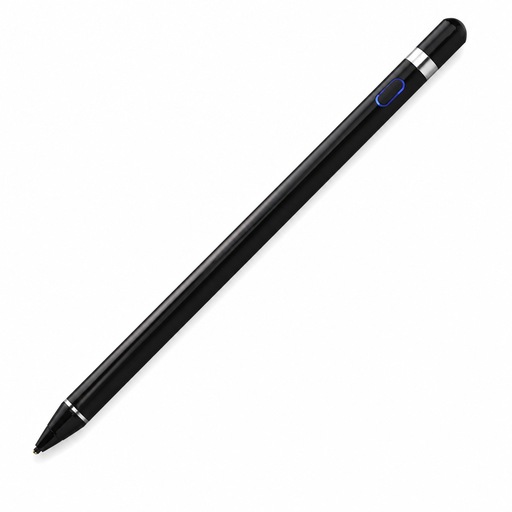
Why it's a good fit: This compact active touch pen is aimed at users who want to write, draw or navigate on a capacitive iOS, iPad, Android or PC screen.
The product information explicitly states support for capacitive screens. However, you should check that your device and the required app are actually compatible.
Built-in 140 mAh lithium battery, support for writing and drawing, and a weight of 59.4 grams.

Why it's a good fit: A practical choice for iPad users who are looking for a flat pen, USB-C charging and features for writing and drawing.
The product description mentions iPad compatibility and palm rejection. Before buying, check that your iPad meets the specified software and model requirements.
USB-C connection, tilt detection and, according to the product information, up to 6.5 hours of battery life.
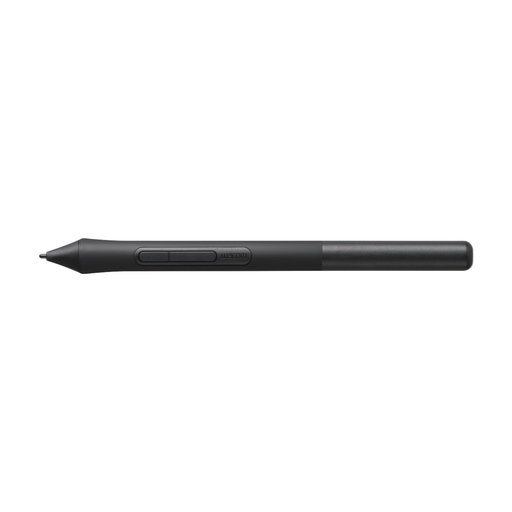
Why it's a good fit: This wired graphics tablet is a good match for digital artists and graphic designers who work on a computer and don't need a built-in screen.
The product information makes it clear that this is a graphics tablet without a screen. This prevents you from buying the wrong type of device for drawing directly on the screen.
Active area of 216 × 135 mm, 4096 pressure levels, four programmable ExpressKeys and a battery-free pen.
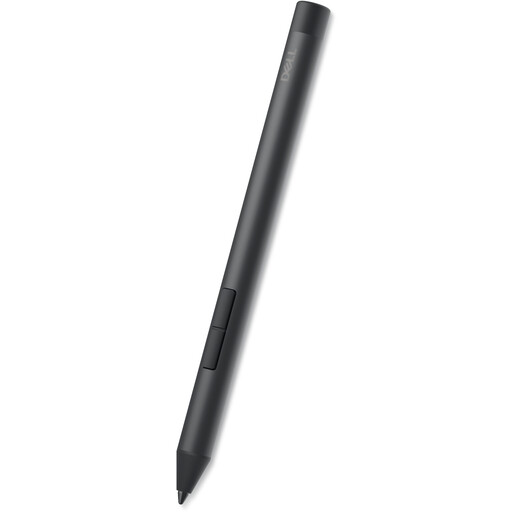
Why it's a good fit: Aimed at users of specific Dell Inspiron, Latitude and XPS 2-in-1 models who are looking for an active pen for notes or sketches.
The compatibility list names specific Dell models. Compare your full model name with that list instead of just relying on the Dell brand name.
4096 pressure levels, tilt function, side buttons and, according to the product description, an AAAA battery with a life of up to 12 months.
We've put together a complete, up-to-date list of products that fully meet these strict selection criteria and comply with current European safety regulations.
No. A simple capacitive touch pen might work on many touchscreens, but an active stylus often requires a specific protocol or a compatible model. That's why you should always check the manufacturer's list.
That varies by model and usage. The product specifications range from a few hours per charge to several months for an AAAA battery. Bluetooth, shortcut buttons and intensive drawing can increase power consumption.
For regular notes, usually not. However, pressure sensitivity is useful for drawing, sketching and shading. You should also check whether the app you're using supports this feature; the number of pressure levels alone doesn't determine the entire writing experience.