Vandaag of morgen in huis

Kwaliteit gegarandeerd

Welkomstaanbiedingen ontgrendelen: GRATIS bezorging | Tot 80% korting | Gratis 30 dagen JoyPlus-proefperiode
Download de app
A stylus pen can be useful for taking notes, sketching, giving presentations and interacting digitally. Yet many buyers end up with a pen that barely works with their tablet. The cause is usually not the pen itself, but an incorrect combination of technology, operating system and device.
A budget active stylus may be described as suitable for iOS, Android and Windows. This can mean that the pen only registers basic touches on a capacitive screen. Features such as pressure sensitivity, palm rejection, tilt recognition or shortcuts may not work.
Therefore, always check:
A pen for iPad, Samsung S Pen or Microsoft Surface Pen is generally designed for a specific technology. A generic pen for touchscreen may be suitable for navigation, but not for precise drawing.
A pressure-sensitive drawing pen may list 4,096 or 8,192 pressure levels, for example. This is a verifiable specification, but the overall experience also depends on compatibility with your tablet, driver and drawing software.
In addition to pressure levels, consider:
For a graphics tablet, the combination of pen and tablet is more important than a single number on the packaging.
An Epson interactive pen uses different technology from an active stylus for a tablet. These pens are designed for compatible interactive projectors and do not automatically work with an iPad, Android tablet or graphics tablet.
With Epson products, always check the projector model. The ELPPN04A and ELPPN05A/ELPPN05B, for example, are linked to specific Epson series. Also pay attention to the power source: some models use AA batteries, while other product information does not specify battery details.
A passive stylus usually works like a finger and is suitable for tapping, scrolling and basic navigation. An active stylus contains electronic components and can offer additional features such as pressure sensitivity, a fine tip and palm rejection.
A battery-free stylus often uses EMR technology, in which the tablet detects the pen. This eliminates the need to charge the pen, but it does not mean that every battery-free pen works with every device. Wacom technology, for example, is linked to compatible Wacom tablets and displays.
A USB-C stylus usually has a built-in battery. Therefore, check:
For writing and basic annotations, standard accuracy may be sufficient. Illustrators and graphic designers are more likely to focus on pressure sensitivity and tilt support. In supported software, these features can alter line thickness or shading effects.
According to Wacom’s product information, the Movink 13 pen offers 8,192 pressure levels. The Wacom Intuos Pro models also list 8,192 pressure levels and a battery-free Pro Pen. The Apple Pencil USB-C, by contrast, specifically lists tilt sensitivity; hover support depends on the iPad model.
With a pen display, the active area determines how much room you have for drawing. The Wacom Movink 13 has an active area of approximately 294 × 165 mm. A small graphics tablet is easier to carry, but provides less physical drawing space.
For working from home or at a fixed desk, a medium or large graphics tablet may be more comfortable. Students and users who frequently move between lectures, the office and home may benefit more from a compact model such as the Wacom One pen tablet small.
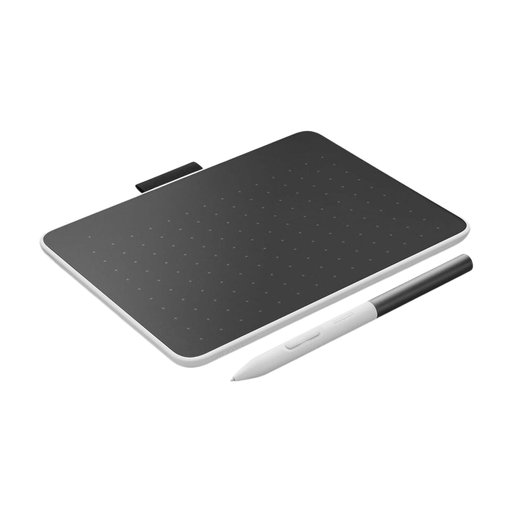
Why it’s a good fit: A compact graphics tablet for students, hobbyists and users who want to draw on a Windows or Mac computer at home or on the go.
The included pen is battery-free. There is no pen battery to charge and no separate tablet pen to purchase.
A6 format, Bluetooth 5.1, USB-C and a pen that, according to the specifications, does not require charging.
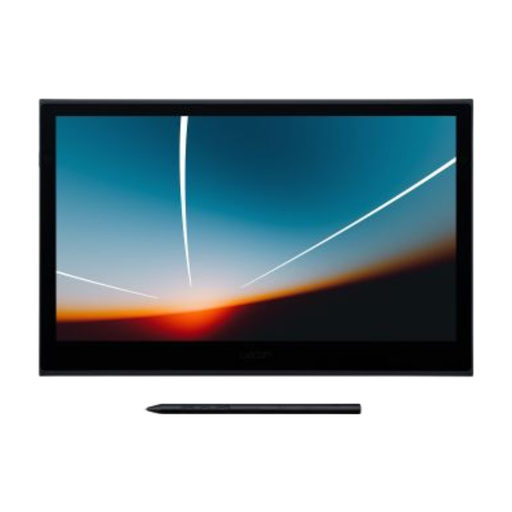
Why it’s a good fit: A pen display for illustrators and designers who want to work directly on the screen.
The specifications list the active area, pressure levels and pen-and-touch support separately, so you do not have to rely on marketing language alone.
A 13.3-inch Full HD OLED display, 8,192 pressure levels and USB-C for data and power, according to Wacom’s product information.
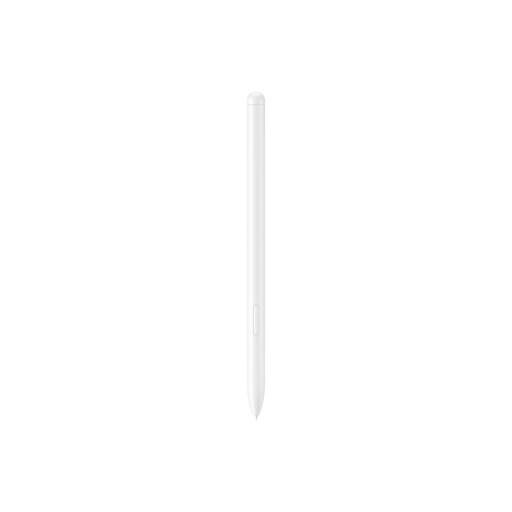
Why it’s a good fit: Designed for Galaxy Tab S9 FE and Tab S9 FE+ users who take notes, draw and use Samsung Notes.
Compatibility is explicitly tied to two Galaxy Tab models rather than a broad claim covering all Android tablets.
According to Samsung, the product weighs 8.7 grams and has an IP68 rating for water and dust resistance. Do not charge the pen when it or the tablet is wet.
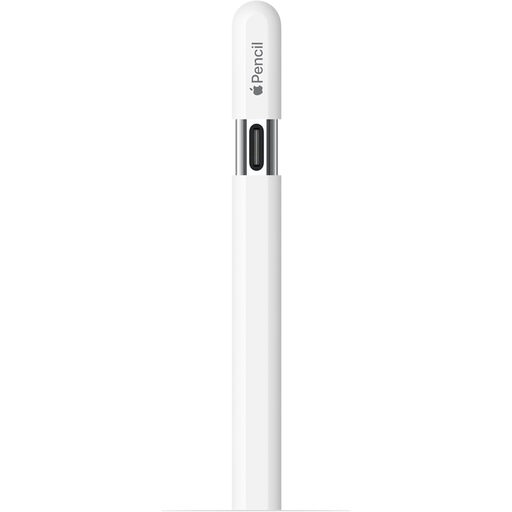
Why it’s a good fit: A USB-C stylus for selected iPad models, for example for lectures, meetings and quick sketches.
The product information lists specific iPad models. Check your exact version before ordering, as support varies by generation.
USB-C charging, magnetic attachment and tilt sensitivity are mentioned in the product description. Hover works only on compatible iPads.
For a Microsoft device, consider the Microsoft Surface Slim Pen 2. The product information lists 4,096 pressure levels, tilt support and compatibility with multiple Surface models. If you use an HP laptop with MPP technology, the HP MPP 1.51 Stylus Pen is worth considering; according to the product description, it uses an AAAA battery and has configurable buttons.
For larger creative workspaces, the Wacom Intuos Pro Small, Medium and Large are relevant options. According to the product specifications, they combine USB-C and Bluetooth, a battery-free Pro Pen and up to 16 hours of tablet battery life. When purchasing, always check whether the pen is supplied separately or together with the graphics tablet.
Browse a current selection of interactive pens and check each product’s compatibility, power requirements and intended use.
No. An active stylus may depend on a specific digitizer, Bluetooth version or manufacturer technology. A generic capacitive pen may work for basic touch input, but does not automatically provide pressure sensitivity or palm rejection. Look up the exact tablet model in the compatibility list.
Its lifespan depends on the pen nib, battery and how it is used. A battery-free Wacom pen does not need charging, but the nib can still wear down. A USB-C stylus has a built-in battery that may deliver less capacity over time. Keep the pen dry and avoid applying excessive pressure to the tip.
Factor in replacement pen nibs, batteries or charging cables. An Epson interactive pen may require AA batteries. With an active pen featuring a built-in battery, charging options and any replaceable nibs are the main considerations. Therefore, do not look only at the purchase price; also check the included accessories and maintenance instructions.