
Artist with an existing tablet
You’re looking for a stylus that works with your exact iPad, Galaxy tablet or drawing device. Apple Support, Samsung Netherlands and Wacom publish compatibility information for their respective styluses and devices.


First, choose a stylus that works with your exact tablet or pen display model. Then decide between a stylus that doesn’t need charging, one that charges magnetically with a compatible tablet, or one that charges via cable. For developing a logo, the drawing tools and features in your app also matter.
You’re looking for a stylus that works with your exact iPad, Galaxy tablet or drawing device. Apple Support, Samsung Netherlands and Wacom publish compatibility information for their respective styluses and devices.
You want to minimise the number of separate charging sessions for your stylus. According to their manufacturers, the Samsung S Pen Creator Edition and Wacom One Standard Pen don’t need charging, but your tablet or pen display still needs power.
You want to do more than sketch, perhaps editing shapes and paths too. Adobe describes Illustrator for iPad as an option for this kind of work; access depends in part on having a Creative Cloud membership.
First, check compatibility with your existing device. Then compare charging methods and decide which pen input and app features you need for your logo sketch.
| What to consider | What should you check? | Who is this important for? |
|---|---|---|
| Compatibility | Compare your full tablet model and required software version with the compatibility list for that specific stylus. For a pen display, check the device number too. | If you want to keep using your current tablet, you’ll need to make sure the stylus works with it. Around 36% of consumers put compatibility first. |
| Charging | Check whether the stylus needs no charging, charges magnetically or requires a USB-C cable. Remember to consider the power supply for your tablet or pen display too. | If you have few spare sockets, you’ll want to minimise separate charging sessions for the stylus. Around 29% of consumers give charging convenience top priority. |
| Line control and editing | Decide whether you’re sketching a concept or also want to create editable shapes and paths. Then check which pen input and app are suitable. | If you want to refine logo lines or adjust shapes later, consider both the stylus and the software. Around 21% of consumers prioritise line control and editability. |
| Maintenance and running costs | Check which pen tips are included, whether replacement tips are available, and which app or equipment you’ll need. | If you want to know in advance what maintenance and the complete workflow will involve, factor in replacement tips, app access and any equipment you’ll need. Around 14% of consumers give these considerations top priority. |
A brand may offer different styluses, each with its own compatibility list. A stylus that doesn’t work with your device won’t be any use for your sketch.
Find your tablet or drawing device’s full model number and compare it with the list for that specific stylus.
Choosing the wrong one could mean extra research and the hassle of a return.
Apple describes magnetic pairing and charging for Apple Pencil Pro. Apple Pencil (USB-C) attaches magnetically, but pairs and charges via USB-C.
Check separately how the stylus attaches, pairs and charges.
If a stylus charges via USB-C, you’ll also need a suitable cable and time to charge it.
Samsung states that the S Pen Creator Edition doesn’t have Bluetooth or Air Actions. Features on another model therefore don’t automatically apply to this stylus.
Check the stylus’s full model number and its compatibility with your Galaxy device before relying on specific features.
To develop shapes and paths further, you’ll also need suitable software and a compatible device. Adobe lists a Creative Cloud membership as one way to access Illustrator on iPad.
Before buying, check which tablet, app and accessories you already have and what else you’ll need.
Apple Pencil models are designed for supported iPads; charging methods vary by model.
The S Pen Creator Edition is designed for the Samsung devices listed by Samsung for this model.
According to Logitech, Logitech Crayon (USB-C) is designed for compatible iPads.
The Wacom One Standard Pen is a battery-free replacement stylus for specific Wacom One devices.
XPPen lists the PA2 as a battery-free stylus for specific Artist pen displays.
These product picks are intended for drawing and sketching with a compatible iPad. Before buying, check that the stylus works with your exact iPad model.
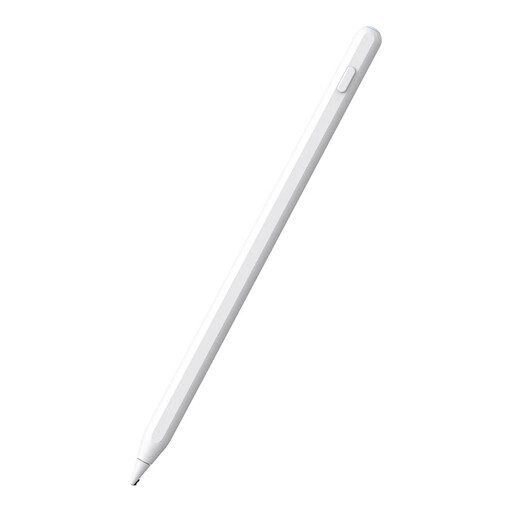 No image available
The product title states that it charges magnetically for use with an iPad.
According to the title, compatibility covers iPad models from 2018–2026; check whether your exact model is supported.
 No image available
For a supported iPad, if you want to avoid a separate charging cable for your stylus.
Apple describes magnetic pairing and charging for Apple Pencil Pro. Check compatibility with your iPad model and software version.
 No image available
An option for sketching if your iPad is on the compatibility list.
The product name lists iPad Pro 12.9-inch (3rd–6th generation), iPad Pro 11-inch, iPad Air (4th/5th generation) and iPad mini (6th generation). Check your exact model number.
 No image available
For sketching on a compatible iPad if charging via USB-C cable suits the way you work.
Apple describes charging and pairing via USB-C. With this model, magnetic attachment isn’t the same as magnetic charging; also check compatibility with your iPad.
 No image available
For sketching on an iPad if charging via USB-C suits the way you work.
The product name lists compatibility with iPad models from 2018–2026 and USB-C fast charging. The description doesn’t mention pressure sensitivity and rules out wireless charging; check whether these limitations suit your sketching needs.
No. Apple describes magnetic pairing and charging for Apple Pencil Pro; Apple Pencil (USB-C) pairs and charges via USB-C, even though it can attach magnetically. Check which model your iPad supports.
The S Pen Creator Edition and Wacom One Standard Pen mentioned here don’t need charging. That doesn’t tell you how much charge is left in your tablet or how your tablet, pen display or connected computer is powered.
No, a stylus alone isn’t enough: you’ll also need software to create and edit shapes and paths. Adobe describes this for Illustrator on iPad and lists a Creative Cloud membership as one way to gain access.
For an online consumer purchase in the Netherlands, you generally have a statutory 14-day cooling-off period from delivery, with some legal exceptions; ACM ConsuWijzer explains the terms. Your statutory guarantee is separate from any manufacturer’s warranty: if a product is faulty, the seller is responsible under the applicable terms.