
Student with an existing tablet
You want to annotate lecture slides by hand without choosing a stylus that won’t work with your tablet model. Apple, Samsung and Microsoft list compatibility by device.


First, check that the stylus is compatible with your exact tablet model: an Apple Pencil, Samsung S Pen, Lenovo pen and Surface pen are not interchangeable. Then consider writing comfort, how it charges and stores, and whether you can annotate slides in your PDF app. For simple highlighting, you may not need extra drawing features.
You want to annotate lecture slides by hand without choosing a stylus that won’t work with your tablet model. Apple, Samsung and Microsoft list compatibility by device.
You often write on slides and want to rest your hand on the screen. Check features such as palm rejection only after confirming that the stylus and tablet work together; Logitech, Lenovo and Microsoft describe these features for specific models.
You want to put your stylus away easily after use and know how to charge it. Apple, Samsung and Microsoft describe different ways to attach and charge their styluses; magnetic attachment does not always mean magnetic charging.
| What to consider | What should you check? | Who is this important for? |
|---|---|---|
| Compatibility | Make a note of the full tablet model and compare it with the manufacturer’s compatibility information. | If you want to keep using your existing tablet, the stylus must work with that exact model; around 31% of consumers prioritise compatibility. |
| Writing comfort | Check palm rejection for your particular combination and try writing small notes in your lecture app. | If you write a lot on slides, you’ll want to rest your hand on the screen and make legible annotations; around 25% of consumers prioritise writing comfort. |
| Storage and charging | Check attachment and charging separately, as well as which charger or tablet you need. | At a shared desk, you’ll want to find your stylus easily after use and have it ready for your next lecture; around 19% of consumers place the greatest importance on storage and charging. |
| PDF workflow | Check the file format of your slides, your app’s annotation features and how to save an edited copy. | If you use lecture slides in PDF format, you’ll want to save highlights and comments as part of your usual workflow; around 13% of consumers are mainly looking for this kind of PDF workflow. |
| Purchase and support | Check which accessories and charging options you need, and keep the seller’s information. | If you want to know in advance what the purchase involves and who to contact if something goes wrong, check the seller’s information too; around 12% of consumers prioritise the total cost of purchase and help if there’s a problem. |
Manufacturers list compatibility by device. Microsoft, for example, identifies Surface models that don’t support pen input.
Before buying, compare the full tablet and stylus model names with the manufacturer’s information.
Apple says the Apple Pencil (USB-C) charges via USB-C, while the Pencil Pro attaches magnetically to and charges with supported iPads.
Check attachment and charging as two separate features for the exact model.
Samsung says that certain S Pen versions for FE models don’t support Bluetooth functionality.
As well as writing, check separately for any gesture or remote-control features you want to use.
The app you use to open and save your slides can affect how you find your notes later. Adobe describes features for PDFs including drawing, highlighting and adding comments.
Try annotating a sample slide in the app you plan to use and check that you can save an edited copy.
Apple Pencil models are designed for specific iPads, so check that the stylus is compatible with your tablet.
The Crayon is an option for iPads that Logitech lists as compatible.
S Pen versions are designed for compatible Galaxy devices, so match the stylus to your specific tablet model.
The Tab Pen Plus is worth considering for Lenovo tablets that Lenovo confirms are compatible.
The Surface Slim Pen is designed for Surface devices that support pen input.
These products are aimed at note-taking on compatible iPads and Galaxy Tab models. For the VoxorAI stylus, it’s also worth checking compatibility with your specific tablet and app.
 No image available
An option for handwritten notes on an iPad, provided your exact model is supported.
Logitech lists USB-C charging, palm rejection and writing without complicated Bluetooth pairing.
 No image available
Worth considering for writing and note-taking on an iPad that’s compatible with this Pencil.
Apple says it attaches magnetically to and charges with supported iPads; check compatibility with your exact model.
 No image available
An option for handwritten notes on a compatible iPad.
Apple says it charges via USB-C; check which Pencil is compatible with your iPad model.
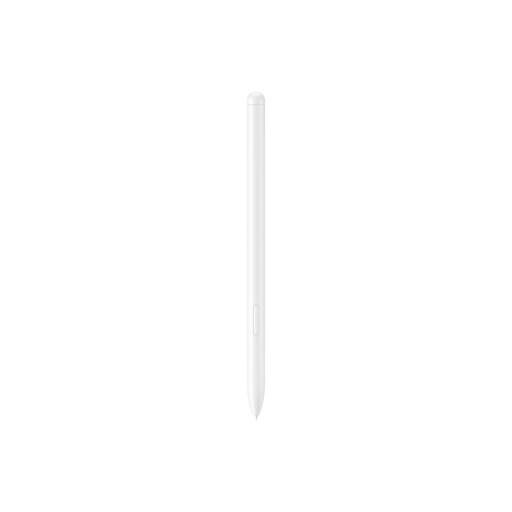 No image available
An option for writing and note-taking on the Galaxy Tab S9 FE or S9 FE, as stated in the product description.
Samsung says the FE pen mentioned can be stored magnetically; certain FE versions don’t support Bluetooth features.
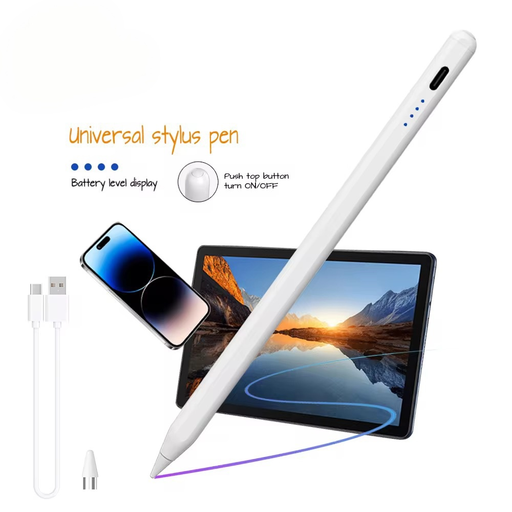 No image available
The product name mentions iOS, iPad, Android and Microsoft; check whether it works with your specific tablet and app.
According to the instructions, you need to scan a QR code, download an app and pair the stylus through that app.
Look up the full model name of your tablet and compare it with the manufacturer’s compatibility information for that specific stylus. Check features such as pairing, gestures and charging separately; Microsoft also lists Surface models that don’t support pen input.
It depends on the model. Logitech says you can use the Crayon reviewed without complicated Bluetooth pairing, but it charges via USB-C. Apple says the Apple Pencil (USB-C) charges via USB-C, while Microsoft lists specific charging options for the Surface Slim Pen.
Yes, if you open the slides in an app that supports the annotations you need. Adobe lists features for PDFs including drawing, highlighting and adding comments; the workflow available to you also depends on your device, stylus and chosen app.
According to the Dutch government, the seller must provide a solution if there’s a problem with a product. A manufacturer’s warranty or additional guarantee may also apply.
ACM ConsuWijzer says that online consumer purchases generally come with a statutory cooling-off period that ends 14 days after delivery. There are exceptions, and how you try out a product may also matter; check the applicable terms before deciding.