
Galaxy Tab sketchers with few charging options
If you want to draw whenever inspiration strikes without having to charge your pen as well, check the exact Tab and S Pen models. Samsung describes different S Pen versions for supported Galaxy devices.


First, choose a stylus that works with your exact tablet model. Then decide whether you need pressure-sensitive lines or mainly want to sketch outlines. Samsung says a compatible S Pen for a Galaxy Tab does not need charging; Apple Pencil Pro charges on a compatible iPad, while USB-C styluses need a charging connection. Also check that the features you want work in your drawing app.
If you want to draw whenever inspiration strikes without having to charge your pen as well, check the exact Tab and S Pen models. Samsung describes different S Pen versions for supported Galaxy devices.
If you want to work on small design details and vary your lines, compare pressure sensitivity, charging method and iPad compatibility. Apple Support explains that compatibility varies by Pencil and iPad model.
If you mainly want to capture shapes and ideas, check whether a simpler drawing pen will do the job and which features your device supports. Logitech describes the Crayon for compatible iPads; Wacom lists device support as a requirement for the Bamboo Ink Plus.
Start with your exact tablet model. Then consider the line control you want and how the pen charges to find the right option for your sketches.
Choose this option: if you have a compatible Galaxy Tab and don’t want to charge the pen separately.
Keep in mind: check your exact device and pen version; the S Pen Creator Edition does not support Bluetooth Air Actions.
Choose this option: if you want pressure-sensitive strokes and your iPad is compatible.
Keep in mind: the Pencil pairs and charges magnetically via the iPad, but the iPad itself needs charging.
Choose this option: if tilt-controlled sketches and outlines are enough, without pressure-sensitive control.
Keep in mind: Apple Pencil (USB-C) and Logitech Crayon (USB-C) charge via a USB-C connection.
Choose this option: if your Windows device supports Wacom AES or Microsoft Pen Protocol.
Keep in mind: the pen charges via USB-C, and the available features also depend on your device.
| What to consider | What should you check? | Who might find this important? |
|---|---|---|
| Compatibility | Note your exact tablet model and software version; check the compatibility list and the features you need in your drawing app. | I want to keep using my current tablet and make sure the pen and its features work with it first; around 29% of consumers prioritise compatibility. |
| Charging | Check whether the pen needs no charging, charges via the tablet or requires a USB-C connection. | When sockets are scarce, I don’t want to have to charge a separate pen as well; around 29% of consumers prioritise convenient charging. |
| Line control | Decide whether you want to control line thickness with pen pressure or whether tilting the pen and choosing a brush thickness manually will do. | I want precise control over small settings and ornaments; around 24% of consumers prioritise pressure-sensitive detail. |
| Replacement nibs | Check which nibs are included and whether replacement nibs are compatible with the exact pen version. | I want to know which nibs come with the pen and which replacements will fit, so I can carry on sketching; around 18% of consumers focus on parts and replacements. |
Apple Pencil (USB-C) attaches magnetically for storage, but Apple says it charges via a cable. Apple Pencil Pro charges via a compatible iPad.
Check how the exact version charges, not just how the pen attaches to the tablet.
A pen can vary the line by tilting, without changing the line thickness when you press harder. This distinction can matter when drawing small jewellery details.
Decide which type of control you need, then check that your tablet and drawing app support it. Apple Pencil (USB-C) and Logitech Crayon offer tilt-controlled features; a Dutch comparison by Tabletguide distinguishes this from pressure sensitivity.
Compatibility and available features can vary between devices and pen versions. For example, Wacom specifies that the Bamboo Ink Plus works with Wacom AES or Microsoft Pen Protocol.
Compare the full model names and check your device specifications before choosing a pen.
The Dutch government says there is no fixed statutory warranty period of exactly two years in the Netherlands. Any manufacturer’s or seller’s warranty is in addition to your statutory rights.
Check exactly what an extended warranty adds, and keep it separate from your statutory rights.
Apple Pencil models are designed for specific iPads; check which features and charging method are available with your model for each pen.
S Pen versions are worth considering for compatible Galaxy devices if you don’t want to charge the pen separately.
Crayon (USB-C) is an option for compatible iPads if tilt-controlled lines and USB-C charging suit the way you sketch.
Bamboo Ink Plus is designed for pen-enabled Windows devices with Wacom AES or Microsoft Pen Protocol.
This Joybuy selection includes styluses for compatible Wacom, Surface and iPad devices. Before choosing, check your exact tablet model and the features supported by your drawing app.
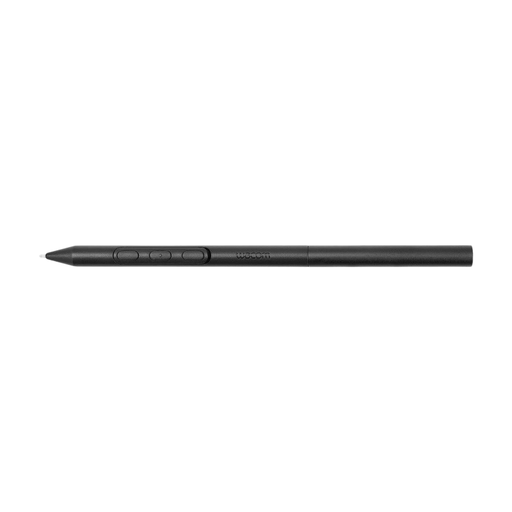 No image available
An option for drawing on a compatible Wacom device without a battery in the pen.
The product description mentions customisable weight, grip and balance point, plus pen buttons. The listed devices are MovinkPad 11 and Cintiq Pro 17, 22 and 27; check that your model is supported.
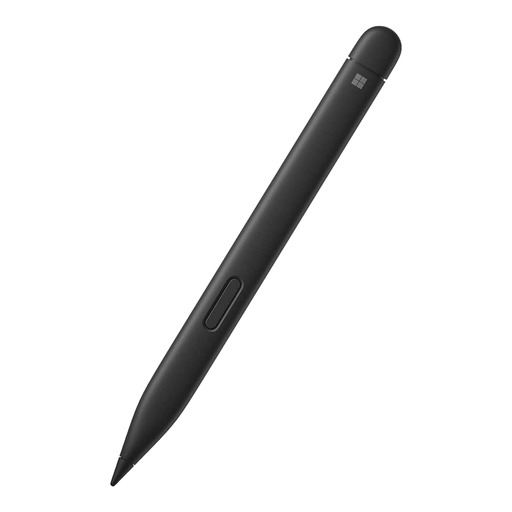 No image available
Suitable if you want to create pressure-sensitive sketches on a compatible Surface device.
Microsoft lists 4,096 pressure levels and haptic feedback. The listed Type Cover combinations are for Surface Pro 8 or Surface Pro X; check that your device is supported.
 No image available
An option for pressure-sensitive detail on a compatible iPad, without needing a separate charging cable for the pen.
Apple lists pressure and tilt sensitivity, magnetic pairing and charging via the iPad. The product description names 2024 iPad Pro and iPad Air models, and iPad mini (A17 Pro); check your exact model and software requirements.
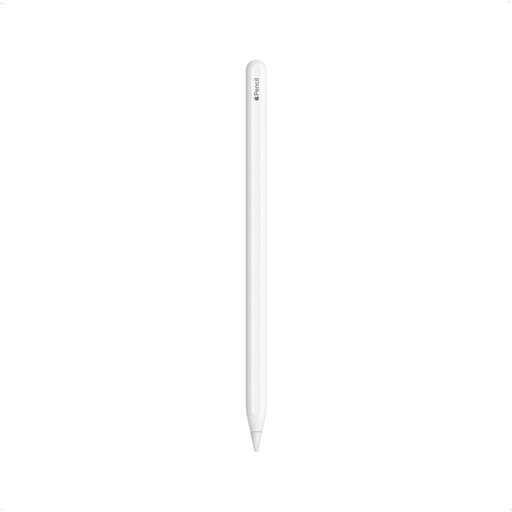 No image available
An option for sketching on an iPad that supports this Pencil.
The product description lists magnetic pairing and charging via the iPad. The listed models are the 12.9-inch iPad Pro (3rd to 6th generation), 11-inch iPad Pro, iPad Air (4th and 5th generation) and iPad mini (6th generation); check that your iPad is compatible.
 No image available
Suitable if you want to use tilt-controlled lines on a compatible iPad and get started without Bluetooth pairing.
Logitech describes variable line thickness by tilting and charging via USB-C. The product description lists iPads from 2018 onwards; check that your exact model is supported.
No. Check your exact tablet model, software version and the manufacturer’s compatibility information. Apple Support lists the iPads supported by Pencil Pro and Pencil (USB-C) separately; Wacom Bamboo Ink Plus requires a pen-enabled device with Wacom AES or Microsoft Pen Protocol.
No. Apple says Apple Pencil Pro charges on a compatible iPad, while Apple Pencil (USB-C) can be stored magnetically but charges via a cable. Samsung says the S Pen Creator Edition does not need charging.
Check the nib for wear and follow the replacement instructions for your exact pen. Samsung lists two replacement nibs and a tool with the S Pen Creator Edition; for other models, check which nibs are compatible.
For online purchases from a business, you generally have a 14-day cooling-off period, subject to exceptions, according to the Dutch government. Products must also be of satisfactory quality: statutory warranty in the Netherlands does not have a fixed period of exactly two years. Contact the seller if a product does not meet your expectations.