
Sketcher with an existing tablet
You want to find out which stylus works with your exact iPad or Galaxy tablet before comparing drawing features. Apple Support and Samsung publish compatibility information for each model and device.


Start with your exact tablet model: Apple Pencil, Samsung S Pen and other styluses each have their own compatibility requirements. Then choose based on the level of line control you want for jewellery sketches, and how easy the stylus is to connect, charge and store at a shared desk. Also check that your drawing app supports the features you want.
You want to find out which stylus works with your exact iPad or Galaxy tablet before comparing drawing features. Apple Support and Samsung publish compatibility information for each model and device.
You sketch different contours and shading, so you’ll want to assess the stylus’s pressure and tilt sensitivity, as well as the support available in your drawing app. Apple, Samsung and Adonit describe different features and requirements for each stylus.
You want to get started quickly and easily find or put away the stylus after use. Pairing, charging and the shape of the stylus can all make a difference. Logitech and Apple, for example, describe different ways to get started with and store a stylus.
Start with your tablet and drawing app, then compare line control and everyday use at a shared workstation.
| What to consider | What to look for when buying | Who is this important for? |
|---|---|---|
| Compatibility | Compare the full tablet model name and any software requirements with the compatibility list for the exact stylus version. | If you first want to make sure the stylus works with your existing tablet, prioritise compatibility. Around 40% of consumers put this at the top of their list of buying concerns. |
| Line control | Check separately for pressure and tilt sensitivity, and see whether your drawing app supports these features. | If you want to work on contours and shading with precision, control over your strokes matters more than switching workstations quickly. Around 30% of consumers prioritise fine line control. |
| Quick to start and easy to put away | Compare the pairing steps, charging method and any magnetic attachment options for your tablet. | At a shared desk, you may want to get started straight away and have a dedicated place to put the stylus when you’re finished. For around 20% of consumers, ease of use at the workstation is their top priority. |
| Maintenance and faults | Check whether suitable replacement tips are available, how the stylus charges and where to go if it develops a fault. | If you draw a lot, replacement tips and help with problems may matter more than extra controls. Around 10% of consumers say maintenance and after-sales support are their main buying concerns. |
Compatibility can vary by stylus version and tablet model. A stylus designed for a particular iPad or Galaxy tablet won’t necessarily work with another model from the same brand.
Before buying, compare the full model name and, where relevant, the software version with the manufacturer’s compatibility list.
Responding to the angle of the stylus doesn’t necessarily mean the line changes when you press harder. That distinction can matter if you want to control contours or shading in your sketches.
Choose the feature you need for your drawing, and check that both the stylus and your app support it.
Apple says Apple Pencil Pro pairs and charges magnetically with compatible iPads. Apple Pencil (USB-C) charges via USB-C; with Adonit Note⁺ 2, magnetic attachment doesn’t work on the newer iPads listed by Adonit.
Check attachment and charging as two separate features for your exact stylus and tablet combination.
Apple Pencil is designed for specific iPads; the Pro and USB-C versions have different features and charging methods.
Samsung describes the S Pen Creator Edition as a stylus for drawing and writing on the Galaxy devices specified by the brand.
Logitech Crayon (USB-C) is an option for sketching on compatible iPads, including situations where several people use the same stylus.
Adonit Note⁺ 2 is designed for certain supported iPads and may be worth considering if pressure sensitivity or replaceable tips are important to you.
These Joybuy products are options for sketching on tablets, with different compatibility requirements and features. Check that each stylus works with your exact tablet.
 No image available
For sketching with pressure and tilt sensitivity on a compatible iPad.
The product information lists pressure and tilt sensitivity, as well as magnetic pairing and charging. Check compatibility with your exact iPad model.
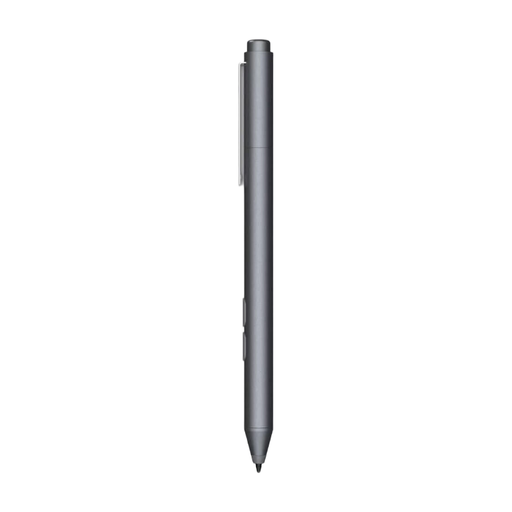 No image available
An option for drawing on a device that supports MPP; check that your tablet is compatible.
The product information lists customisable buttons and one replaceable tip.
 No image available
According to the product information, this stylus is designed for sketching on the Galaxy Tab S9 FE and S9 FE+.
The product information lists magnetic attachment to the tablet. Check that your device is one of the models specified.
 No image available
For sketching on a compatible iPad model from the list for this product version.
The product name lists iPad Pro 12.9-inch (3rd, 4th, 5th and 6th Gen), iPad Pro 11-inch, iPad Air (4th and 5th Gen) and iPad mini (6th Gen). The product information also lists double-tap to switch tools, as well as magnetic pairing and charging.
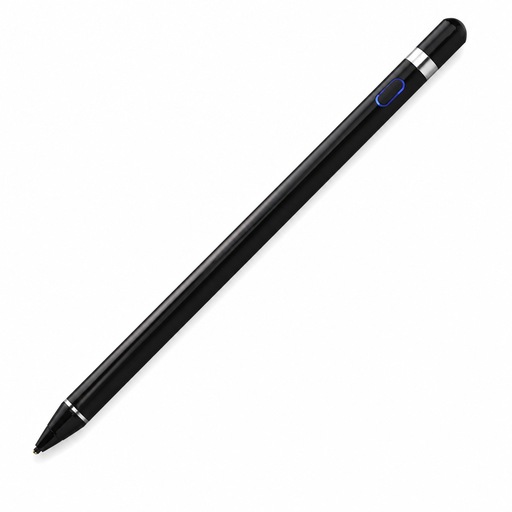 No image available
An option for sketching with pressure sensitivity, provided the stylus is compatible with your tablet and app.
The product information lists a pressure-sensitive tip for capacitive screens. According to the product information, use requires an app accessed via QR code and a Bluetooth connection; check that it’s suitable for your exact device.
No. Check compatibility with the exact tablet model and, where specified, the required software version. Apple publishes separate lists for each Pencil version; Samsung and Adonit also specify requirements for particular devices.
Check how the stylus charges in advance and agree on a dedicated place to store it. Apple Pencil Pro pairs and charges magnetically with compatible iPads; Logitech Crayon uses USB-C and, according to Logitech, can’t be used while charging.
Use a replacement tip that’s compatible with your exact stylus version. Logitech recommends replacing a damaged or worn Crayon tip; Samsung lists two tips included with the Creator Edition, and Adonit lists three replaceable tips for Note⁺ 2.
For distance purchases made by consumers from businesses, the Dutch government says a 14-day cooling-off period applies in many cases; exceptions and purchases from private individuals need to be considered separately. For consumer purchases, the Dutch government says the seller is your point of contact if a product is faulty. These consumer rules don’t necessarily apply to business purchases for the workplace.