
Sketching on an existing tablet
You want to capture jewellery ideas without switching devices. Apple, Samsung, Logitech and Microsoft list compatibility by stylus or device model, so check exactly which model you have.


Start by checking the exact model of your tablet or Surface: only a compatible stylus is a practical choice. Then choose based on the kind of sketching you do: pressure-sensitive input for varied brush strokes, or a stylus that supports tilt or fixed lines if that’s all you need. Also check your drawing app, how the stylus charges and whether you need any accessories.
You want to capture jewellery ideas without switching devices. Apple, Samsung, Logitech and Microsoft list compatibility by stylus or device model, so check exactly which model you have.
You want to vary lines or shading, so you check which input features your stylus and drawing app support. In Procreate, brush settings can link pressure or tilt to different effects.
You want to be able to pick up, charge and put away your stylus easily between tasks. Apple, Samsung and Microsoft describe different ways to attach and charge their styluses.
First, compare your device with the compatibility information for the exact stylus variant. Then decide whether you need pressure-sensitive brush strokes, or whether tilt and simpler line input will be enough for your sketches.
Choose it if: you have a compatible iPad and want to use supported pressure, tilt or stylus features in your drawing app.
Bear in mind: it doesn’t work with every iPad, so check the exact model and required iPadOS version.
Choose it if: your iPad is supported and tilt-sensitive sketching or annotation suits your needs.
Bear in mind: pairing and charging are handled via a USB-C cable; don’t assume it has the same features or charging method as the Pro.
Choose it if: you sketch on a Galaxy Tab and the S Pen variant is compatible with your tablet.
Bear in mind: S Pen variants aren’t automatically interchangeable. Samsung notes that the FE pens mentioned, for example, don’t support Bluetooth.
Choose it if: you have a compatible iPad and tilt is enough to give you the line variation you need.
Bear in mind: check the exact version. Information about pressure sensitivity for a Lightning version doesn’t automatically apply to the USB-C version.
Choose it if: you want to keep working on a Surface and your model supports the stylus features you need.
Bear in mind: charging requires a compatible device or accessory; a separate charger may be available to buy.
| What to consider | What to look for | Who is this important for? |
|---|---|---|
| Compatibility | Compare your device’s full model name and generation with the stylus compatibility list. For Apple devices, also check the minimum iPadOS version. | If you want to keep using your current tablet, you’ll want to make sure the stylus works with it. Around 33% of consumers consider compatibility their main concern. |
| Line control | Check separately whether the stylus supports pressure and tilt, and whether your drawing app uses that input for your chosen brush. | For fine outlines and shading, you’ll want to control how your lines change without relying on features your app doesn’t offer. Around 27% of consumers prioritise line control. |
| Charging and storage | Check whether the specific version charges via a cable, your tablet or a separate accessory, and how to store the stylus. | If you alternate short sketching sessions with other work at home, you’ll want to be able to pick up and put away your stylus easily. Around 20% of consumers focus on charging and storage. |
| Complete setup | Check that your device supports the stylus and that you already have what you need to charge it. | If you want to keep extra costs down, check what you already have and what else you’ll need for your chosen stylus. Around 20% of consumers say their main concern is having a complete setup. |
Apple Pencil Pro and Apple Pencil (USB-C) have different compatibility lists and software requirements. The stylus name alone doesn’t confirm that your device is supported.
Compare the full iPad model and generation with the list for the exact stylus, and check the required iPadOS version too.
A drawing app might use pressure to make a brush stroke thicker and tilt to create a different effect. Which input is useful depends on both the stylus and the app.
Decide whether you need pressure variation or whether tilt and fixed outlines will do. Then check the settings for your stylus and drawing app.
Apple describes magnetic pairing and charging for Pencil Pro, but pairing and charging via cable for Pencil (USB-C). Microsoft says the Surface Slim Pen charges with compatible devices or accessories.
Check how the exact version charges, and see whether you already have the cable or suitable accessory you need.
Apple Pencil variants for iPads supported by the relevant version.
S Pen versions for specific Galaxy devices, including the FE tablets reviewed.
Crayon is an iPad-focused option for sketching and annotation.
Surface Slim Pen for users with a Surface model that supports the stylus features they need.
These options are designed for sketching with a compatible iPad or Surface. Check the chosen stylus’s compatibility with your model and how it charges.
 No image available
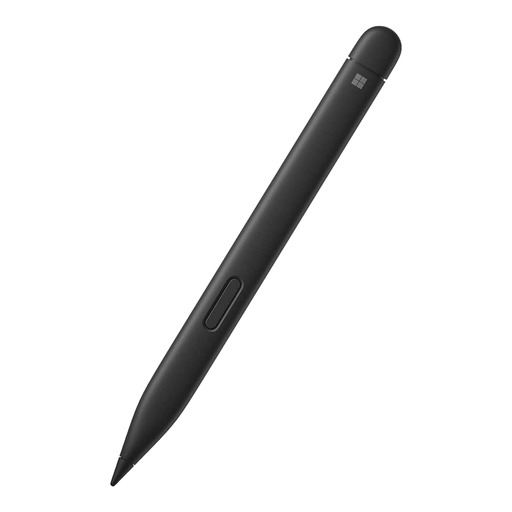
An option for sketching on a compatible Surface; check that your device supports the stylus.
The product description lists 4,096 pressure levels and compatibility with Surface Pro 8 and Surface Pro X Type Covers.
A compatible device or accessory is needed for charging.
 No image available
An option for sketching on a compatible iPad if tilt works with your drawing style.
The product description lists tilt sensitivity, USB-C charging and compatibility with iPad models from 2018 onwards running iOS 12.2 or later.
According to the product description, no pairing is required. Check which features are supported by the exact version and your drawing app.
 No image available
An option for pressure- and tilt-sensitive sketching on a compatible iPad.
The product description lists pressure and tilt sensitivity, plus magnetic attachment for pairing and charging.
The description lists specific iPad models, including iPad Pro and Air models with M4, and iPad mini with A17 Pro. Check that your exact model is supported.
 No image available
An option for tilt-sensitive sketching on a compatible iPad.
The product description lists tilt sensitivity and charging via the USB-C port under the cap.
Magnetic attachment is mentioned, but not magnetic charging. Check compatibility with your iPad model.
 No image available
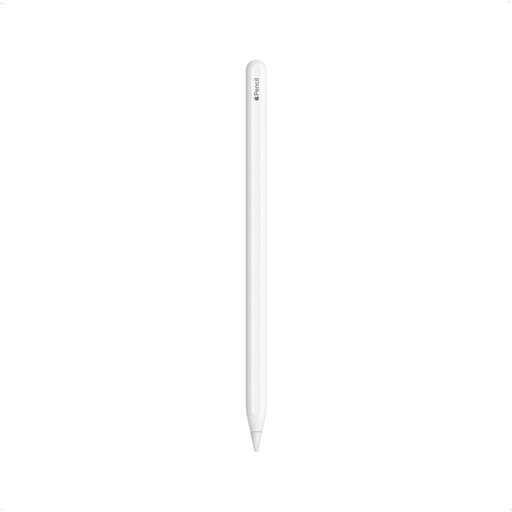
An option for sketching on a compatible iPad; check that your exact model is supported.
The product description lists drawing and sketching, as well as magnetic attachment for pairing and charging.
The product title and description list specific iPad Pro, Air and mini models; compare the list with your device.
No, compatibility depends on the stylus and device variant. Apple, Samsung and Microsoft list support by model, so note down your tablet’s full name before choosing a stylus.
That depends on the stylus and drawing app. According to the Procreate handbook, brush settings can use pressure to create a thicker stroke and tilt for a different effect. Check that your stylus provides the input you need, then try out your chosen brush.
Not necessarily. Apple describes magnetic charging for Pencil Pro, but Pencil (USB-C) pairs and charges via a USB-C cable. Check how the specific version charges.
If you’re buying as a consumer in the Netherlands, the Dutch government says you may be entitled to a free repair, replacement or refund if a product is faulty. The Netherlands has no fixed statutory guarantee period for this; normal wear and tear and damage caused by the customer are treated differently.
According to the Dutch government, consumers buying at a distance usually have a 14-day cooling-off period, although there are exceptions. The guidance distinguishes between buying from a business and buying from a private seller, so check who you’re buying from and which terms apply.