Start by checking your tablet’s exact model, then choose a pen that’s supported by it: Apple Pencil, Samsung S Pen and Surface pens aren’t automatically interchangeable. Next, decide whether you mainly want to sketch outlines or need extra pen features too. For a scaled drawing, your drawing app must also let you set a scale and dimensions. At a shared desk, easy pairing, charging and storage can be useful, but these features vary by pen and device.
Who is this guide for?
Creating a scaled garden plan
You want to discuss plot boundaries, paths and planting beds with measurements. So, as well as considering the pen, look for scale and measurement features in your drawing app. Concepts App describes these features for working on a design.
Quickly sketching ideas together
At a shared desk, you switch between adding annotations, discussing different options and putting the pen away. Pairing and charging may also be important: Apple, Logitech and Microsoft describe different solutions for each pen and device.
Adding a pen to a tablet you already own
You want to keep using your current tablet, so first you need to check which pen and features work with its exact model. Apple Support, Samsung and Microsoft list compatibility and pen features by device or model.
What should you look for?
First, check compatibility with your existing device. Then decide which drawing features you need, and finally see how the pen pairs, charges and stores.
| What to consider |
What should you check? |
Who is this important for? |
| Compatibility |
Compare your tablet’s exact model and, where relevant, its software version with the pen’s compatibility information. |
If I want to keep using my current tablet, I need to avoid choosing a pen that isn’t compatible with my model. Around 36% of consumers prioritise compatibility. |
| Sketching and measurements |
Decide whether you want to draw outlines or also need scale, units of measurement and layers in your drawing app. |
If I want to discuss paths and planting beds with dimensions, my app needs to handle scale and measurements. Around 29% of consumers mainly want to create a detailed garden sketch. |
| Use at a shared desk |
Check how the pen pairs and charges, and whether your device has a suitable place to store or charge it. |
If I often switch between discussing and drawing during meetings, I want to be able to pick up and put away the pen quickly. Around 21% of consumers mainly want a smooth, collaborative sketching experience. |
| Accessories and maintenance |
Check what’s included, what charging method is needed and whether compatible replacement nibs are available. |
If I want to avoid unexpected purchases for charging, batteries or replacement nibs, I check the accessories and maintenance requirements in advance. Around 14% of consumers mainly keep an eye on ongoing costs. |
Common buying mistakes
-
Choosing a pen based on the tablet brand, not the exact model
Support can vary within the same brand. Apple Pencil compatibility depends on the iPad model and software version; Microsoft lists pen features by Surface model.
Make a note of your device’s full model name and check the compatibility information for the specific pen before choosing.
-
Assuming that magnetic attachment also means charging
Apple describes magnetic pairing and charging for Pencil Pro, but pairing and charging via a USB-C cable for Pencil (USB-C). The charging options for Surface Slim Pen depend on the device or an accessory.
Check how the exact pen charges and whether your tablet or keyboard has a suitable charging spot.
-
Confusing tilt sensitivity with pressure sensitivity
Logitech lists tilt sensitivity for Crayon, but says the pen isn’t pressure-sensitive. These features aren’t the same.
Consider whether you mainly want to sketch garden outlines or also adjust line thickness by pressing harder.
-
Expecting the pen to create a scaled drawing automatically
You set the scale and dimensions in your drawing app; a stylus alone won’t make a sketch accurate to scale.
Before using a sketch as a measured plan, check that your app supports scale, units of measurement and the drawing layers you need.
If you have to measure everything again later, it’ll take extra time to complete the plan.
Brands to compare
Apple
Apple Pencil models are designed for specific iPads. Your choice will also depend on the pen features you need.
- Apple Support describes magnetic pairing and charging for Pencil Pro.
- For Pencil (USB-C), Apple describes pairing and charging via cable. Check compatibility with your exact iPad.
Samsung
Samsung S Pens are model-specific. The S Pen for the Galaxy Tab S11 series is designed for the Tab S11 and Tab S11 Ultra.
- Samsung describes writing and sketching on supported devices.
- Samsung states that the S Pen for Tab S11 and S11 Ultra doesn’t have Bluetooth functionality. Features of other S Pens don’t automatically apply to this version.
Logitech
Logitech Crayon is an option for sketching and adding annotations on a compatible iPad.
- Logitech describes tilt functionality and palm rejection on iPad, as well as instant use without complicated Bluetooth pairing.
- According to Logitech’s instructions, Crayon isn’t pressure-sensitive. Check the version and the charging cable required too.
Microsoft
Surface Slim Pen is designed for supported Surface devices; features vary by model.
- Microsoft lists pen features by Surface model.
- Not every device or keyboard has a suitable charging spot. Microsoft sells the Surface Slim Pen charger separately.
Lenovo
Digital Pen 3 is designed for devices that support a compatible pen protocol.
- Lenovo lists several protocols, up to 4096 pressure levels and an included AAAA battery.
- These specifications don’t confirm that all features will work on every individual device. Check the exact model and protocol.
Joybuy product picks
This selection includes stylus pens for sketching on compatible iPad and Galaxy Tab models, and on devices with suitable pen support.
 No image available
Apple Pencil Pro 2024
An option for sketching and discussing different ideas on a supported iPad. Check that your model is compatible.
Apple describes magnetic pairing and charging for Pencil Pro.
View at Joybuy
 No image available
Apple Pencil (USB-C), White
A good fit if you mainly want to sketch outlines and different options on a compatible iPad.
Apple lists tilt sensitivity and pairing and charging via a USB-C cable. Check compatibility with your iPad.
View at Joybuy
 No image available
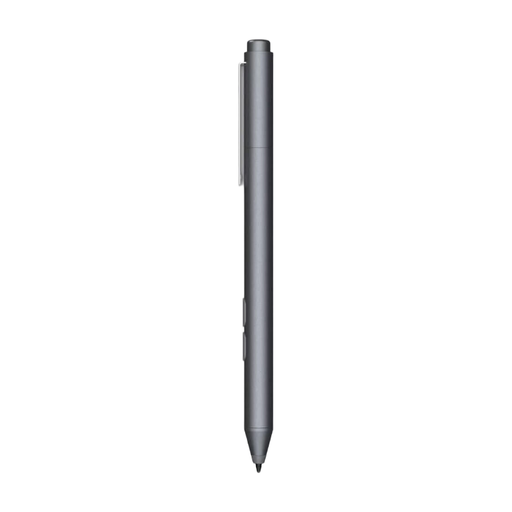
HP MPP 1.51 Stylus Pen
An option for drawing on a device with suitable pen support. Check that your exact model supports MPP.
The product name lists customisable buttons and one replaceable nib.
View at Joybuy
 No image available
Samsung EJ-PX510 Stylus Pen, 8.7g, Beige
According to the product information, this pen is designed for sketching and drawing on the Galaxy Tab S9 FE and Tab S9 FE+.
The product information says it attaches to a magnetic holder on the tablet. Check that your model matches.
View at Joybuy
 No image available
Apple Pencil (2nd generation)
A good fit if you want to sketch outlines and different options on a compatible iPad.
The product listing names specific iPad Pro, iPad Air and iPad mini generations. Compare this compatibility information with your exact model.
View at Joybuy
Frequently asked questions
How can I create a garden plan with reliable measurements?
First, measure your garden, then set the scale and units of measurement in an app with scale and measurement features. Concepts App documents these features for iOS, Windows and Android; check what’s available in the app you use. A precise pen won’t replace these settings.
Do I need to pair a stylus via Bluetooth every time?
It depends on the pen. Logitech says Crayon works on a compatible iPad without complicated Bluetooth pairing. Apple describes magnetic pairing for Pencil Pro and pairing via USB-C for Pencil (USB-C). Check how the pen that’s compatible with your device works.
What should I do if the nib gets damaged?
Don’t continue drawing on your iPad screen with a damaged Logitech Crayon nib. Logitech recommends replacing the nib and offers a replacement. For other pens, refer to the relevant care instructions.
Who can help if a pen bought online is faulty?
When you buy as a consumer in the Netherlands, you’re entitled to a product that works properly. According to the Dutch government, the seller must provide a solution if there’s a problem; a manufacturer’s warranty doesn’t replace your statutory rights.
Can I return a stylus ordered online if it isn’t compatible?
When you buy from a business at a distance, in many cases you have a statutory 14-day cooling-off period. The Dutch government distinguishes between distance purchases from a business and purchases from a private individual. Check which rules apply to your purchase.


