Start by checking your exact tablet or computer model: only a compatible stylus will work for your furniture sketches. Choose pressure sensitivity if you want precise control over line weight and shading. For rough outlines, a simpler stylus may be enough, provided the app, charging method and any included stylus suit the way you work.
Who is this guide for?
Sketcher with an existing tablet
You want to sketch furniture ideas without first buying the wrong accessory. Your exact tablet model and the stylus compatibility information determine which options will work. Apple, Samsung and Wacom each have their own compatibility requirements.
Detail-focused artist
You refine outlines, materials or shadows and want to know whether the stylus and your drawing app offer the line and pressure control you need. Adonit, for example, says that certain Note⁺ 2 features require pairing with specific apps.
Quick idea-taker
You want to quickly capture dimensions, layouts and rough shapes in a small space. Getting started and charging easily may matter more than extra drawing gestures. Logitech says the Crayon USB-C works with a supported iPad without a complicated Bluetooth pairing process.
What should you look for in a stylus?
First, note your exact device model. Then decide how much control you need over your lines, and compare app support, charging and any accessories you may need.
| What to consider |
What to look for |
Who is this important for? |
| Compatibility |
Check the full device and stylus model against the compatibility information, and see whether a stylus is already included. |
If you want to use a tablet you already own, make sure the stylus will work with it before you buy. Around 33% of consumers prioritise compatibility with their device. |
| Line control |
Check pressure sensitivity separately from tilt recognition, and see whether the features work in your drawing app. |
For refined outlines or shading, the way a stylus controls your lines can make all the difference. Around 27% of consumers put drawing control first. |
| Getting started quickly |
Check how the exact stylus is activated and charged, and whether your preferred sketching app is available on your device. |
If you mainly want to capture rough layouts and notes quickly, you’ll want to get started with as few steps as possible. Around 20% of consumers prioritise convenience. |
| Equipment you need |
Check what you already own, what comes with the tablet and whether replacement tips are available for your stylus model. |
If you don’t have a suitable tablet or want to be able to replace parts, the equipment you need will affect your choice. Around 20% of consumers prioritise the items they need to buy or replace. |
Stylus buying pitfalls
-
Choosing a stylus by brand rather than model
Compatibility varies between stylus versions and devices. A stylus that works with one model in a product range won’t necessarily work with the other models in that range.
Note down the full model numbers of your device and stylus, then compare them with the manufacturer’s compatibility information.
-
Confusing tilt recognition with pressure sensitivity
These are different features. Logitech says the Crayon supports tilt, but its manual states that it isn’t pressure-sensitive. Check which type of line control you need.
Compare the specifications for the exact stylus version and check that the feature you want also works with your drawing app.
-
Buying a separate stylus without checking what’s in the box
What’s included can vary between tablet versions. Samsung lists an S Pen with certain Galaxy Tab product variants, so don’t assume every model comes with the same accessories.
Check what’s in the box for the exact tablet before adding a replacement stylus to your basket.
-
Treating a drawing display like a standalone stylus
The Huion Kamvas 13 is a drawing display that needs to be connected to a suitable device. It isn’t a standalone tablet or a separate stylus.
Before choosing it, check that you have a suitable computer or connection and that your setup meets any power requirements.
Brands to compare
Apple
Apple Pencil (USB-C) is designed for supported iPads and simple sketches. Pencil Pro is an option if you want extra drawing controls and your iPad is compatible.
- Apple lists tilt recognition and USB-C charging for Pencil (USB-C), and squeeze, barrel roll and magnetic charging features for Pencil Pro.
- Compatibility lists vary. Check your exact iPad model before choosing a Pencil.
Samsung
S Pen models are designed for compatible Galaxy devices. A separate stylus may be useful if your device doesn’t come with a suitable one or you need a replacement.
- Samsung distinguishes between Fold Edition, Pro and Creator Edition, among other models, based on compatibility and features.
- Features vary by version. Samsung says certain S Pens included with Tab FE models don’t support Bluetooth; writing isn’t the same as using Air Actions.
Logitech
Crayon USB-C is an option for simple sketches and notes on supported iPads.
- Logitech describes it as ready to write straight away, with tilt recognition and USB-C charging.
- The manual states that Crayon isn’t pressure-sensitive. Also make sure you choose the USB-C version, not an older Lightning version.
Wacom
Bamboo Ink Plus is designed for compatible Windows 2-in-1 devices, not as a general-purpose stylus for iPad.
- Wacom lists up to 4,096 pressure levels and support for devices using AES or MPP technology.
- Wacom says performance can vary by device and that Bamboo Ink Plus isn’t compatible with Apple products. Check which technology your device uses.
Adonit
Note⁺ 2 is an alternative for selected iPads if its replaceable tips and supported app features suit the way you work.
- Adonit lists three replaceable tips, pressure sensitivity and palm rejection.
- Adonit says pressure sensitivity and shortcut buttons require pairing with specific apps. The manufacturer also notes that magnetic attachment depends on the model.
Huion
Kamvas 13 is an alternative if you’re considering a drawing display and have a suitable device to connect it to.
- Huion lists a battery-free PW517 pen and on-screen drawing.
- Kamvas 13 isn’t a separate stylus for an existing iPad. You’ll need a suitable connected device and, depending on the connection, possibly an additional power supply.
Styluses at Joybuy
This selection includes styluses for sketching on Android and iOS devices, selected iPads and compatible Surface devices. Check each product’s exact device compatibility and usage requirements.
 Image unavailable
Universal touchscreen stylus for Android and iOS
An option for sketching rough furniture shapes on a capacitive Android or iOS screen; check that it’s suitable for your exact device. The product name mentions fast charging, an LED indicator and magnetic attachment.
View at Joybuy
 Image unavailable
iPad stylus with USB-C, tilt detection and palm rejection
For sketching on a compatible iPad, even when you rest your hand on the screen. The product name mentions tilt detection, palm rejection, USB-C charging, magnetic attachment and an LED battery-level indicator. Compatibility is limited to selected iPad models.
View at Joybuy
 Image unavailable
Microsoft Surface Slim Pen 2 Black 8WV-00002
An option if you want to sketch on a compatible Surface device. The product information also lists specific Surface Type Covers; check that your device and accessories are the right models.
View at Joybuy
 Image unavailable
Apple Pencil Pro 2024
For anyone who wants to sketch furniture with a Pencil Pro on a supported iPad. The product title lists iPad Air and iPad Pro models; check the compatibility information for your exact iPad.
View at Joybuy
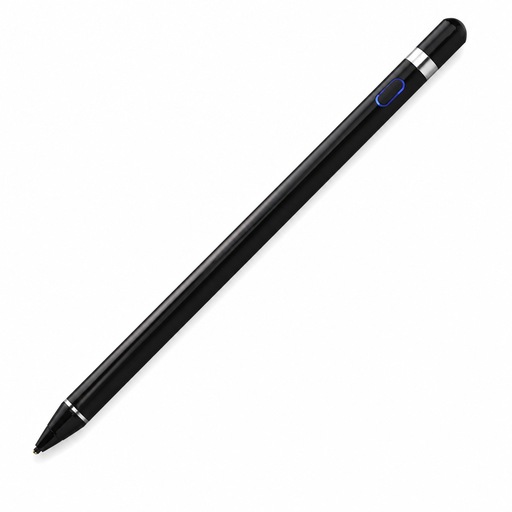 Image unavailable
VoxorAI HL-U05 Black stylus
For rough shapes and notes, if the required app and Bluetooth pairing suit the way you work. The product name lists iOS, iPad, Android and PC; according to the product information, you’ll need to download an app and pair the stylus via Bluetooth.
View at Joybuy
Frequently asked questions
How do I check whether a stylus will work with my tablet?
Find the full model name of your tablet and compare it with the compatibility information for the exact stylus version. Wacom says a Windows device must support AES or MPP for Bamboo Ink Plus; Apple Pencil and S Pen have different model-specific compatibility lists.
Do I need to pair the Logitech Crayon USB-C via Bluetooth first?
Logitech says you can use Crayon USB-C with a supported iPad without a complicated Bluetooth pairing process. It charges via USB-C.
Does the Adonit Note⁺ 2 offer pressure sensitivity in every app?
No. Adonit says you need to pair the stylus with specific supported apps to use pressure sensitivity and shortcut buttons. Check that the app you want to sketch with is supported.
Can I use a Huion Kamvas 13 without another device?
No. The Kamvas 13 is a drawing display that needs to be connected to a suitable device; it isn’t a standalone tablet. Check the computer or Android connection required and whether you’ll need extra power before choosing this option.
Can I return a stylus bought online if it doesn’t suit the way I work?
According to the Netherlands Authority for Consumers and Markets, online consumer purchases generally come with a 14-day cooling-off period, although exceptions may apply. Check the terms of your purchase. The cooling-off period is separate from your rights if a product is faulty.


