
Sketcher with an existing tablet
You want to add a pen without replacing your tablet first. The exact tablet model determines which pens and features are suitable.


Start by checking your exact tablet model and drawing app: a stylus that works with one device may not be compatible with another. Then choose one that suits the way you work, but check measurements separately; pen precision doesn’t guarantee that a floor plan has been measured accurately.
You want to add a pen without replacing your tablet first. The exact tablet model determines which pens and features are suitable.
You draw layouts and want to record or share useful measurements. Checking measurements and your app’s capabilities is just as important as the pen tip.
You spend longer working on different versions, so you’ll want to consider grip, charging, replacement tips and the cost of your chosen setup.
First, check that the pen works with your exact device and app. Then decide whether you mainly want to sketch freely, check measurements or draw for long periods at a time.
| What to consider | What should you check? | Who is this important for? |
|---|---|---|
| Compatibility | Compare your exact tablet model with the pen’s compatibility list. Also check which features your device supports. | If I want to keep using my current tablet, I first need to make sure the pen works with that exact model. Around 36% of consumers put compatibility first. |
| Measurements and sharing | Check whether your app lets you enter measurements and export the plan in the format you want. Verify important room measurements separately. | When I want to share a floor plan, I need more than just lines: I also need measurements and an export option that works with my app. Around 29% of consumers prioritise measurements and sharing. |
| Comfort and charging | Check the grip, palm rejection and charging method of the exact pen model. Make sure replacement tips are available if you need them. | During longer drawing sessions, I want to work comfortably and avoid being caught without a usable pen. Around 21% of consumers focus mainly on comfort and uninterrupted use. |
| Workflow costs | Check which accessories you already have and which features or export options come with your app. | If I only want to add a pen, I want to know in advance whether my setup also requires a charger or extra app features. Around 14% of consumers prioritise additional workflow costs. |
Even within one brand, pen versions and supported tablet models can vary. So a pen that works with another model from the same brand won’t necessarily work with your tablet.
Find your device’s exact model and compare it with the compatibility list for that specific pen version.
Pressure sensitivity describes how the pen responds, not how the dimensions of a room have been measured.
Check the measurements and your app’s measuring and export features before sharing the plan. The magicplan Help Center lists a compatible Bluetooth laser measure as an option for entering measurements in the app.
You may need a separate measuring solution to check important dimensions.
A suitable charging solution or the export options in your drawing app may also affect your workflow.
Before you buy, work out what you already have and what you need for your preferred device and final file.
Depending on your setup, you may need a charging accessory or an app upgrade. Also check whether you want to be able to buy a replacement tip.
Different Apple Pencil versions are designed for specific, separately supported iPad models. Check Apple’s compatibility list for your iPad.
Samsung offers S Pens designed for specific supported Galaxy Tab models.
Logitech Crayon (USB-C) is an option for iPads that Logitech lists as compatible.
Noris digital jumbo is designed for a confirmed compatible EMR screen, so you can draw without charging or pairing.
Surface Slim Pen is designed for Surface devices with supported pen input.
Xiaomi lists Focus Pen Pro for specific models in the Pad 6S Pro 12.4, Pad 7 and Pad 8 series.
These product picks are aimed at sketching and drawing on supported Surface, iPad and Galaxy Tab devices, as well as an active stylus for capacitive screens.
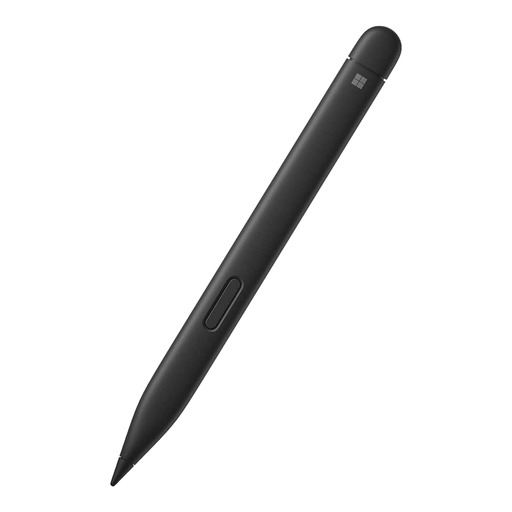 Image unavailable
An option for drawing on a Surface, provided your model supports pen input and the pen suits your setup.
The product information lists Type Covers for Surface Pro 8 or Surface Pro X as a compatible combination. Check the charging requirements for your device.
 Image unavailable
Worth considering for sketching on a supported iPad; also check the features available in your drawing app.
The product information lists iPad models from 2018 onwards and iOS 12.2 or later as requirements. This is the USB-C version.
 Image unavailable
An option for sketching on a compatible iPad if you want to use the drawing features described.
The product information lists iPad Pro models with M4, iPad Air models with M2 and iPad mini with A17 Pro as compatible models. Check your exact iPad model before buying.
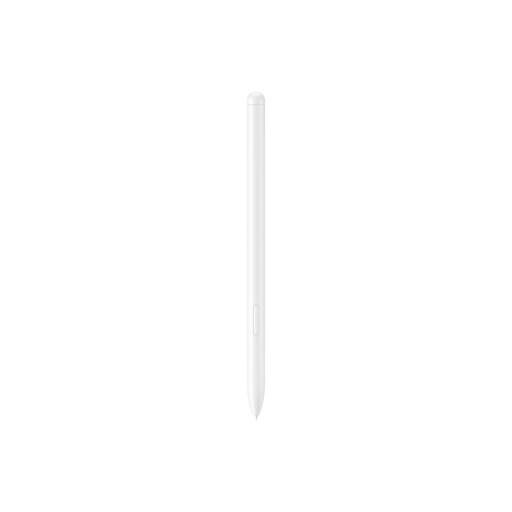 Image unavailable
An option for sketching on the Galaxy Tab models listed; check that your tablet is compatible with this pen version.
The product information lists Galaxy Tab S9 FE and Tab S9 FE+ as compatible models. The stated weight is 8.7 g.
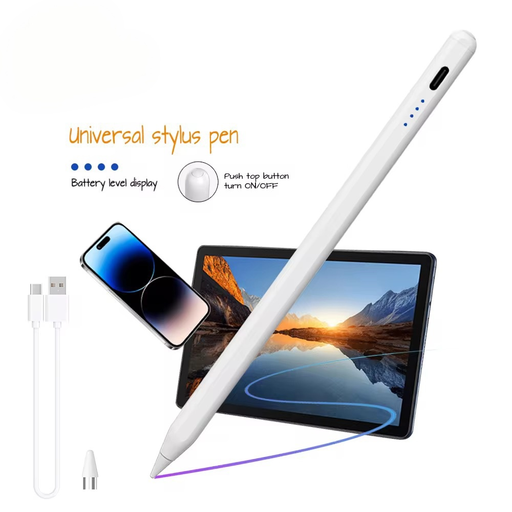 Image unavailable
An option to explore for sketching on a capacitive screen, if the pen and required app work with your device.
The product information lists a capacitive screen as a requirement and says pairing is done via an app and QR code. Check support for your specific device.
No. Pen precision doesn’t tell you how the room measurements were taken. Check important measurements separately; the magicplan Help Center lists a compatible Bluetooth laser measure for more accurate measurement input in the app.
It depends on the model. Apple Pencil (USB-C) pairs and charges with a USB-C cable. Logitech says Crayon can write straight away without separate Bluetooth pairing, but the pen still needs charging. Noris digital jumbo works on a suitable EMR screen without charging or pairing.
Check whether you need a charging accessory and whether your drawing app offers the export options you want. According to the Dutch Government, online distance purchases usually come with a 14-day cooling-off period. You’re also entitled to a product that meets acceptable standards; in the Netherlands, there’s no fixed statutory guarantee period for all products.
Not in every app. The magicplan Help Center specifically says that magicplan’s AR and LiDAR scanning features aren’t available on Android; you can still draw rooms manually in the app. This doesn’t say anything about the features of other floor-plan apps.