
Pattern artist with an existing tablet
You want to sketch fabric patterns on your own tablet, so first you need to check whether the stylus works with your exact model.


Start by checking your exact tablet model and drawing app: a stylus that doesn’t work with both won’t suit your workflow. Then choose one with the level of brush control you need. Pressure sensitivity matters if you want to control your lines by pressing harder or lighter, but it isn’t always necessary for simple sketching. If you share a workspace, also consider storage, charging and replacement nibs.
You want to sketch fabric patterns on your own tablet, so first you need to check whether the stylus works with your exact model.
You want to adjust outlines or brush effects, and need to check that both the stylus and drawing app support pressure sensitivity.
You share your workspace, so you need to consider how the stylus is stored and charged, and whether replacement nibs are available.
First, check compatibility with your tablet and app. Then decide whether you need pressure-sensitive brush strokes, and consider how the stylus will be stored and maintained in your shared workspace.
| What to consider | What should you check? | Who should prioritise this? |
|---|---|---|
| Compatibility | Compare your tablet’s full model name with the compatibility list for the exact stylus version. Also check that your drawing app supports the stylus. | If I want to draw on my existing tablet, I first check that the stylus is actually compatible. Around 36% of consumers put compatibility first. |
| Pressure-sensitive brush strokes | Check pressure sensitivity on both the stylus and in the app. Tilt is not the same as drawing with pressure. | If I want to control the width or effect of a line by pressing harder or lighter, both the stylus and app need to support it. Around 29% of consumers prioritise pressure-sensitive details. |
| App and pattern workflow | Check that your app supports the workflow you want, such as mirroring or repeating objects in a grid. | If I want to mirror or repeat patterns, I first check that my drawing app can handle that workflow. Around 21% of consumers put app workflow first. |
| Storage and maintenance | Check how the stylus is stored, whether it needs charging and which replacement nibs fit that exact model. | If the stylus needs to be available in a shared workspace, I look for a designated storage spot and consider maintenance. Around 14% of consumers prioritise practical shared use. |
Apple Pencil versions and styluses from other brands have model-specific compatibility. The wrong version may not work with your tablet at all.
Note down your tablet’s full model name and compare it with the list for the exact stylus version before you buy.
Logitech says the Crayon is not pressure-sensitive. With the Adonit Note⁺ 2, pressure sensitivity and shortcut buttons depend on pairing with specific apps.
Check that your own app supports the brush adjustments you want, and specifically look for pressure input support.
The Samsung and Huion styluses mentioned are designed for specific devices. Replacement nibs can also vary by stylus model.
Check the device code, stylus version and nib code separately before ordering.
Apple Pencil Pro and Apple Pencil (USB-C) are versions for different iPad models specified by Apple.
Samsung S Pens are designed for specific Galaxy Tab devices.
Crayon (USB-C) is a stylus for sketching or writing on supported iPads.
Note⁺ 2 is designed for supported iPads when you want to use pressure sensitivity and buttons.
PW500 is a battery-free replacement stylus for a limited range of Huion drawing tablets and pen displays.
This selection includes stylus pens for drawing on iPads and Samsung tablets, as well as a stylus described in its product listing as compatible with several types of device. Before buying, check that the exact stylus is compatible with your tablet and drawing app.
 No image available
An option for drawing on a compatible iPad; check that your exact iPad model is supported.
Apple lists pressure and tilt sensitivity, squeeze and rotation controls, and magnetic charging for Pencil Pro.
 No image available
A replacement stylus for drawing on a Galaxy Tab S9 FE or S9 FE+; check that your tablet version matches.
The product listing names these tablet models as compatible. According to the listing, the nib replacement tool is sold separately.
 No image available
An option for sketching on the iPad models listed for this generation; check your exact model.
The product name lists iPad Pro 12.9-inch (3rd–6th generation), iPad Pro 11-inch, iPad Air (4th/5th generation) and iPad mini (6th generation).
 No image available
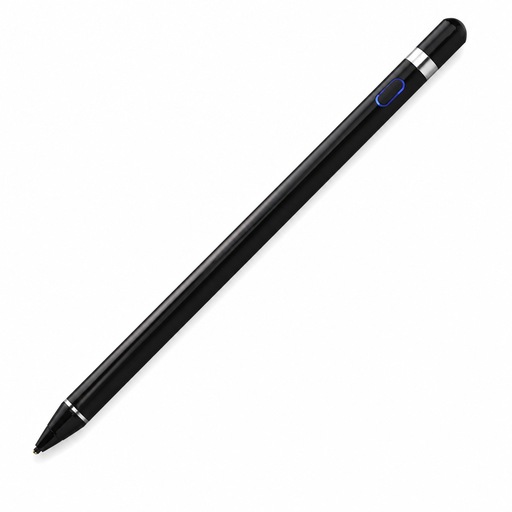
One to consider if you’re looking for a stylus for a capacitive screen; confirm it works with your device and drawing app.
The product information lists a built-in battery and pairing via the companion app. Check in advance which app and pairing method your device needs.
 No image available
An option for sketching on a supported iPad if you don’t need pressure-sensitive brush strokes.
Logitech says the Crayon is not pressure-sensitive. The product listing names iPads from 2018 onwards and iOS 12.2 or later; check the requirements for your particular combination.
No, compatibility varies by stylus version and tablet model. Compare your tablet’s full model number with the compatibility list for the exact stylus you’re considering.
Check your drawing app’s features as well as the stylus. Procreate describes tools for mirroring brush strokes, while Illustrator on iPad includes features such as grid repetition for objects. Mirroring alone does not mean a pattern will repeat seamlessly.
Check that both your iPad and drawing app are supported. Adonit says you need to pair the stylus with specific apps to activate pressure sensitivity and shortcut buttons.
Use replacement nibs designed for your exact stylus model. Huion lists PN05 nibs for the PW500; Samsung’s instructions for replacing a nib with tweezers apply to the S Pen mentioned and do not automatically apply to other styluses.
According to the Dutch government, a product must meet what you could reasonably expect from it. For distance purchases from a business, you usually have a 14-day cooling-off period; check the applicable terms and exceptions.