The right stylus depends first on your exact tablet model, then on the features supported by your drawing app. For brush strokes that respond to pressure, you’ll need a compatible pressure-sensitive stylus. For sketching and colouring, a stylus with tilt recognition may be enough if pressure sensitivity isn’t essential. Also check how the stylus charges and where it can be stored.
Which stylus is right for you?
Artists who want control over their brush strokes
If you want to paint leaves, snow or skies using a variety of brush strokes, look for pressure and tilt sensitivity. Your tablet and drawing app need to support these inputs. For example, Procreate describes brushes that respond to pressure, tilt and rotation.
Sketchers and colourists
If you mainly want to sketch and colour scenes, you can choose a stylus based on compatibility, tilt recognition and charging, without making pressure sensitivity a deciding factor. Apple and Logitech describe differences in features and charging methods between their stylus models.
People keeping their current tablet
If you’re looking for a stylus for a tablet you already own, compare the tablet’s full model name with the compatibility list for the exact stylus model. Apple, Samsung and Adonit publish compatibility information for specific models.
What should you look for when buying?
Apple Pencil Pro
Best for: a compatible iPad and a drawing app where you want to use pressure-sensitive brushes and tool features.
Keep in mind: Apple lists a limited range of supported iPads; check which features your app supports too.
Samsung Galaxy Tab S11 Series S Pen
Best for: painting on a Galaxy Tab S11 or S11 Ultra with pressure-sensitive strokes.
Keep in mind: this specific model is designed for the Tab S11 and S11 Ultra; don’t assume other S Pens offer the same compatibility.
Adonit Note+
Best for: an iPad on Adonit’s compatibility list if you want pressure and tilt sensitivity, plus customisable buttons.
Keep in mind: Adonit says button functions vary by app, so check your drawing app.
Logitech Crayon USB-C or Apple Pencil USB-C
Best for: sketching and colouring on a supported iPad if pressure-sensitive strokes aren’t essential.
Keep in mind: Logitech describes the Crayon as not pressure-sensitive. Both the Crayon and Apple Pencil USB-C charge via USB-C; check the exact model and its compatibility.
First, note down your tablet’s full model name, then check which brush inputs your app supports. The percentages below indicate how much each factor matters in this painting and sketching scenario.
| Factor |
What to look for |
Who is this important for? |
| Compatibility |
Compare your tablet’s full model name with the list for the exact stylus model. Check for any software requirements. |
If I want to keep using my current tablet, I don’t want to risk buying a stylus that won’t work with it. Around 36% of consumers prioritise compatibility with their existing tablet. |
| Brush control |
Check pressure sensitivity and tilt recognition separately, and see which inputs your drawing app supports. |
If I want to vary brush strokes for things like leaves or shadows, I want to know whether my app can make use of the stylus inputs. Around 29% of consumers prioritise control over their painted strokes. |
| Charging and storage |
Check whether magnetic attachment also charges the stylus or is only for storage; USB-C models charge with a cable. |
If I regularly pick up my stylus from my desk at home, I want to know how to charge it and where to find it. Around 21% of consumers focus mainly on charging and storage between sessions. |
| Nibs and running costs |
Check whether a replacement nib is available for the exact stylus model and how much it costs. |
If I use my stylus often, I want to know in advance how to replace a worn nib. Around 14% of consumers prioritise maintenance and running costs. |
Common buying mistakes
-
Assuming every stylus works with every tablet
The Apple, Samsung and Adonit styluses reviewed here have different compatibility lists. A general description such as ‘tablet stylus’ doesn’t confirm that it will work with your device.
Find your tablet’s full model number and compare it with the compatibility list for the exact stylus model.
-
Confusing tilt with pressure sensitivity
Logitech describes tilt recognition for the Crayon, while the manual we consulted says that this Crayon model isn’t pressure-sensitive. These are different types of input.
Decide how you want to vary your brush strokes and check that both your stylus and drawing app support those inputs.
-
Assuming magnetic attachment means magnetic charging
Apple describes magnetic charging for Pencil Pro, but USB-C charging for Apple Pencil USB-C. So attachment and charging aren’t automatically the same feature.
For your specific model, check separately how the stylus attaches, pairs and charges.
-
Assuming the manufacturer’s warranty covers everything
According to ACM ConsuWijzer, statutory warranty in the Netherlands is separate from a manufacturer’s or seller’s warranty, and it doesn’t have a fixed two-year term.
Keep your proof of purchase and report any fault to the seller.
Brands to compare
Apple
Apple offers different Pencil models for specific iPads; check which stylus is supported for each model.
- According to Apple, Pencil Pro offers pressure-sensitive features, tool gestures and magnetic charging. Apple lists tilt sensitivity and USB-C charging for Pencil USB-C.
- Compatibility lists and charging features vary by model. Magnetic attachment doesn’t always mean magnetic charging.
Samsung
The Galaxy Tab S11 Series S Pen reviewed here is designed for the Galaxy Tab S11 and S11 Ultra.
- Samsung lists pressure detection and a replaceable nib for this S Pen model.
- Samsung says that features and compatibility vary between S Pen models.
Adonit
Adonit Note+ is an option for iPads listed as compatible by Adonit.
- Adonit specifies pressure sensitivity, tilt recognition, replaceable nibs and programmable buttons.
- According to Adonit, button functions depend on the app; check whether your drawing app supports them.
Logitech
Crayon USB-C is designed for sketching on supported iPads when tilt recognition is all you need.
- Logitech lists tilt recognition, palm rejection and USB-C charging for Crayon.
- The manual we consulted says that Crayon isn’t pressure-sensitive. Check the details of the exact model too; the manual describes a Lightning model.
Stylus options at Joybuy
This selection includes styluses for selected iPad models and Surface devices. Before buying, check that your exact tablet model is supported.
 No image available
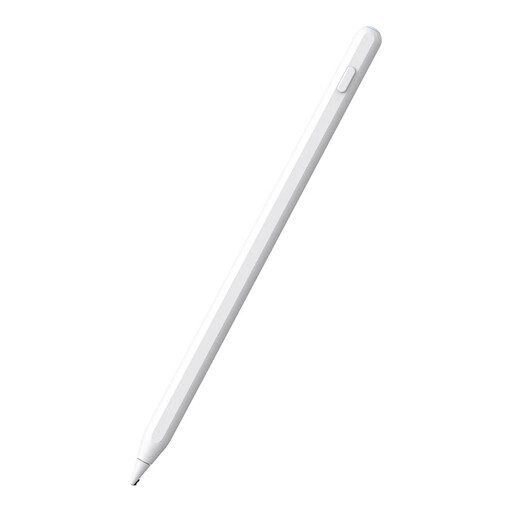
Stylus for iPad with magnetic charging
An option for drawing on a compatible iPad; check that your exact model is included in the stated compatibility list.
The product title mentions magnetic charging and a white finish.
View at Joybuy
 No image available
iPad stylus with USB-C charging port
For sketching on selected iPads; check that your model is supported before buying.
The product title mentions tilt detection, palm rejection and magnetic attachment. The product information says the attachment is for storage, not wireless charging.
View at Joybuy
 No image available
Microsoft Surface Slim Pen 2 Black 8WV-00002
An option if you want pressure-sensitive strokes on a compatible Surface device.
Check your device’s compatibility and the listed Type Covers for Surface Pro 8 or Surface Pro X.
View at Joybuy
 No image available
Logitech Crayon USB-C, silver
For sketching and colouring on a supported iPad; check your model and app are compatible.
Logitech describes tilt recognition and says that the Crayon isn’t pressure-sensitive. The listed product information mentions iPad models from 2018 onwards and iOS 12.2 or later.
View at Joybuy
 No image available
Apple Pencil Pro 2024
For brush strokes using pressure and tilt on a compatible iPad; check that your tablet model is supported.
Apple describes pressure and tilt sensitivity, as well as magnetic pairing and charging. The stated compatibility includes iPad Pro models with M4, iPad Air models with M2 and iPad mini with A17 Pro.
View at Joybuy
Frequently asked questions
Do I need to pair a stylus before I can draw?
It depends on the stylus model. Apple describes magnetic pairing for Pencil Pro; Logitech says the Crayon model reviewed here works straight away with a compatible iPad, without a complicated Bluetooth pairing process. Follow the instructions for your exact stylus and tablet.
What can I do if a stylus nib wears out?
Check whether a replacement nib is available for your exact stylus model. Samsung describes a replaceable nib for the Tab S11 Series S Pen, while Adonit lists replaceable nibs for Note+. Don’t use a nib designed for a different model.
What are the rules on returns and warranties for online purchases in the Netherlands?
Online consumer purchases generally come with a statutory 14-day cooling-off period from the date of delivery, although there are exceptions. You’re also entitled to a product that meets legal standards; ACM ConsuWijzer says that the statutory warranty in the Netherlands doesn’t have a fixed two-year term. For a specific order, check the applicable terms and exceptions.
Does a CE mark prove that a stylus works with my tablet?
No. A CE mark doesn’t confirm that a stylus is compatible with a specific tablet or drawing app. According to the European Commission, CE marking applies where specific EU product rules require it; for compatibility, check the stylus manufacturer’s list of supported models.


