First, choose a stylus that the compatibility information confirms will work with your exact tablet model. For drawing lesson diagrams, accurate lines and comfortable writing matter more than extra brush gestures. A different stylus won’t solve screen glare: Apple describes anti-reflective screen finishes, while Samsung lists a separate protector for the Galaxy Tab S11 that helps reduce glare. So consider the screen finish and where you position it by the window separately from your choice of pen.
Who is this buying guide for?
People with an existing tablet
You’re looking for a pen for the tablet you already own and want to avoid choosing one that won’t work with it. Apple Support Netherlands, Samsung Netherlands and Lenovo Netherlands publish compatibility information for individual pens and devices.
People drawing diagrams in daylight
You draw lines and add labels beside a bright window, and want to consider your choice of pen separately from screen visibility. Apple Netherlands describes screen finishes with an anti-reflective coating; Samsung Netherlands lists a model-specific protector for the Galaxy Tab S11.
Versatile artists
As well as drawing precise diagrams, you create looser sketches and want to check which pressure, tilt and tool features work with your tablet. Apple Support Netherlands, Logitech and Lenovo Netherlands describe features for specific pen models.
What should you look for when buying?
First, check that the pen and tablet work together. Then compare drawing features and screen visibility separately, and see which charging or maintenance accessories are relevant to how you use them.
| What to consider |
What should you check? |
Who is this important for? |
| Compatibility |
Check the full name of your tablet model and, where applicable, the software version required for the specific pen. |
If I’m looking for a pen for my current tablet, I want to know first whether they’ll work together. Around 36% of consumers put compatibility first. |
| Readability by the window |
Check the screen finish and whether an anti-reflective protector is suitable for your tablet model. Also consider where you position the screen. |
Beside a bright window, I want to be able to read labels and assess screen glare separately from my choice of pen. Around 29% of consumers prioritise screen visibility. |
| Line and drawing control |
Compare the features of the specific pen and tablet, such as tilt, pressure sensitivity or palm rejection. |
If I draw looser sketches as well as diagram lines, I look at the drawing features my tablet actually supports. Around 21% of consumers prioritise drawing control. |
| Use and maintenance |
Check how the pen charges and which cables, replacement tips or other suitable accessories you’ll need for your use. |
I want to know in advance which charging and maintenance essentials will suit the way I use my pen. Around 14% of consumers prioritise the total cost of use. |
Buying pitfalls
-
Choosing a pen based only on “compatible with iPad” or “S Pen”
Apple and Samsung list compatibility by pen version and device. So a general product description doesn’t automatically mean the pen will work with your tablet.
Before buying, compare the full name of your tablet model with the compatibility information for the specific pen.
Choosing an incompatible pen could leave you with one you can’t use and the time and hassle of returning it.
-
Expecting a more expensive pen to reduce screen glare
Anti-reflective properties come from a screen finish or a separate, suitable protector; a stylus won’t change the screen’s characteristics.
Consider the pen and visibility by the window as two separate buying decisions.
An anti-reflective protector is a separate accessory, so check that it’s designed for your tablet model.
-
Confusing magnetic attachment with wireless charging
Apple says the Pencil (USB-C) pairs and charges via a USB-C cable. Magnetic attachment doesn’t mean this version charges magnetically.
Check how the exact pen version you’re considering charges.
Make sure you have the right charging cable if you want to charge while you work.
Brands to consider
Apple
Apple Pencil versions are designed for specific iPads. Check your exact model and the iPadOS version required.
- For Pencil Pro, Apple lists features including gestures, haptic feedback and magnetic charging with compatible iPads.
- Pencil Pro and Pencil (USB-C) have different features and compatibility requirements. Apple says Pencil (USB-C) pairs and charges via a cable.
Samsung
S Pen versions are worth considering for Galaxy Tabs that support the relevant pen.
- Samsung’s own guide distinguishes between pen versions and their compatibility.
- Samsung says its separate anti-reflective protector for the Tab S11 reduces glare. This is the manufacturer’s claim for that model-specific accessory, not an independent real-world test.
Logitech
Logitech Crayon is an option for compatible iPads. Check the charging version and compatibility.
- Logitech lists tilt support and palm rejection for Crayon with USB-C.
- A Logitech manual consulted for a Crayon version with Lightning says it isn’t pressure-sensitive. Don’t assume this also applies to the USB-C version without checking.
Lenovo
Tab Pen Plus is an option for Lenovo tablets where compatibility has been confirmed.
- Lenovo specifies tilt detection, palm rejection and 4096 pressure levels for Tab Pen Plus.
- These specifications don’t confirm that the pen works with every Lenovo tablet, so check your exact device model.
Styluses at Joybuy
This selection ranges from a stylus for capacitive Android and iOS screens to pens for selected iPads and the named e-ink tablets. Check compatibility for the exact combination you have; a stylus won’t change screen reflections.
 No image available
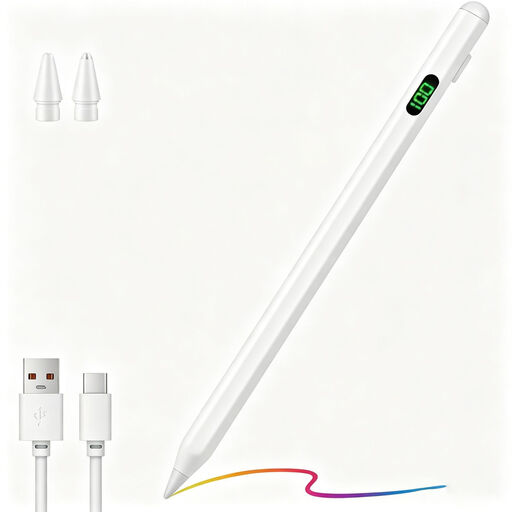
Universal touchscreen stylus for Android and iOS
For writing and drawing on capacitive screens. Check that its features suit your tablet and how you plan to use it.
The product name mentions fast charging and an LED indicator.
A different stylus won’t reduce screen reflections.
View at Joybuy
 No image available
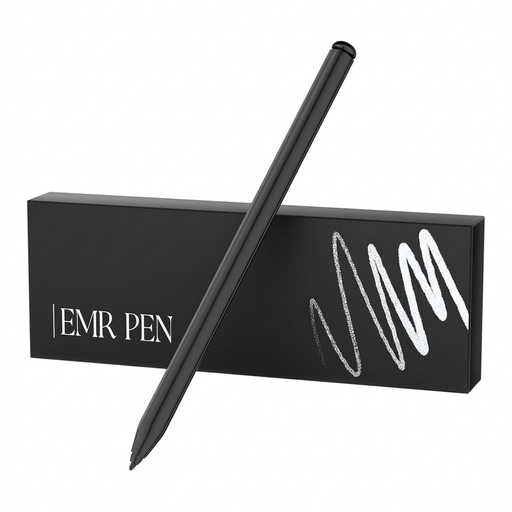
Zspeed SP-18 EMR stylus with eraser, black
For drawing and note-taking on the named reMarkable and Kindle Scribe tablets. Check that your exact device model is compatible.
The product name mentions 4096 pressure levels.
This pen is designed for the named e-ink tablets, not as a general-purpose stylus for every tablet.
View at Joybuy
 No image available
USB-C stylus for selected iPad models
For sketching, note-taking and annotating on the iPad models this pen is compatible with.
The product name mentions tilt detection, palm rejection, magnetic attachment and an LED battery indicator.
Magnetic attachment is for storage; wireless charging isn’t supported.
View at Joybuy
 No image available
Logitech Crayon USB-C, silver
For drawing, writing and annotating on a compatible iPad. Check that your exact model is supported.
Logitech lists tilt support and palm rejection for Crayon with USB-C.
A different stylus won’t reduce screen reflections.
View at Joybuy
 No image available
Apple Pencil Pro (2024) for iPad Air and iPad Pro
For drawing, sketching and note-taking on a compatible iPad. Before buying, compare your exact tablet with Apple’s compatibility information.
For Pencil Pro, Apple describes features including gestures, haptic feedback and magnetic charging with compatible iPads.
The pen won’t reduce screen reflections.
View at Joybuy
Frequently asked questions
How can you check whether an Apple Pencil is compatible with your iPad before buying?
Compare the full name of your iPad model with Apple’s compatibility information for the specific Pencil. Apple lists iPadOS 17.5 as the minimum for Pencil Pro and iPadOS 17.1.1 for Pencil (USB-C).
Will a different stylus solve screen glare by the window?
No, a stylus won’t change screen reflections. Apple describes an anti-reflective coating on certain screen finishes, while Samsung lists a separate protector for the Tab S11. Neither tells you how visible your screen will be in your workspace.
How do you pair and charge Apple Pencil (USB-C)?
Apple says you pair and charge Apple Pencil (USB-C) using a USB-C cable. Attaching it magnetically to the iPad isn’t the same as charging it magnetically.
If the tip on your Logitech Crayon wears out, do you need to buy a new pen straight away?
Not necessarily: Logitech says the Crayon has a replaceable tip. Just check that you have the right pen version and that the replacement part is compatible with it.
What are your rights in the Netherlands when you buy a stylus online?
According to ACM ConsuWijzer, for a standard online product purchase you’ll generally have a statutory 14-day cooling-off period after delivery, with some exceptions. Your statutory guarantee also depends on what you could reasonably expect from the product under normal use; it isn’t simply always limited to two years.


