
Artists with an existing tablet
Looking for a suitable pen for an iPad, Galaxy Tab or Surface? The exact device model determines which pen input and features are available.


Start by checking the exact model of your tablet or graphics tablet: a stylus for a different device or generation won’t necessarily work with yours. Then choose a pen that offers the controls supported by your drawing app, and check how it charges, which nibs it uses and whether you’ll need any extra computer equipment. Manufacturers’ specifications describe features, not measured painting results.
Looking for a suitable pen for an iPad, Galaxy Tab or Surface? The exact device model determines which pen input and features are available.
Want to control outlines, hatching and brush strokes? Look at the pen features your app supports, not just the brand name or pressure-level figure.
Use a connected graphics tablet and need a suitable replacement pen? Whether it works depends on the combination of pen and exact device model.
First, check that the pen is compatible with your device. Then consider the brush controls you want, your workspace and maintenance needs to find the right combination for the way you paint.
| What to consider | What should you check? | Who is this important for? |
|---|---|---|
| Compatibility | Note down the full device model and compare it with the pen’s compatibility list. Check any system requirements too. | If I already own a tablet, I don’t want to buy a pen that won’t work with my exact model. Around 33% of consumers say compatibility is their top priority. |
| Brush control | Check which pen features your drawing app supports. Don’t treat pressure-level figures as independent quality tests. | For outlines and shading, I want to know whether the pen controls work in my drawing app. Around 27% of consumers put brush control first. |
| Workspace | Decide whether you want to draw directly on a tablet screen or use a connected graphics tablet. Then check the device combination you need. | If I draw at a desktop computer, I want the pen and graphics tablet to suit my desk setup. Around 20% of consumers prioritise their workspace. |
| Maintenance and charging | Check how the pen charges, what’s included and which replacement nibs fit the model. | I want to know in advance how to charge the pen and whether I’ll need to replace the nibs or an accessory. Around 20% of consumers prioritise maintenance and running costs. |
Compatibility lists can vary by device generation and model number. A pen that isn’t supported won’t work with that device.
Before you buy, compare the full device model with the official list for that specific pen and check any system requirements.
If you buy a pen that doesn’t work, you may need to arrange a replacement.
A stated pressure level is a product specification. On its own, it doesn’t prove that a pen will deliver better painting results. XPPen notes that laboratory data may vary depending on the usage environment.
Check which pen features your drawing app supports and choose controls that suit the way you paint.
Charging methods and included nibs vary by model. Some setups may also need a compatible charger.
Check what’s in the box, how the pen charges and which replacement nibs fit the exact model.
Depending on the pen, you may need a compatible charger or replacement nibs.
Apple Pencil models are designed for specific supported iPads.
The S Pen is an option for the Galaxy Tab models listed for that specific pen.
The Surface Slim Pen is worth considering if you have a Surface that supports pen input.
The Wacom One Standard Pen is a replacement pen for the specific Wacom One graphics tablets and displays listed.
The PW550 is designed for devices on Huion’s compatibility list.
The X3 Pro Smart Chip Stylus is designed for the Deco Pro and Artist models listed by XPPen.
This selection includes stylus pens for an existing Wacom One, iPad or Surface. Check the exact device model and stated compatibility for each pen.
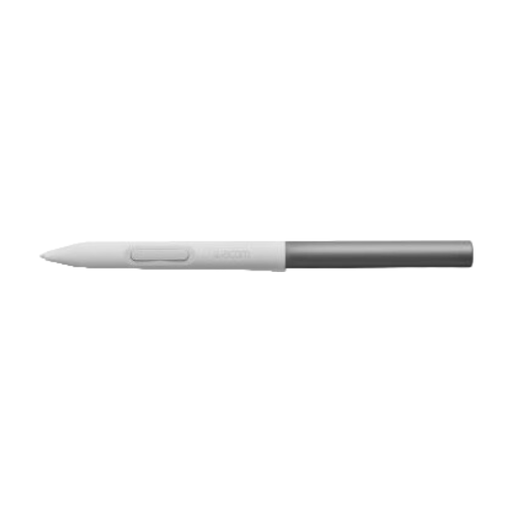 No image available
For drawing and sketching with the specified Wacom One DTC133. Check that this is the model you use.
 No image available
For drawing on selected iPad models. Check that your iPad is supported before buying.
Listed features include tilt detection, palm rejection and USB-C charging. Magnetic attachment is for storage, not wireless charging.
 No image available
For drawing on a Surface that supports pen input. Microsoft’s pen features vary by Surface model, so check which charger is right for your setup too.
 No image available
For brush control on a compatible iPad. Apple lists squeeze and barrel roll as features of Pencil Pro.
Check that your iPad model is supported and has the required version of iPadOS: Apple specifies iPadOS 17.5 or later.
 No image available
For drawing and hatching on a compatible iPad. Check compatibility with your specific model.
Apple describes pairing and charging via a USB-C cable. The USB-C model has its own set of features, so don’t assume it offers the same controls as other Pencil generations.
Find your full iPad model and compare it with Apple’s compatibility list for the Pencil generation you’re considering. Apple also specifies iPadOS 17.5 or later for Pencil Pro.
Follow the pairing steps for your specific iPad and Pencil combination. Apple describes magnetic pairing for Pencil Pro and the 2nd generation; some combinations with the 1st generation require an adapter.
No, not always. Microsoft says compatible Surface devices or accessories can charge the pen. A separate charger is available if your setup requires one.
When you buy online from a business, you usually have 14 days to change your mind, subject to legal exceptions. You’re also entitled to a product that meets the terms of the sale. The Dutch Government states that there’s no fixed statutory guarantee period in the Netherlands; if a product is faulty, the seller must provide a solution.