What should you look for when buying?
First, check that the pen works with your device and app. Then decide whether you want to work directly on a tablet screen or use a drawing surface alongside your computer.
| What to consider |
What should you check? |
Who is this important for? |
| Compatibility |
Note your device model and software version, then compare them with the compatibility list for the exact pen variant. |
If I want to keep using my existing tablet, the pen needs to be an exact match. Around 33% of consumers say compatibility is their main concern. |
| Precision and drawing features |
Decide whether you’ll mainly select and move collage elements or also draw lines with varying strokes. Check which features your app supports. |
If you edit images precisely and draw as well, check which controls your app actually supports. Around 27% of consumers prioritise precision and drawing. |
| Desk space |
Measure the space available next to your keyboard and think about where you’ll keep the pen, cable and any separate drawing surface afterwards. |
At a shared desk, I want to be able to tidy away my workspace when I’m finished. Around 20% of consumers prioritise a compact set-up that’s easy to put away. |
| Set-up and maintenance |
Check what’s included, how the pen is charged and whether you’ll need a driver for the features you want. |
If I already own a device, I want to know what else I’ll need to make the whole set-up work. Around 20% of consumers focus on the complete set-up and maintenance. |
Joybuy products
This selection includes compact graphics tablets for computer use and styluses for compatible iPads.
 No image available
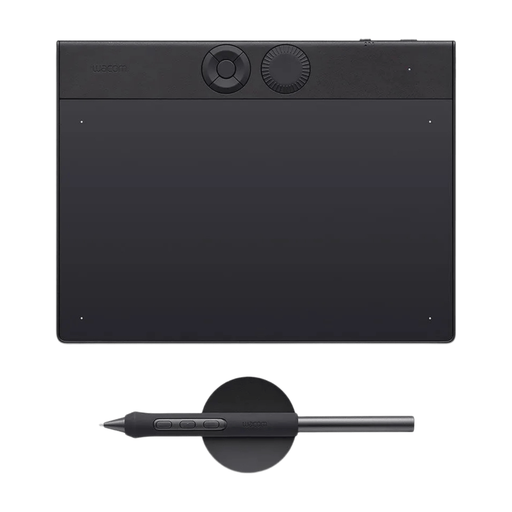
Wacom Intuos Pro Pen Tablet Small
A separate graphics tablet for creating collages on a computer. You draw on the tablet surface while looking at your computer screen.
Active area of 187 × 105 mm, four ExpressKeys and USB-C or Bluetooth connectivity. The pen supports pressure sensitivity and tilt recognition. The Wacom driver must be installed to use all the pen and shortcut-key features.
Joybuy
 No image available
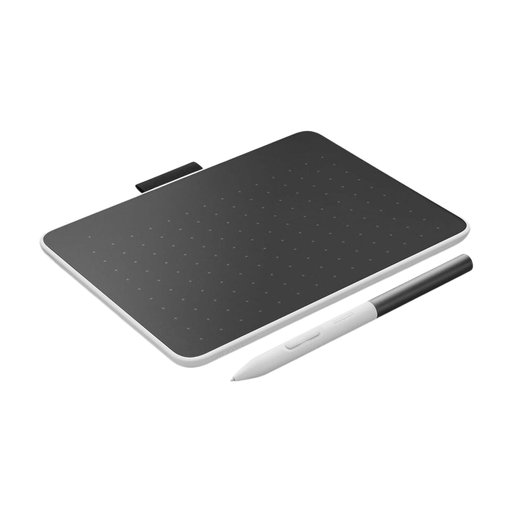
Wacom One pen tablet small - S
A compact graphics tablet with an included pen for creating collages on a Windows or macOS computer.
A6 working area and a battery-free pen, with Bluetooth 5.1 or USB-C connectivity. The pen is pressure-sensitive. The Wacom driver must be installed to use all the pen and shortcut-key features.
Joybuy
 No image available
Logitech Crayon USB-C Silver
A stylus for pointing and sketching on a compatible iPad. Check that your iPad is one of the supported models.
The product description lists USB-C charging and tilt control for varying line thickness. The stated compatibility applies to iPads from 2018 onwards running iOS 12.2 or later.
Joybuy
 No image available
Apple Pencil Pro
An active pen for creating collages on a compatible iPad, with extra controls for anyone who also wants to use drawing features.
The product description lists pressure and tilt sensitivity, magnetic pairing and charging, and squeeze, barrel roll and double-tap controls. The compatible models listed are iPad Pro with M4, iPad Air with M2 and iPad mini with A17 Pro.
Joybuy
 No image available
Apple Pencil USB-C White
A stylus for writing, drawing and sketching on a compatible iPad. Check the exact model before you choose.
The product description lists a USB-C charging port, magnetic attachment and tilt sensitivity. The hover feature only works with supported iPads.
Joybuy
Frequently asked questions
How do I know which Apple Pencil is right for my iPad?
Find your exact iPad model and compare it with Apple Support’s compatibility list. Apple specifies iPadOS 17.5 or later for Pencil Pro and iPadOS 17.1.1 or later for Pencil (USB-C).
Can I move photos individually in a collage?
In Procreate on iPad, you can add photos and work with layers. According to the Procreate handbook, layers let you edit image elements individually. Check that your own app supports adding images, layers and transforming elements.
Do I need to install a driver for a separate graphics tablet?
It depends on the model and computer. Huion describes the driver as the link between the graphics tablet and computer, enabling features such as pen pressure and shortcut keys. If you’re using a shared computer, check whether you’re allowed to install software, too.
What can I do if a pen I bought in the Netherlands is faulty?
According to the Government of the Netherlands, a product bought by a consumer must meet reasonable expectations. If it’s faulty, you can ask the seller to put things right. There is no fixed statutory guarantee period that applies to all products in the Netherlands. Normal wear and tear or damage caused by you don’t automatically entitle you to a free repair.
Do I have a cooling-off period when buying online?
According to the Government of the Netherlands, online distance purchases from a business usually come with a 14-day cooling-off period. There are exceptions, and purchases from private individuals aren’t covered by the same rules in the same way. Check the terms of your specific purchase.


