What should you consider when choosing?
First, check that the stylus works with your tablet. Then decide whether you need pressure sensitivity, tilt sensitivity or, above all, a practical way to store it.
| What to consider |
What should you check? |
Who is this important for? |
| Compatibility |
Compare your tablet’s full model name and software version with the compatibility list for the exact stylus variant. |
I want to avoid choosing a stylus that won’t work with my existing tablet. Around 36% of consumers give compatibility top priority. |
| Control over line strokes |
Check whether both the stylus and drawing app support pressure sensitivity, tilt sensitivity or additional brush controls. |
I want to vary the thickness of my comic lettering deliberately, so I’ll choose the stylus feature that lets me do that. Around 29% of consumers prioritise varying their lettering strokes. |
| Storage and getting started again |
Check whether magnetic attachment works with your tablet and how the stylus charges. |
I want to be able to clear my shared workspace between sessions and easily find the stylus again afterwards. Around 21% of consumers consider storage and getting started again the most important factors. |
| Tip and aftercare |
Check which tips or replacement parts are made for the exact version; distinguish wear and tear from a fault. |
I want to know how to replace a worn tip and what to do if there’s a fault. Around 14% of consumers prioritise maintenance and aftercare. |
Brands to compare
These brands offer relevant options to compare. The features listed apply to the product lines described and don’t indicate availability or performance in every drawing app.
Apple
Apple Pencil Pro and Apple Pencil (USB-C) offer different controls and charging options for compatible iPads.
- Apple lists squeeze, rotation and magnetic charging for Pencil Pro; compatibility depends on the iPad model and required software.
- Apple Pencil (USB-C) is described as offering tilt sensitivity and cable charging. These features aren’t based on an independent comparison of drawn lettering.
Samsung
The S Pen Creator Edition is designed for drawing with Galaxy devices that support this version.
- Samsung lists tilt sensitivity, magnetic storage and two included pen tips.
- Samsung says the Creator Edition doesn’t work with the Galaxy Z Fold series. Check your exact device.
Logitech
Crayon (USB-C) is an iPad stylus for drawing and writing, with simple controls.
- Logitech lists tilt sensitivity, palm rejection and USB-C charging for the Crayon described here.
- The manual consulted describes the Crayon as not pressure-sensitive and also covers a Lightning version. Check the details for the USB-C version.
Adonit
Note⁺ 2 is designed for drawing with an iPad that’s explicitly listed as compatible.
- Adonit lists pressure and tilt sensitivity, palm rejection and programmable buttons.
- Adonit says it doesn’t support Android or Microsoft devices, and magnetic attachment isn’t available on the 2024 iPads listed.
Stylus pens on Joybuy
This selection includes styluses for different devices, including iPads, MPP-compatible devices and specific Galaxy Tab models. Check that each stylus works with your tablet and drawing app.
 No image available
Logitech Crayon USB-C, silver
An option for drawing on a compatible iPad if you want to vary your strokes by tilting the stylus. The product information lists iPad models from 2018 onwards and iOS 12.2 or later; check that this version’s features and your drawing app meet your needs.
Joybuy
 No image available
Apple Pencil Pro (2024)
A good fit for drawing with pressure sensitivity, tilt sensitivity and additional controls, provided your iPad supports the stylus. The product information lists iPad Pro 11-inch and 13-inch (M4), iPad Air 11-inch and 13-inch (M2), and iPad mini (A17 Pro); also check that your app supports it.
Joybuy
 No image available
Apple Pencil (USB-C), white
An option for drawing with tilt sensitivity if you have a compatible iPad. The product information lists USB-C charging and magnetic storage on a compatible iPad; check that your model and drawing app are supported.
Joybuy
 No image available
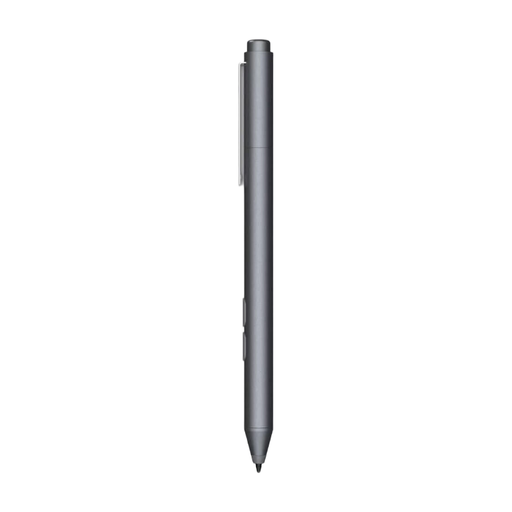
HP MPP 1.51 stylus pen
An option if you’re looking for pressure-sensitive strokes and customisable buttons on a device that supports MPP. The product information lists one replaceable tip and an AAAA battery; check your device’s compatibility before choosing.
Joybuy
 No image available
Samsung EJ-PX510, beige, 8.7 g
An option for drawing and sketching with the Samsung Galaxy Tab S9 FE or S9 FE+ models listed. The product information mentions magnetic attachment to the tablet; check that this version is compatible with your specific device.
Joybuy
Frequently asked questions
How can I avoid choosing a stylus that won’t work with my tablet?
First, find your tablet’s full model name and compare it with the compatibility list for the exact stylus. For Apple Pencil Pro and Apple Pencil (USB-C), Apple also lists different minimum iPadOS versions.
Which stylus feature can help me vary the lines in my lettering?
It depends on how you want to adjust the line: pressure sensitivity and tilt sensitivity are different features. Check that both the stylus and the drawing app support the feature you want to use.
How do I charge and store the stylus when I need to clear the desk?
It varies by model. Apple describes magnetic attachment, pairing and charging for Pencil Pro, while Apple Pencil (USB-C) charges via a cable. Logitech lists USB-C charging for Crayon (USB-C); check separately whether magnetic attachment works with your tablet.
What can I do if the pen tip is worn?
First, check which tip is made for your stylus version. Samsung lists two tips and a replacement tool with the S Pen Creator Edition; Logitech describes a separate replacement tip for Crayon. According to the Netherlands Authority for Consumers and Markets, normal wear and tear doesn’t automatically entitle you to a free replacement under the statutory guarantee.
What are my rights when I buy online in the Netherlands?
For many online consumer purchases, you have a 14-day cooling-off period, with some exceptions. If a product is faulty, you have statutory rights and should contact the seller to arrange a solution. According to the Netherlands Authority for Consumers and Markets, the Netherlands doesn’t have a fixed statutory guarantee period of two years.


