Who is this for?

Lettering artist with an existing tablet

Looking for a compatible pen and precise control over fine contours or varied line weight, without needing to buy a new screen. Apple UK, Samsung UK and Microsoft list compatibility by iPad, Galaxy Tab or Surface model.

Artist dealing with distracting window glare

Finding it difficult to judge lettering clearly on their current screen and needs to consider the screen’s position and surface too. Samsung and Huion specify anti-glare features for particular products.

Creator looking for a drawing surface too

Has a computer workstation and is considering a pen display with its own pen, rather than just a separate stylus. Huion and Wacom describe these pen displays as standalone products.

What should you look for?

A separate pen for your existing tablet

Choose this option: if the screen is easy to read by the window and you’re mainly looking for control over your lettering strokes.

Bear in mind: the pen must be compatible with your exact tablet model; a different pen won’t solve screen glare.

A pen display with its own pen

Choose this option: if you’re looking for a different drawing surface as well as a pen, and have a compatible computer.

Bear in mind: connections, workspace and the visibility of the specific screen; anti-glare features don’t guarantee that every screen will be easy to see in the light from your window.

Key consideration What to check before buying Who is it most important for?
Compatibility Compare the full tablet name and generation with the compatibility list; for a Surface, check the charging options too. I want to keep using my current tablet and make sure the pen fits my exact model first. Compatibility is the top priority for around 33% of consumers.
Control over lettering strokes Check whether the pen is pressure-sensitive and whether your drawing app links pressure to the brush you’ve chosen. I want to vary the line weight of my hand-drawn lettering with pressure. This is the top priority for around 27% of consumers.
Visibility by the window First assess the screen in your workspace; then check whether a screen protector is suitable for your model. I need to judge small lettering clearly and want to know whether the screen itself is the limitation. Visibility is the top priority for around 20% of consumers.
Workspace setup For a separate pen, check how it charges; for a pen display, check the computer connection and the workspace you’ll need. I want to know whether a separate pen will do, or whether I have the space and connections for a dedicated drawing surface. Workspace setup is the top priority for around 20% of consumers.

Common buying mistakes

  • Choosing a pen based only on the tablet brand

    Apple, Samsung and Microsoft list compatibility by device or product range. A pen made for a different generation may not be suitable.

    Before buying, note down the full tablet name and generation, then compare them with the manufacturer’s compatibility information.

  • Confusing tilt sensitivity with pressure sensitivity

    Pressure and tilt are different pen features. In Procreate, pressure and tilt can affect brush behaviour independently.

    Decide whether you want a fixed or pressure-controlled line weight, then check both the pen’s features and the settings for your chosen brush.

  • Buying a new pen to fix screen glare

    A stylus won’t change the screen surface. What’s more, a screen protector or anti-glare screen may only be suitable for a specific model.

    First assess the screen’s position by the window, then check whether a screen solution is designed for your device.

  • Treating a pen display like a separate tablet pen

    A pen display is a different option from a stylus for your existing tablet screen, and requires a compatible computer connection.

    Before choosing, check the connection, power supply and workspace required for the exact model.

Brands to consider

Apple

Apple Pencil models are designed for specific iPad generations, making them worth considering if you already draw on a compatible iPad.

  • Apple lists features for Pencil Pro such as squeeze, barrel roll and magnetic charging.
  • Compatibility is limited to the iPads listed by Apple. The USB-C version charges by cable, and Pencil models aren’t interchangeable.

Samsung

Samsung offers S Pens for specific Galaxy Tab models, as well as separate anti-glare screen protectors for certain tablets.

  • Samsung lists pressure detection for the S11 series pen and an anti-glare coating for the specified screen protector.
  • According to Samsung, the S11 pen is compatible with the Tab S11 and S11 Ultra; the screen protector won’t necessarily fit every Galaxy Tab.

Microsoft

The Surface Slim Pen is designed for supported Surface devices and an existing Windows workflow.

  • Microsoft describes pen input and features that can vary by Surface model.
  • Charging methods also vary by device, and you may need a separate charger.

Huion

The Kamvas 13 (Gen 3) is a pen display with its own pen, for anyone looking for a drawing surface too.

  • Huion specifies anti-glare glass for the Kamvas 13 (Gen 3).
  • This is a pen display, not a separate pen for an iPad; the stated anti-glare feature doesn’t guarantee good visibility in every window setup.

Wacom

The One 14 is a pen display for a computer workstation.

  • Wacom describes this model as having a directly bonded anti-glare screen.
  • A pen display isn’t a standalone tablet or a universal replacement stylus.

Joybuy product picks

This selection includes separate styluses for a range of tablets and devices. Check compatibility for each model; a pen on its own won’t change screen glare.

iPad stylus with USB-C charging port, tilt detection, palm rejection and magnetic attachment

iPad stylus with USB-C charging port

For drawing on a compatible iPad if you’re looking for tilt detection and palm rejection.

The product name lists a USB-C charging port, magnetic attachment, tilt detection, palm rejection and an LED battery level indicator. Compatibility is specified for selected iPad models.

View at Joybuy

Microsoft Surface Slim Pen 2, black, model 8WV-00002

Microsoft Surface Slim Pen 2 Black 8WV-00002

For anyone looking for a pen for a supported Surface device; check which features and charging options suit your model.

Microsoft notes that some charging setups may require a separate Surface Slim Pen charger.

View at Joybuy

Apple Pencil Pro 2024 for iPad Air and iPad Pro

Apple Pencil Pro 2024, for iPad Air/iPad Pro

For varied lettering strokes on an iPad model that Apple lists as compatible with Apple Pencil Pro.

Check the exact iPad generation: compatibility is limited to the models specified by Apple.

View at Joybuy

Apple Pencil 2nd Generation for specified iPad Pro, iPad Air and iPad mini generations

Apple Pencil 2nd Generation

For drawing on a compatible iPad; check that your tablet generation is included in the product’s compatibility information.

The product name lists iPad Pro 12.9-inch (3rd, 4th, 5th and 6th generation), iPad Pro 11-inch, iPad Air (4th and 5th generation) and iPad mini (6th generation).

View at Joybuy
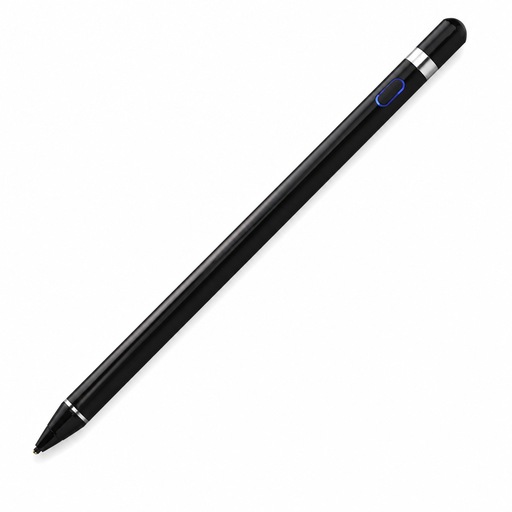
VoxorAI HL-U05 Black stylus

VoxorAI HL-U05 Black Stylus

For anyone looking for a stylus for a capacitive screen; check first that the stated device and app compatibility suits your needs.

The product information lists Bluetooth pairing with the companion app.

View at Joybuy

Frequently asked questions

Do I need to change any settings in my drawing app to vary the thickness of my comic lettering?

Yes. Check whether your chosen brush links pen pressure to a setting such as size. Procreate offers settings for pen pressure and line stabilisation; the effect depends on the pen, app and brush.

Can a different stylus get rid of glare from a window?

No, a stylus won’t change screen glare. First assess the screen’s position. Samsung lists anti-glare screen protectors for certain tablets, while Huion specifies anti-glare glass for the Kamvas 13 (Gen 3). These product specifications don’t guarantee that a screen will be easy to read in every lighting condition.

How do I know whether I need a charger for a Surface Slim Pen?

Check your exact Surface model and charging accessories in Microsoft’s compatibility information. Microsoft notes that a separate Surface Slim Pen charger is available if needed.

What warranty rights do I have in the Netherlands if my pen is faulty?

According to the Dutch government, you’re entitled to a product that works as it should, and the seller must provide a solution if there’s a problem. There’s no fixed legal warranty period of exactly two years in the Netherlands; what you can expect from a product depends on factors including the product itself.

Can I return a pen bought online if it doesn’t feel comfortable to draw with?

For a standard online consumer purchase, you generally have 14 days to cancel without giving a reason. The European Union’s Your Europe website explains this right of withdrawal; check the terms that apply and any exceptions for your purchase.
